Google Calendar stands out as one of the most reliable online scheduling tools. Its web interface is intuitive, but for maximum efficiency, integrating it directly into Thunderbird—your go-to email client—takes productivity to the next level. As a longtime Thunderbird power user with years of experience managing calendars across platforms, I've perfected this setup for bidirectional syncing.
Thunderbird includes the Lightning calendar extension (pre-installed since version 38), but it requires an additional add-on for full Google Calendar support, enabling read/write access.
Follow this proven guide to fully integrate Google Calendar into Thunderbird.
To enable Google Calendar integration, install these two Thunderbird add-ons:
Note: For read-only access to public calendars, Lightning alone suffices.
Open Thunderbird's menu (hamburger icon) > Add-ons and Themes > Extensions. If Lightning isn't installed, download it from Mozilla's site. For manual installs, click the cog icon > Install Add-on From File, select the file, and restart Thunderbird.
Once installed, spot the Lightning calendar icon next to Tasks in the top-right toolbar. Click it to access your calendar tab.
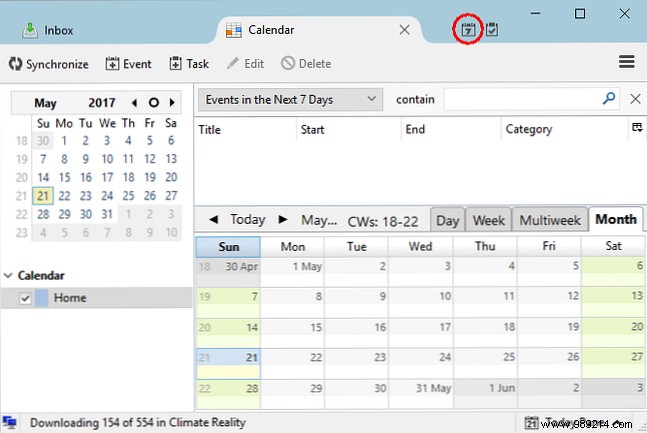
Lightning starts with a default local "Home" calendar. Right-click the calendar list > New Calendar. Choose On the network for Google integration.
Select On the network > Google Calendar (available post-Provider installation).
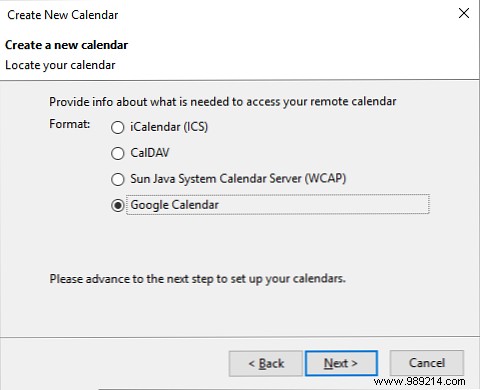
Note: Without the Provider add-on, public calendars can still be added via iCalendar (ICS) for read-only access.
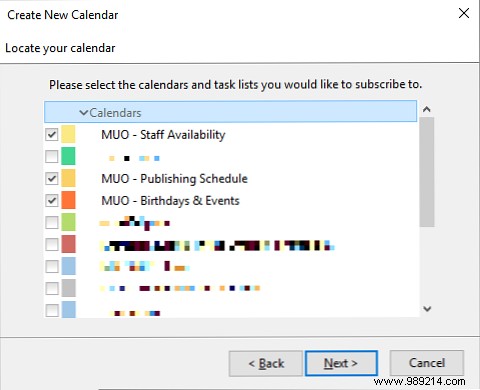
In the Discover Your Calendars dialog, enter your Google email, sign in, and grant permissions. Or select an existing session. Pick your calendars, click Next, confirm creation, and Finish.
Get the iCal (ICS) link: In Google Calendar web, hover over My calendars, click the arrow next to the calendar > Settings and sharing > Integrate calendar > copy the Secret address in iCal format (public calendars only).
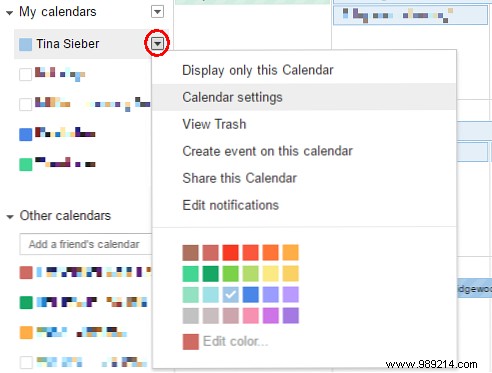

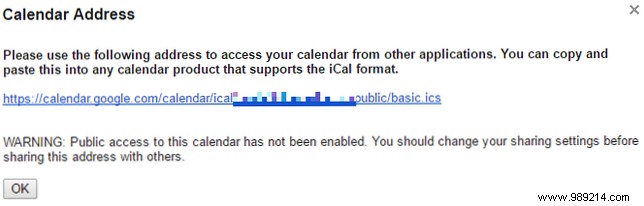
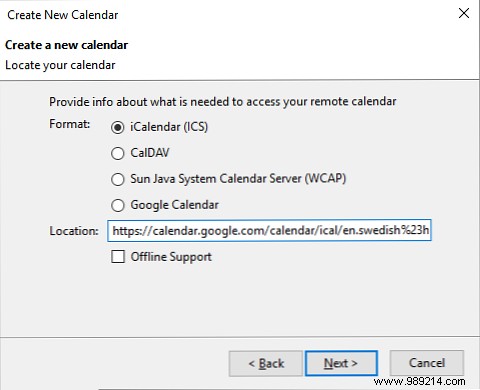
In Thunderbird: New Calendar > On the network > iCalendar (ICS), paste the link, configure name/color/reminders/email, and Finish.
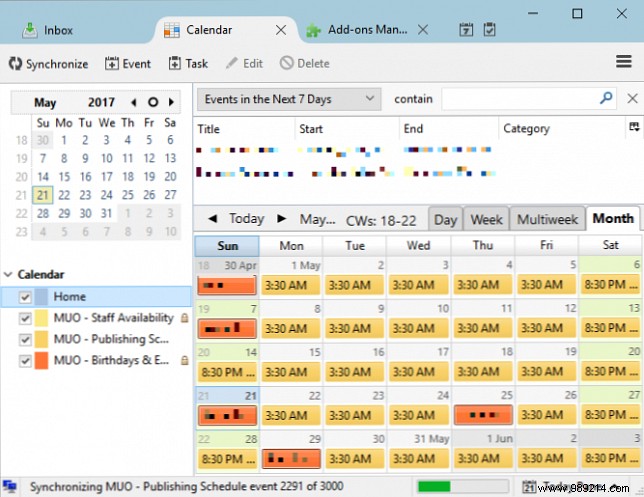
Your Google Calendar is now embedded in Lightning. Changes sync automatically in both directions—via web or Thunderbird. For troubleshooting, check the Mozilla Wiki on Provider for Google Calendar or its Google Group. Lightning docs: Mozilla Lightning Documentation.
Prefer the native web view? Install the Google Calendar Tab add-on. It adds a dedicated tab mimicking the full web app.
After installation, click the icon, sign in, and manage calendars seamlessly.

Options let you toggle standard Google Calendar or Google Workspace domains.
Whether via Lightning for deep integration or a web tab for familiarity, you've got options. Which do you prefer? Share your Thunderbird tips or favorite public calendars in the comments!
