As a tech expert with years of experience using Google Workspace tools, I know how crucial reliable access to your files is—especially in areas with spotty internet. Google Drive's offline mode lets you view and edit files without a connection, ensuring you're always productive.
Google has thoughtfully built this feature into Drive for seamless offline use on both desktop and mobile.
To enable offline access on a desktop or laptop, use the Google Chrome browser—it's the only supported option for full functionality.
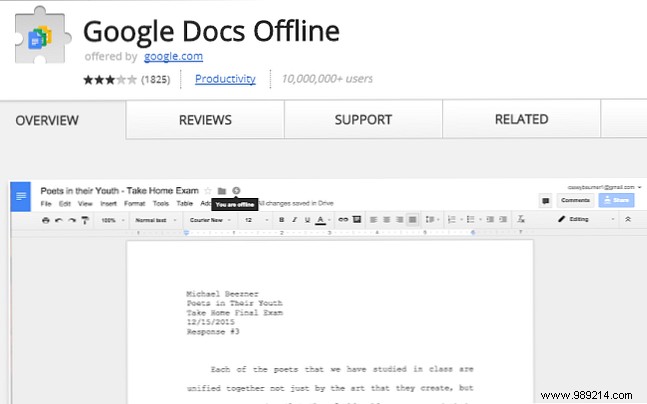
First, visit the Chrome Web Store and install the Google Docs Offline extension.
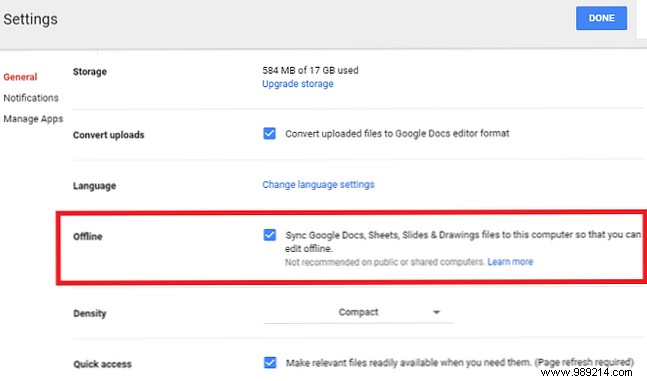
Next, open Google Drive, navigate to Settings > Offline, and check the box next to "Sync Google Docs, Sheets, Slides, and Drawings files to this computer so you can edit them offline."
The setup will activate in moments, syncing your files for offline editing.
On Android or iOS, the process is straightforward—no extension required. Open the Google Drive app, find your file, tap the three vertical dots next to it, and toggle Available offline to On.
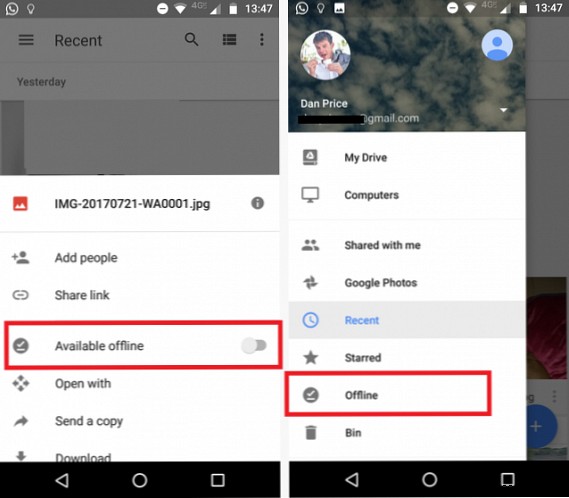
To view offline files, tap the three horizontal lines in the top-left corner and select Offline.
Note: Due to storage limits, you'll need to enable this per file rather than for your entire library.
Have you tried Google Drive's offline features? Share your experience in the comments below!
