Excel handles countless everyday tasks with ease, but massive spreadsheets push its limits. Whether you're shrinking oversized files or dividing huge CSVs, these proven techniques from years of data handling experience will help.
Excel's row limit stands at 1,048,576 rows (and columns). Hitting that threshold happens fast with big imports, like email marketing lists from CSV files.
Importing data into Excel is straightforward, but wrangling over a million rows? That's where splitting comes in. What if a client sends a CSV exceeding the limit from another tool? Here's how to break it into smaller, workable files.
(Need a test file? Grab the 260,000-row Hospital Compare dataset from data.gov—perfect for practice.)
Specialized software makes quick work of large files. Here are two reliable, free options I've tested extensively.
CSV Chunker
This open-source tool slices massive CSVs in seconds. It split our 260k-row Hospital Compare file into 106 chunks of 2,500 rows each in just 3 seconds.
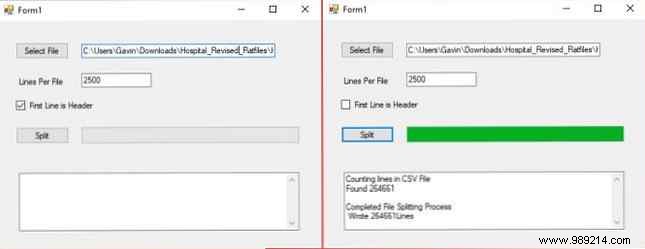
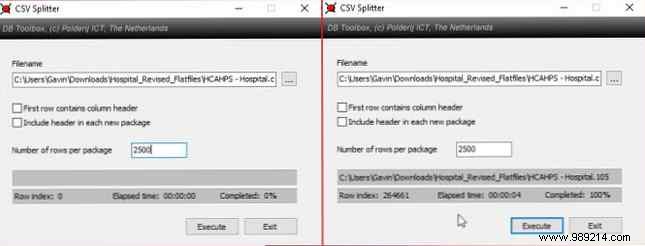
CSV Splitter
Similar power with a polished interface. It handled the same file in 4 seconds, producing identical 2,500-row chunks.
Batch files offer a no-install scripting solution for Windows. Customize this script for your needs—it's simple yet effective for routine splits.
Open Notepad, paste the code below, then save as a .bat file (e.g., splitcsv.bat).
@echo off
setlocal ENABLEDELAYEDEXPANSION

REM Edit this to set the input CSV filename (include extension).
SET "BFN=HCAHPSHospital.csv"

REM Edit this for lines per output file.
SET "LPF=2500"

REM Edit this for the base name of split files (numbers appended).
SET "SFN=HospitalSplitFile"

REM Do not edit below this line.
SET "SFX=%BFN:~-3%"
SET /A LineNum=0
SET /A FileNum=1

for /F "delims==" %%l in (%BFN%) do (
  SET /A LineNum+=1
  echo %%l >> "%SFN%!FileNum!.%SFX%"
  if !LineNum! EQU !LPF! (
    SET /A LineNum=0
    SET /A FileNum+=1
  )
)

endlocal
PauseDouble-click the .bat file to run. Note: It's slower than tools or PowerShell for huge files.
PowerShell outperforms batch files for data tasks. This script flew through our test file in 3 seconds.
Open PowerShell ISE (search "powershell ise"), paste into the script pane:

$i = 0
Get-Content "C:\Users\Gavin\Downloads\Hospital_Revised_Flatfiles\HCAHPSHospital.csv" -ReadCount 2500 | % { $i++; $_ | Out-File "C:\Users\Gavin\Downloads\Hospital_Revised_Flatfiles\split\splitfile_$i.csv" }
Customize:
Save (Ctrl+S) and run (F5). Original script here.
For analysis without splitting, use Excel 2016+'s Data Model. OneDrive engineer José Barreto demonstrated loading CSVs over 1M rows—up to 8.5M in pivots.
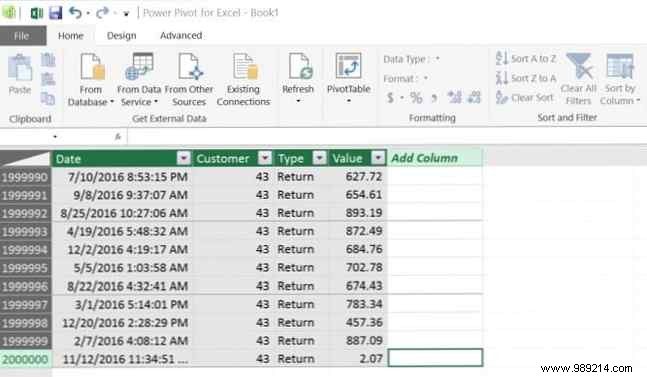
This binds the CSV directly, enabling pivots on millions of rows. Follow Barreto's tutorial for details. Ideal if you need Excel tools like Power Pivot.
These methods—tools, batch/PowerShell scripts, or Data Model—tackle any oversized CSV. Tools win for simplicity; scripts for customization; Data Model for Excel power users.
PowerShell edges out batch for speed. Which works best for you? Share your tips in the comments!
