Family Encyclopedia >> Work

How to Insert and Customize Checkboxes in Google Sheets: Step-by-Step Guide

Checklists are essential for organizing tasks, tracking progress, and boosting productivity. As a Google Sheets expert, I've streamlined countless workflows using checkboxes. Here's how to insert them effortlessly—no more relying on complex CHAR functions.

How to Insert a Checkbox in Google Sheets

Google Sheets now offers a direct way to add checkboxes via the toolbar, making it simple and intuitive.
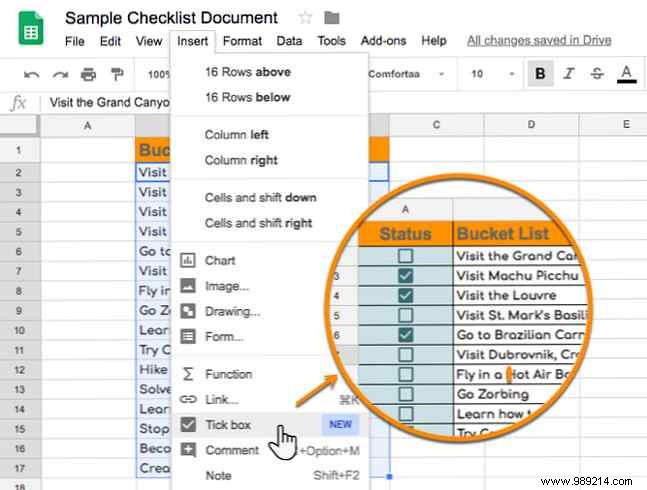
  1. Sign in to Google Drive and open a spreadsheet in Google Sheets.
  2. Select the cells where you want checkboxes. Alternatively, create your list first, then select the adjacent empty column.
  3. On the menu, click Insert > Checkbox.
    How to Insert and Customize Checkboxes in Google Sheets: Step-by-Step Guide
  4. To remove checkboxes, select them and press Delete.

Adjust checkbox size by changing the font size in the toolbar. By default, checked boxes return "TRUE" and unchecked ones "FALSE"—perfect for formulas, quizzes, or conditional logic.

Customize values with data validation for tailored outputs:
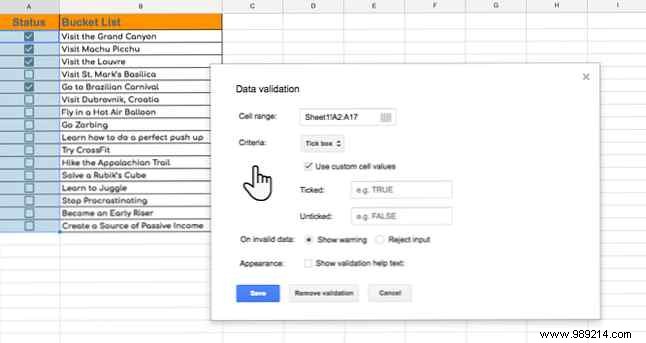
  1. Select cells with checkboxes.
  2. Go to Data > Data validation.
  3. In the dialog, set Criteria to Checkbox.
    How to Insert and Customize Checkboxes in Google Sheets: Step-by-Step Guide
  4. Choose Use custom cell values. Enter values for Checked and Unchecked.
  5. Click Save.

Master checkboxes to create dynamic checklists, reduce errors, and save time. Explore Google Sheets templates for even more efficiency.
