In today's digital landscape, safeguarding sensitive information is essential—whether you're handling confidential business data or personal notes. Revelations about surveillance programs like PRISM underscore the need for robust protection. Fortunately, Microsoft Office provides built-in tools to encrypt your files effortlessly, keeping them safe from unauthorized access.
Encryption transforms your data into a secure format that only the correct password can unlock. As someone who's guided countless users through these steps over years of IT experience, I can confirm it's simple and reliable for everyday use.
Microsoft has made file encryption incredibly straightforward. Open your document, go to File > Info > Protect Document, and choose Encrypt with Password. Enter a strong, memorable password, then press Enter. Your file is now encrypted and won't open without it.
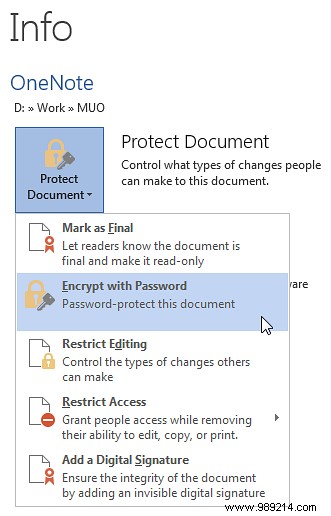
Simple, right?
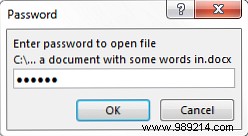
Since Office 2013, Microsoft upgraded to the Advanced Encryption Standard (AES) with a 128-bit key, SHA-1 hashing for key derivation, and Cipher Block Chaining (CBC) mode—a significant improvement over the previous Triple DES.
OneNote handles encryption differently due to its notebook structure. Unlike Word or Excel files, which use a single password, OneNote protects individual sections across notebooks—each requiring its own password.
Right-click the section tab and select Password Protection > Protect This Section. Enter your password in the dialog and click OK.
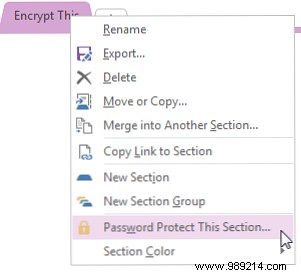
To secure multiple sections at once, right-click a protected section, go to Password Protection > Lock All Protected Sections, or use the shortcut Ctrl + Alt + L.
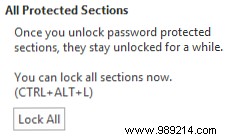
Locked sections aren't searchable until unlocked. Test this on practice notebooks to avoid frustration.
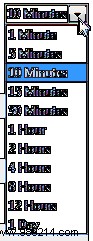
OneNote auto-locks idle sections after a set time. Adjust this via File > Options > Advanced, under Passwords:
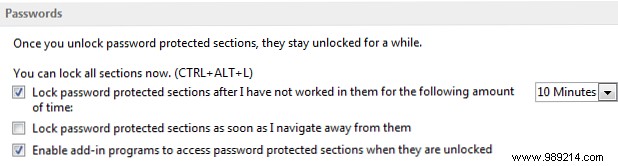
Enable Lock password-protected sections as soon as I navigate away from them for extra security.
No, stick with defaults. Office's AES-128 with SHA-1 and CBC is highly secure—2126.2 operations are needed to crack it, far beyond practical threats from cybercriminals. Tweaking requires the Office Customization Tool, but it's unnecessary and risky for most users.
Office's encryption is robust, but pair it with caution: verify email senders, avoid sharing unprotected copies, and store files securely. Do you rely on Office's built-in encryption, or prefer third-party tools? How do you manage OneNote passwords?
