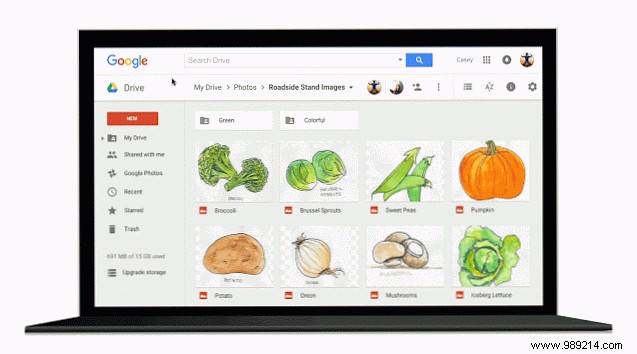
Google Drive provides 15GB of free storage, a complete online office suite, and tight integration with Gmail for a superior email experience. As your files accumulate, pinpointing the exact one you need becomes essential. Drawing from years of daily use, here are seven proven search tips to streamline your workflow.
Google Drive's search has evolved significantly from its basic origins—fitting for a Google product. Recent upgrades make it more powerful, with built-in OCR to scan text in images and PDFs alongside file contents.
To view all spreadsheets or other categories, tap the search bar for quick file type options:
Note: On desktop, click the dropdown arrow in the search bar or More search tools, then select Type for all options.
This groups files by category but doesn't distinguish extensions like PNG vs. JPEG. For precision, use search commands like those from the command line.
Organizing files by modification date is straightforward—ideal for tasks like pulling tax documents from a specific period. Access default ranges via More search tools on desktop and mobile:
Note: These filter by last modified date, not creation date.
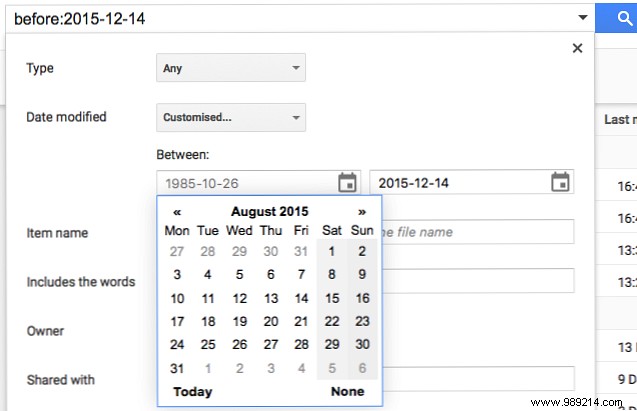
Desktop: Choose Custom and select dates from calendars.
Mobile: Use text commands before:yyyy-mm-dd and after:yyyy-mm-dd. Examples:
Before: before:2015-10-18
After: after:2015-04-22
Range: after:2015-04-22 before:2015-10-18
Managing shared files is easier with people-based filters in More search tools on desktop:
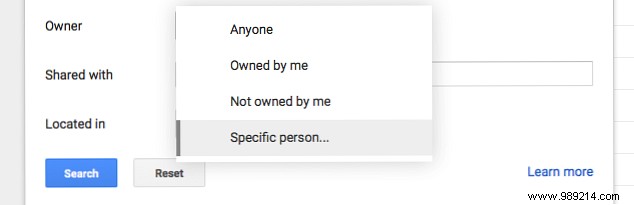
Mobile supports auto-suggestions with these commands:
Files from: from:donald@duck.com
Files to: to:daisy@duck.com
Files owned by: owner:donald@duck.com
Combine them: from:justin@company.com to:me@company.com owner:tina@company.com
Default searches scan names and contents, with OCR for images and PDFs. Google's AI even recognizes image subjects—like finding "dog" photos without the word in metadata.
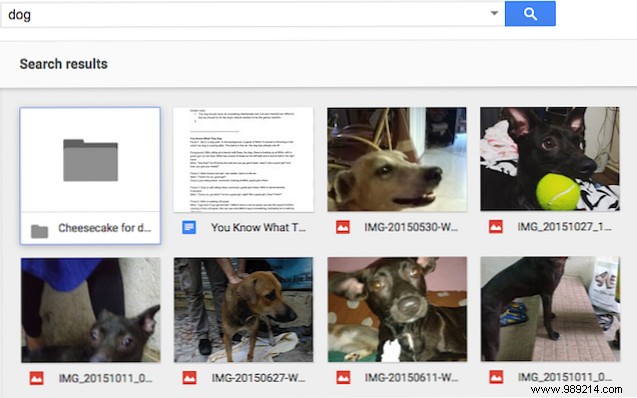
For titles only: Desktop uses the In name field; mobile: title:dog
Combine operators with spaces, like Google Search advanced tricks:
"exact phrase"
cat or dog
pizza -pineapple
application docs
Full list under Advanced Drive Search.
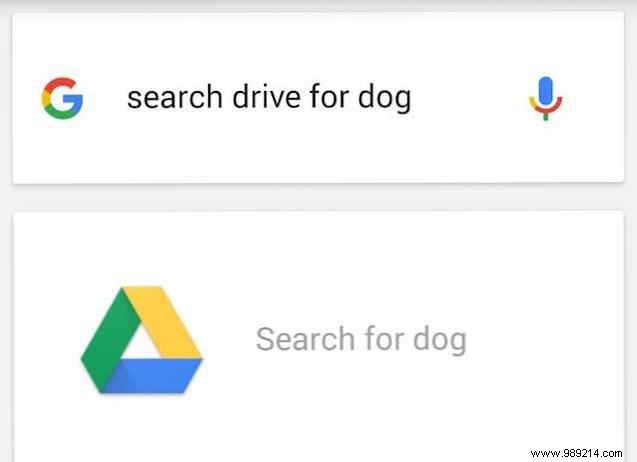
Use voice: Tap the mic and say "Show [file] in Drive" or similar via Google Assistant.
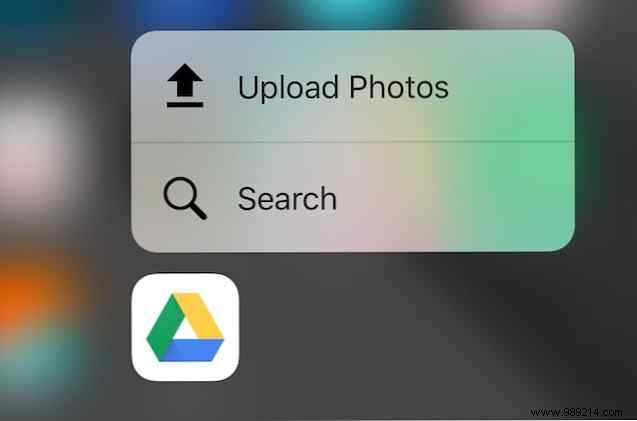
Use Spotlight search, or 3D Touch the app icon (iPhone 6s+) for quick access to recents or search.
I've fully embraced Google Drive for storage and collaboration. Have you switched? What features do you love—or what holds you back? Share in the comments.
