As a seasoned Google Workspace user with years of managing shared files for teams, I know how crucial it is to track who has access to your Google Drive content. Over-sharing can lead to security risks, but Google Drive's tools make it simple to review and control permissions. Here's a straightforward, battle-tested guide to mastering access management.
How to Check Who Has Access to Your Google Drive Files
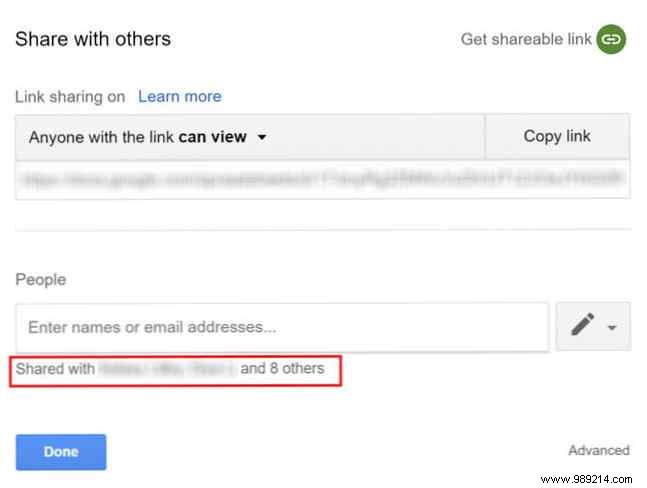
To manually review access for any file or folder:
- Locate the file or folder, right-click, and select Share from the menu.
- For one or two people, their names appear under People.
- For more, click the names to expand the full list.
How to Edit or Remove Users from Google Drive Shares
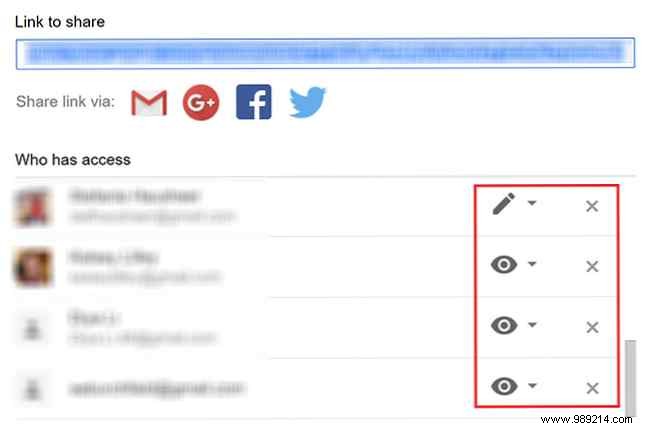
Open the Share window as above, then:
- Adjust permissions by clicking the icon next to their email: Viewer, Commenter, or Editor.
- Remove access entirely by clicking the X next to their email.
- Always hit Save to apply changes.
How to Disable Link Sharing on Google Drive
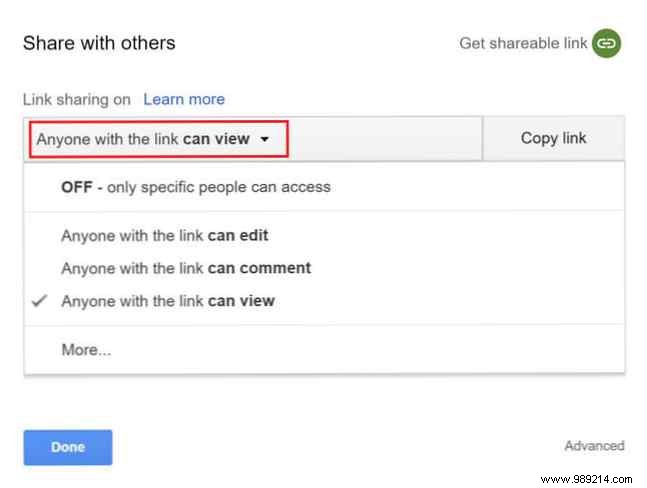
For public links shared without specific emails, revoke access like this:
- Right-click the file/folder and select Share.
- Under link settings, note options like Anyone with the link can view/edit/comment. Use the dropdown to change.
- Select Off to disable completely, then click Done.
This revokes access for all link holders. New links require fresh sharing. For safer collaboration, encourage copies instead of edits—try our 'Make a Copy' sharing trick to protect originals.
