The Developer tab in Microsoft Word and Excel gives you access to powerful tools like form controls, macros, and add-ins. It's hidden by default, but enabling it on the ribbon is straightforward. As someone who's customized Office setups for teams and projects, I'll walk you through the process and highlight key uses.
With the Developer tab, you can build personalized documents, automate tasks, and extend functionality—practical features I've relied on in professional workflows.
The steps are identical for both Word and Excel. We'll use Word here, but apply the same to Excel.
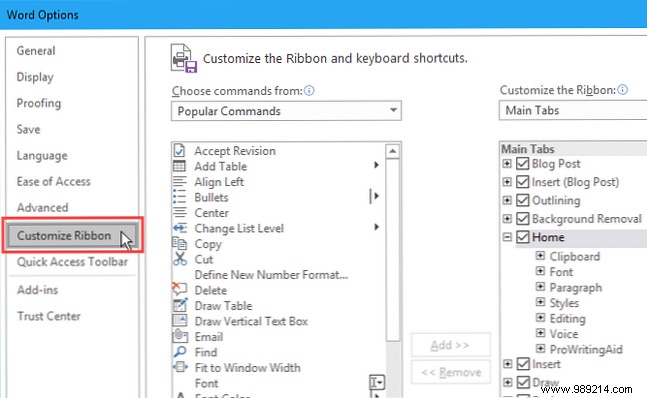
Go to File > Options. In the left pane, select Customize Ribbon.
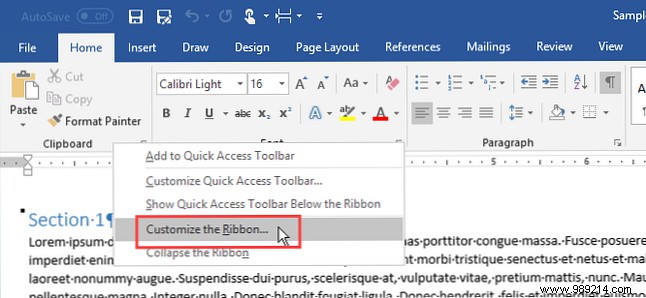
Or right-click the ribbon and choose Customize the Ribbon.
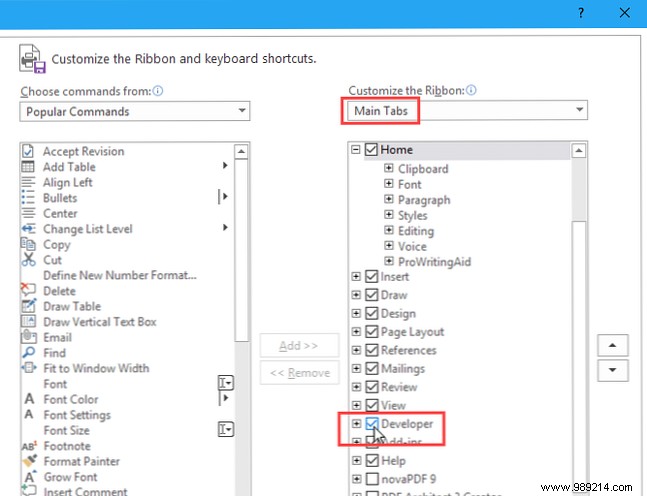
Ensure Main Tabs is selected in the right-side dropdown.
Check the box for Developer in the list, then click OK.
Use it to create fillable forms, record macros for automation, manage add-ins, protect documents, code in VBA, or handle XML data—capabilities that streamline complex projects.
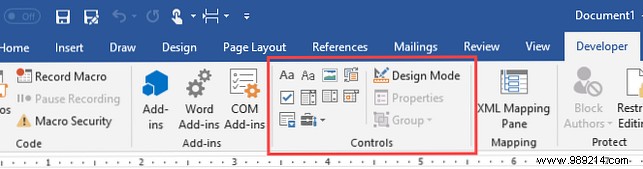
Design digital forms for feedback, events, or surveys without paper. The Controls section in the Developer tab lets you add drop-downs, checkboxes, text boxes, and building blocks. Create a Fillable Form in Word 2016 and Collect Data Easily. No printing required.
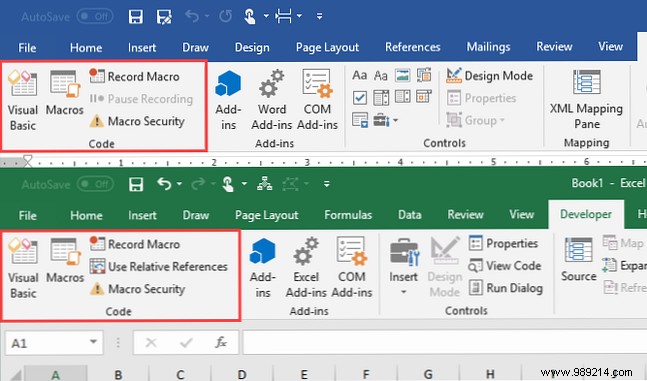
Automate repetitive tasks to save time. The Code section helps record macros or write custom VBA code—ideal for emailing from Excel or embedding data. How to Send Emails from an Excel Spreadsheet Using VBA Scripts.
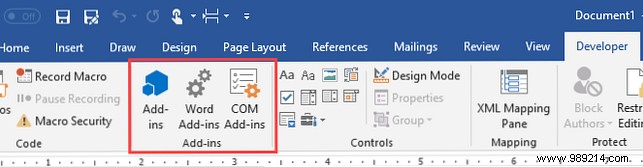
Extend Word and Excel with add-ins for more features. The Add-ins section finds, installs, and manages them. 10 Handy Productivity Add-ins for Microsoft Word.
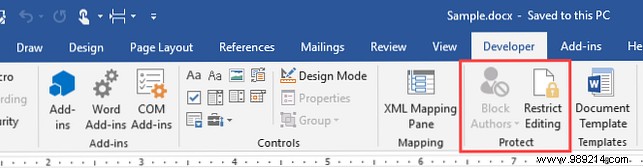
The Protect section limits changes during collaboration, allowing comments or edits to specific parts. How to Allow Editing of a Restricted Word Document. Note: Block Authors requires saving to SharePoint.
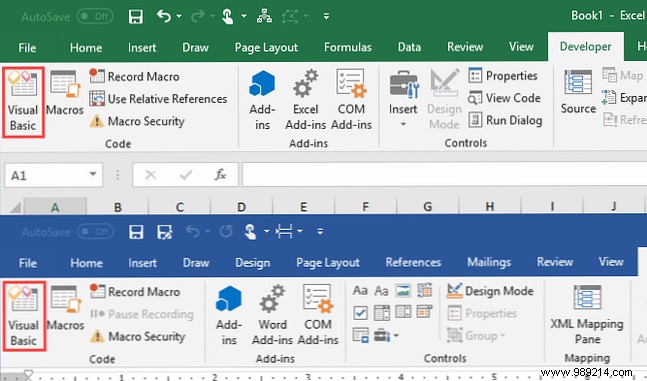
VBA enables advanced automation like custom forms and event responses. Excel VBA Programming Tutorial for Beginners.
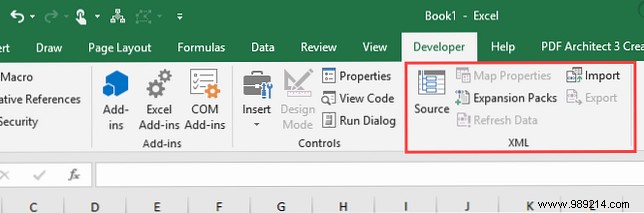
Import/export XML data for structured, machine-readable files. Excel's native format is XML-based. See Microsoft's XML in Excel overview.
Tailor the ribbon for efficiency. How to Optimize the Office 2016 Ribbon. Move the Developer tab for quick access.
