While Excel isn't as advanced as dedicated statistical software like SPSS or R, it's incredibly effective for basic calculations right out of the box. Add-ins can enhance it further—explore Power Up Excel with 10 Add-Ins to process, analyze, and visualize data like a pro.
You likely know basic arithmetic, but Excel also handles percentage changes, means, standard deviations, standard error, and even Student's t-tests with ease.
With built-in functions and simple formulas, Excel packs serious statistical power. As someone who's taught data analysis for years, I'll walk you through these essentials step by step. Let's dive in!
Percentages are straightforward: divide two numbers and multiply by 100. For example, to find what percentage 347 is of 521, enter =347/521 and press Enter.
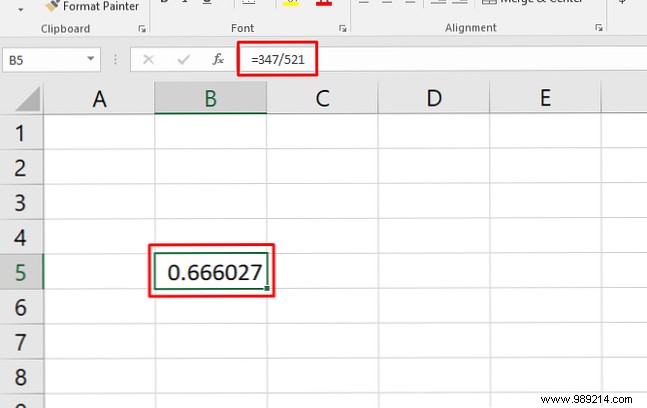
This yields a decimal like 0.67. Format as a percentage using Ctrl + Shift + 5 (a handy shortcut—see 60 Essential Microsoft Office Keyboard Shortcuts for more).
Alternatively, right-click the cell, select Format Cells > Percentage > OK.
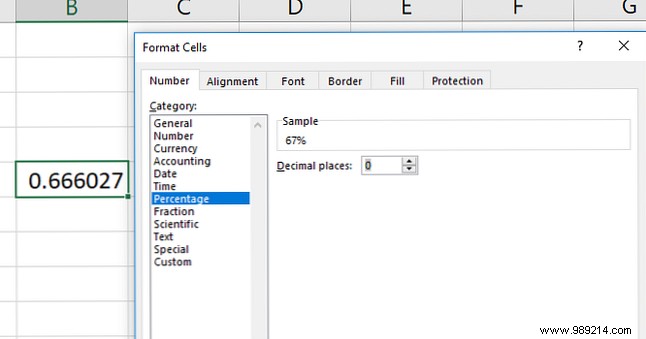
Cell formatting handles the ×100 automatically—don't multiply manually first, or you'll double it.
Tip: Master dropdown lists with How to Create a Dropdown List in Excel.
For percentage increase from 129 to 246: First, subtract for the change (=246-129 = 117). Then divide by original (=117/129 ≈ 0.906).
Combine into one formula:
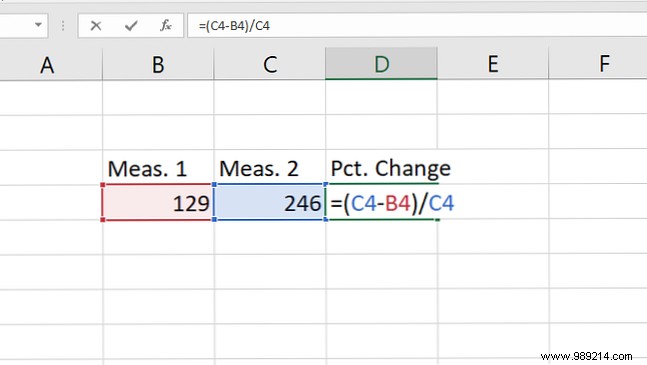
Format as percentage for ~91% increase. Quick check: 117 is nearly 129, so ~91% makes sense—a full 129 increase would be 100%.
Excel's AVERAGE function shines here (one of 16 Excel Formulas to Solve Real-Life Problems). Click a cell, type =AVERAGE(, select your range (e.g., B4:B16), add ), and press Enter.
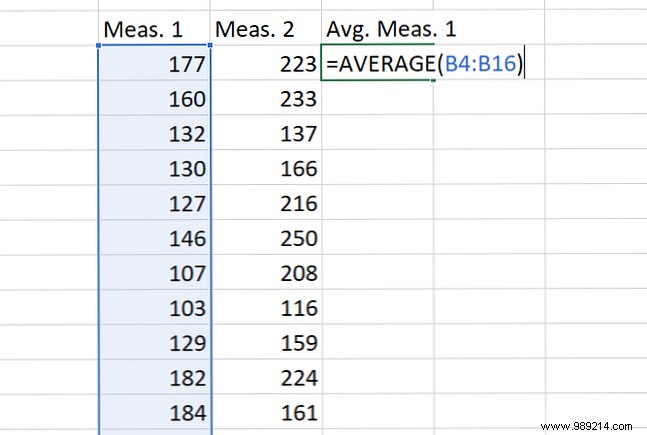
Done—your average appears instantly.
A t-test assesses if two samples differ significantly (p-value < 0.05 often indicates yes). For paired data—like pre/post-training weights—use a paired t-test.
Use T.TEST(array1, array2, tails, type):
=T.TEST(array1, array2, tails, type)Example formula:
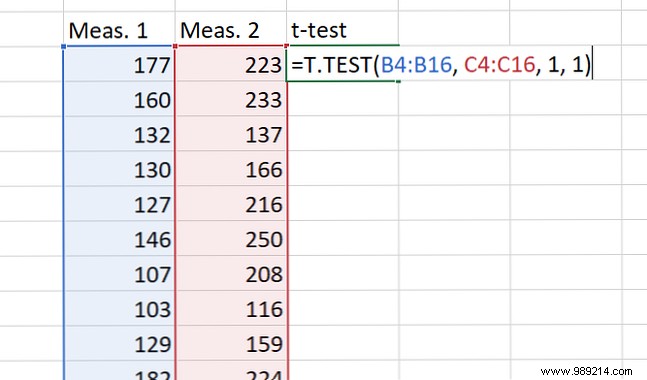
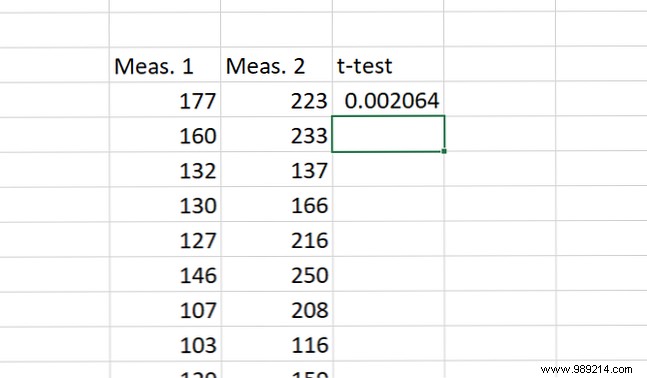
Press Enter for the p-value.
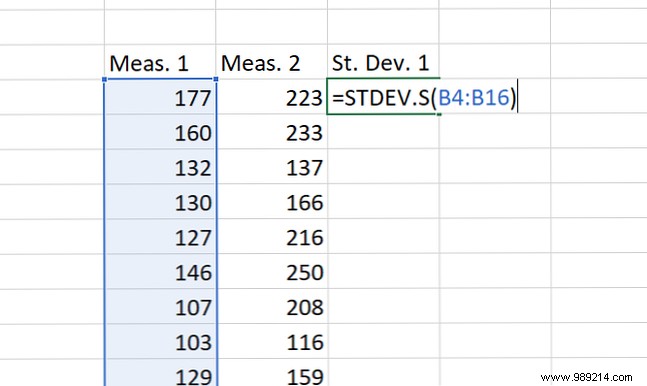
Use STDEV.S for sample data or STDEV.P for population (ignores text/logicals; use STDEVA/STDEVPA if needed).
Enter =STDEV.S(range) or similar, select cells, and go.
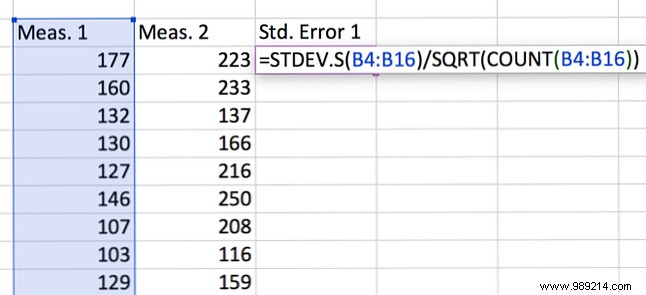
Standard error = standard deviation ÷ √n. Formula:
=STDEV.S(array1)/SQRT(COUNT(array1))Use COUNTA for text/logicals.
Excel handles stats well enough for everyday needs—percentages, averages, deviations, t-tests—without switching apps. For equations, try Goal Seek/Solver (How to Use Excel's Goal Seek and Solver).
Visualize with charts (How to Create Powerful Charts in Excel) and logic via IF statements (How to Use IF Statements in Excel).
