Traditional Microsoft PowerPoint presentations often follow a rigid, linear path from the first slide to the last—predictable and sometimes uninspiring. Yet, the most impactful presentations, like gripping stories, benefit from dynamic, non-linear navigation.
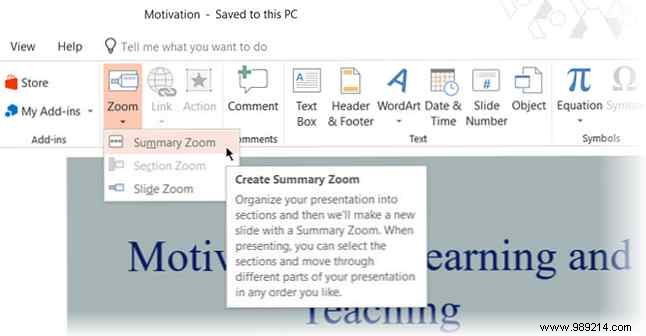
PowerPoint's Summary Zoom empowers you to jump freely between slides, injecting interactivity into your deck. Think of it as a customizable table of contents, letting you navigate in any order. Summary Zoom is available only to Office 365 subscribers on Windows.
Here's how to set it up:
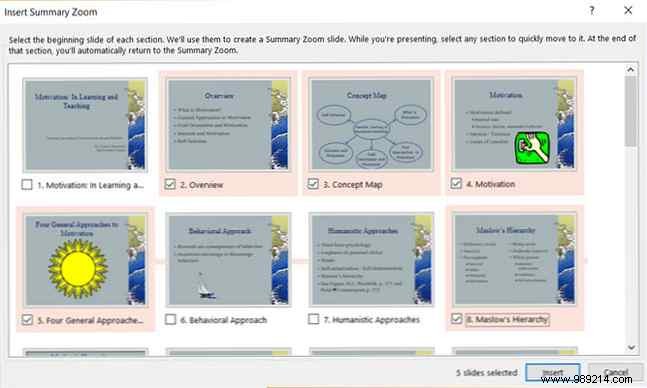
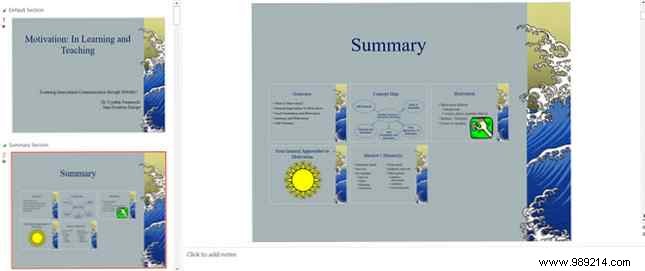
In Slide Show view, use Summary Zoom to guide your audience through key sections effortlessly. Skip supporting slides as needed, crafting a compelling narrative that keeps viewers engaged. This feature elevates your slideshows to professional levels with smoother flow and clearer storytelling.
