Microsoft Office 2016, released in late September 2015, introduced significant changes to its update system, mirroring aspects of Windows 10. This includes automatic updates and multiple branch options designed to balance new features with stability and security.
Here's a detailed look at what this means for your Office 2016 deployment.
Since its launch on September 22, 2015, Microsoft has fielded numerous questions about the new update process. Office 2016 adopts a branch model similar to Windows 10:
The key branches are:
Failing to install CB updates, like in Windows 10, can leave you without critical security patches, increasing vulnerability. CBB allows businesses a four-month deferral, but the next update is mandatory to avoid risks. Notably, there's no Long-Term Servicing Branch equivalent, focusing solely on security for extended periods.
Update timing depends on your subscription: Office 365 Business, ProPlus, Home, Personal, or University. For context, Office 365 overview and free upgrade guide provide more details.
We've compiled this rollout table based on Microsoft's schedule:
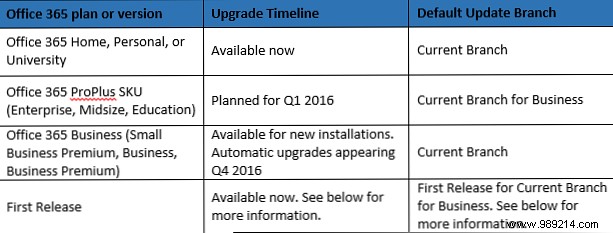
First Release participants, Office 365 Business, Business Premium, or Small Business Premium users get early access for testing new features, as previewed in Office 2016 previews.
Check Microsoft's guides:
For enrolled organizations:
This is exclusive to First Release and specified plans.
Like Windows 10's approach (upgrade details), Office 2016 prioritizes frequent, reliable updates. CB users act as early adopters, providing feedback to refine releases for CBB. This ensures faster features, better security, and predictable planning—less intrusive than past methods.
As experts in Microsoft ecosystems, we see this as a win: consistent updates reduce vulnerabilities, with CBB offering enterprise stability.
Most users will update seamlessly via notifications. Office 365 subscribers should monitor timelines. Note: Office 2016 Preview expires in Fall 2015—upgrade or revert to licensed versions, or explore alternatives.
Do you have Office 365? Planning to upgrade? Favorite Office 2016 features? Share in the comments!
