As a long-time Microsoft Word user and productivity expert, I've streamlined countless document workflows. While Word's collaboration features like Office Online enable real-time teamwork, combining files offline remains essential. Copy-pasting works for simple tasks, but Word offers robust built-in tools for professional results. In this guide, I'll share four reliable methods I've used in real projects.
If you have two slightly different versions of a document, manually spotting changes can be time-consuming. Word's Compare tool highlights differences, letting you merge them seamlessly.
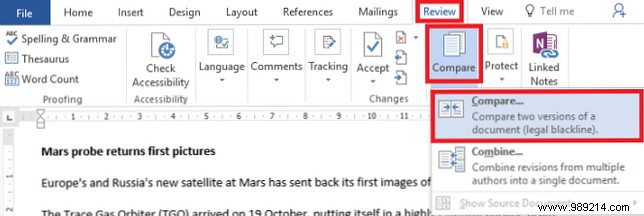
Start with the original document and go to Review > Compare > Compare. If unavailable, unprotect via File > Info > Protect Document.
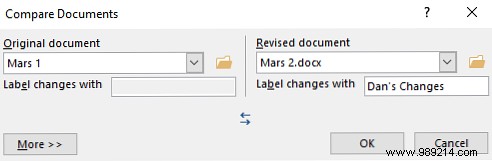
In the dialog, select the Original document and Revised document. Add a label for changes if needed.
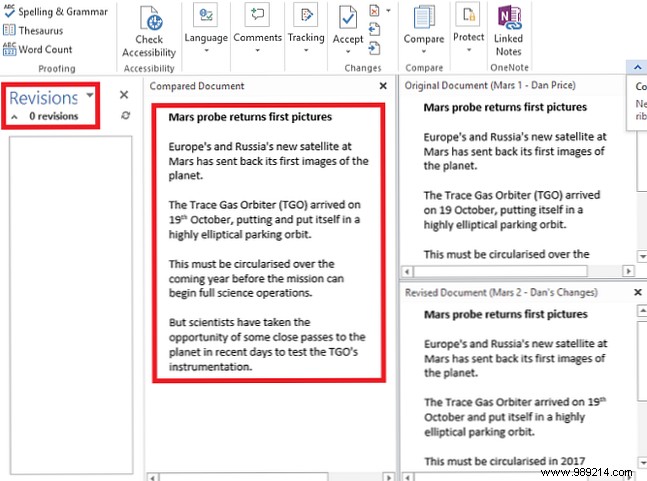
Word opens a new document: revisions in the left pane (1), comparison in the center (2), originals on the right (3). Hide sources via Compare > Show Source Documents > Hide Source Documents.
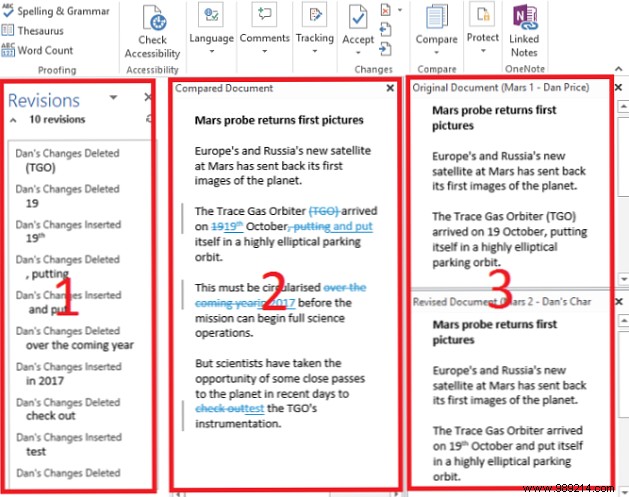
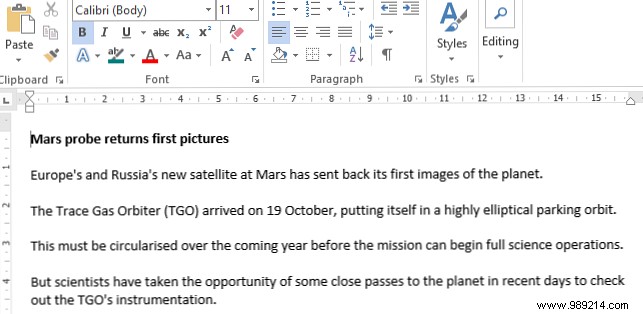
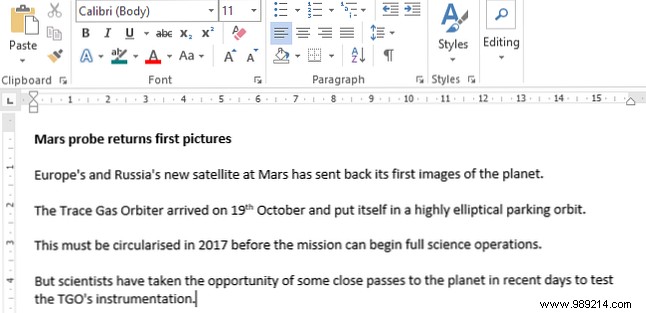
Review changes—additions are underlined, deletions struck through. For efficiency, use the left pane: right-click revisions to Accept or Reject.
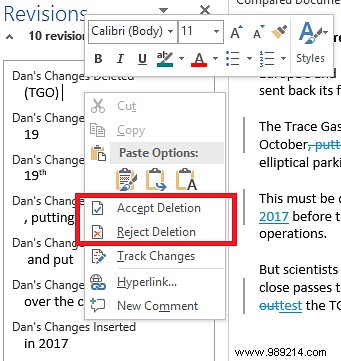
Once resolved (zero revisions), save your final document.
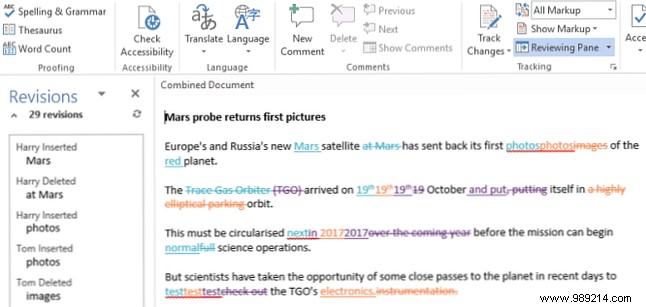
For files reviewed by multiple people, use Review > Compare > Combine. Label the first Revised document and click OK.
Then, set the merged file as Original and add the next. Repeat, using unique labels. Changes appear color-coded; accept or reject as before.
Extend merges to comments, headers, footers, and formatting. From Review > Compare > Compare (or Combine), click More >> for detailed options.
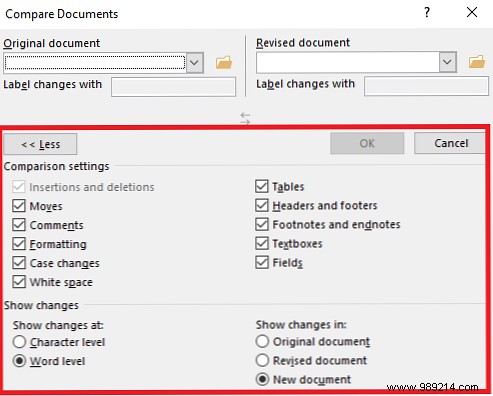
Select preferences and proceed to review changes.
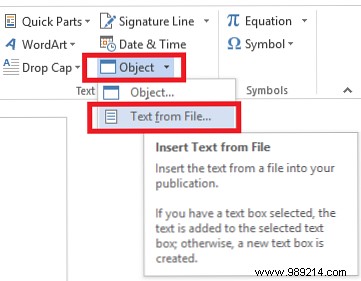
For distinct documents, open the master file and go to Insert > Object > Text from File. Select files to insert at the cursor, preserving original formatting.
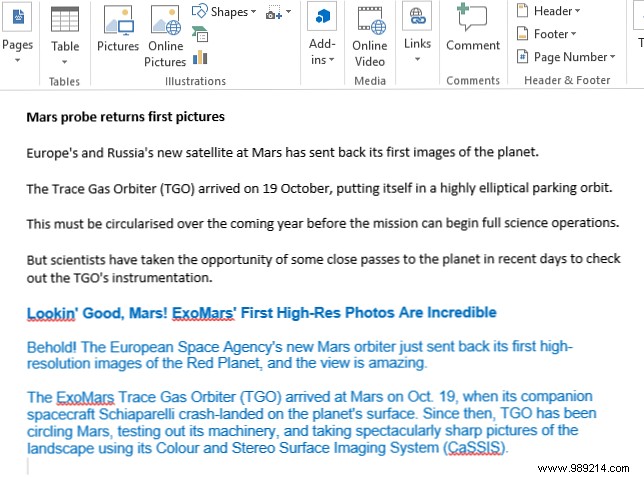
Repeat and save.
This step-by-step guide covers the most effective ways to merge Word 2016 documents, based on years of hands-on experience. If you hit snags, share your questions in the comments below—we're here to help.
