Setting up email on iOS or Android devices typically highlights IMAP as the primary protocol, with POP support being rare. Native iOS apps like Mail don't handle POP accounts, and even Android options are limited.
Curious about POP vs. IMAP? Our detailed comparison, 'IMAP vs. POP3: What is it and which should you use?', explains the differences and helps you decide. We've also covered adding and removing accounts in Apple's Mail app on Mac, iPhone, and iPad—though it only supports IMAP.
To access POP email locally on your mobile device, use Outlook.com as a reliable bridge. This method leverages Microsoft's ecosystem for seamless integration on iOS and Android.
You'll need a Microsoft account, such as outlook.com, live.com, or hotmail.com. Create one if you don't have it. For the best experience, use an email tied to your Office 365 subscription—unlocking ad-free access and enhanced security.
Add your POP account as a connected account in Outlook.com to make it available in the Outlook mobile apps.
Sign in to Outlook.com, then click the Settings gear icon in the top-right corner and select See all Outlook settings.
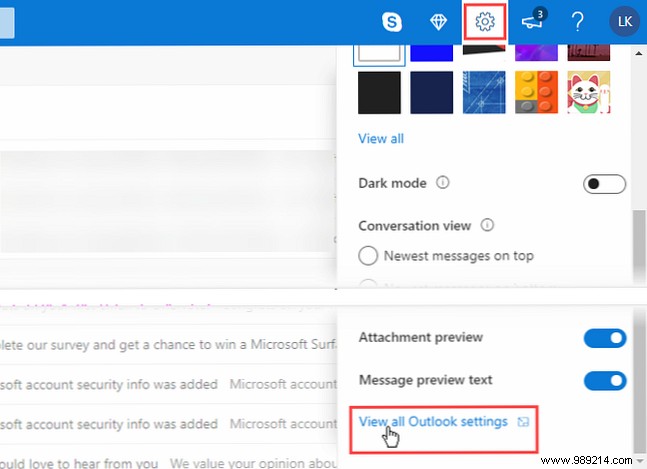
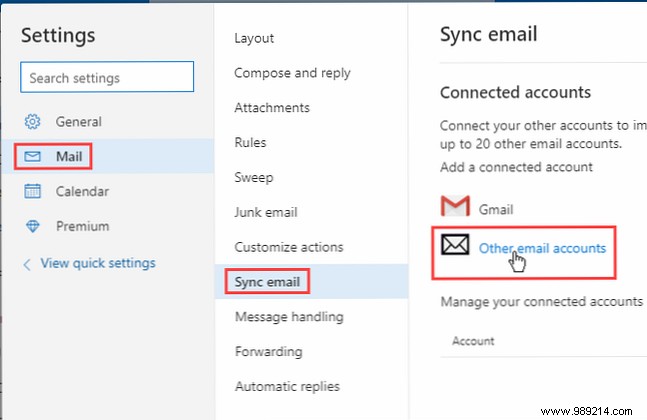
On the Settings screen, navigate to Mail > Sync email > Connected accounts > Other email accounts.
Gmail works best via direct IMAP, but for a custom domain POP example, proceed here.
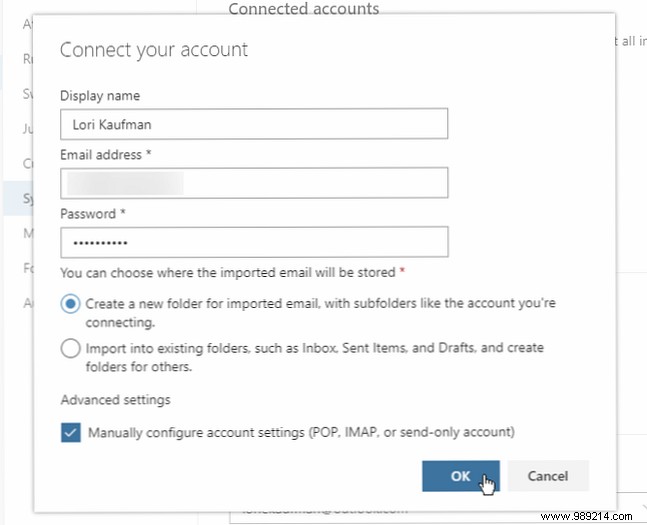
On the Connect your account page, enter a Display Name (what recipients see), your Email Address, and Password.
If two-factor authentication is enabled, review our guide on 'the advantages and disadvantages of two-factor authentication types and methods' for secure options. Generate an app-specific password from your provider's security settings and use it here.
To keep emails separate, select Create a new folder for imported email, with subfolders like the account you're connecting to. Otherwise, they'll merge with your Microsoft inbox.
For lesser-known providers, check Manually configure account settings.
Click OK.
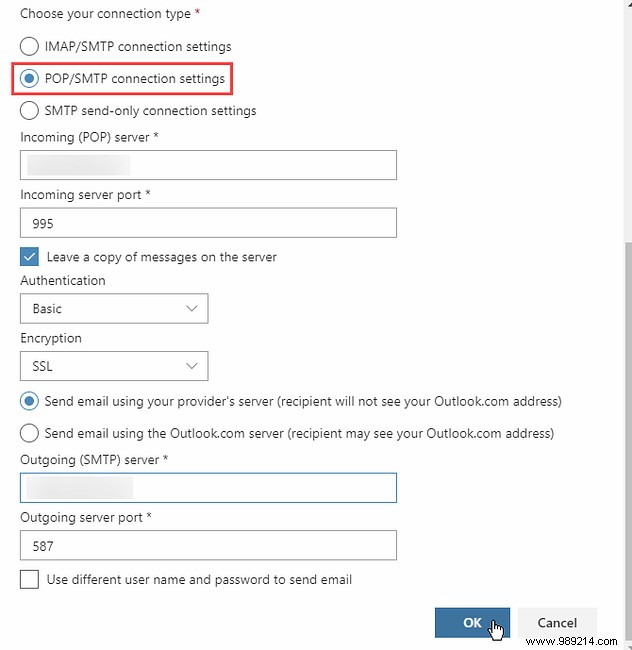
Under Choose your connection type, select POP / SMTP connection settings.
Input your Incoming (POP) and Outgoing (SMTP) server details and ports—obtain these from your email provider.
To hide your Microsoft address when sending, select Send email using your provider's server.
Click OK.
On the Sync email screen, click Save if needed, then Close (X).
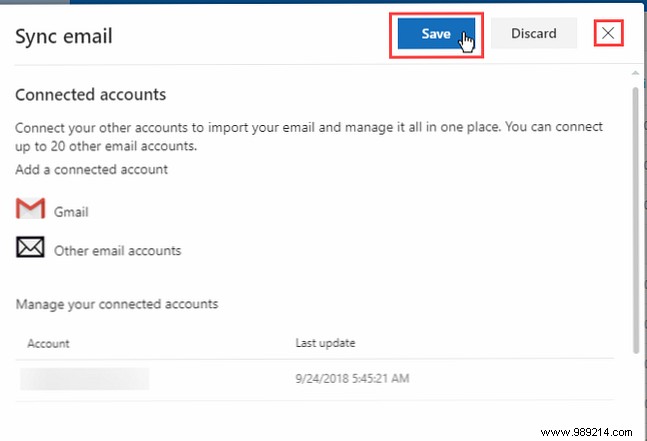
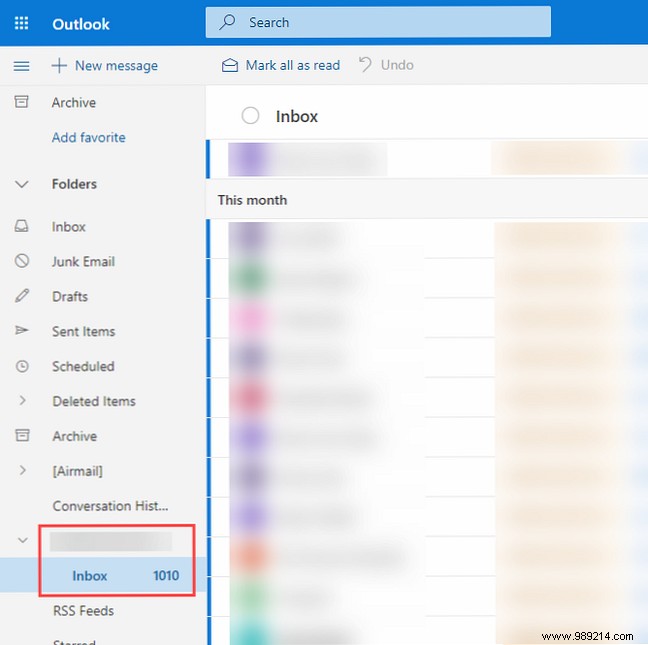
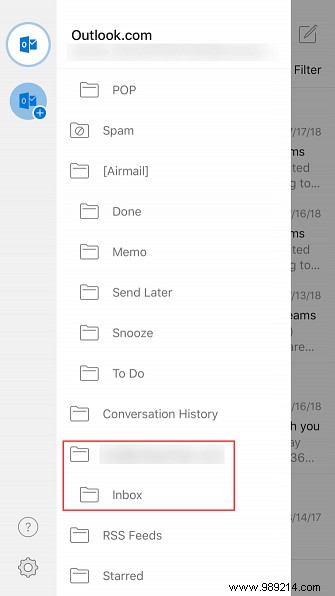
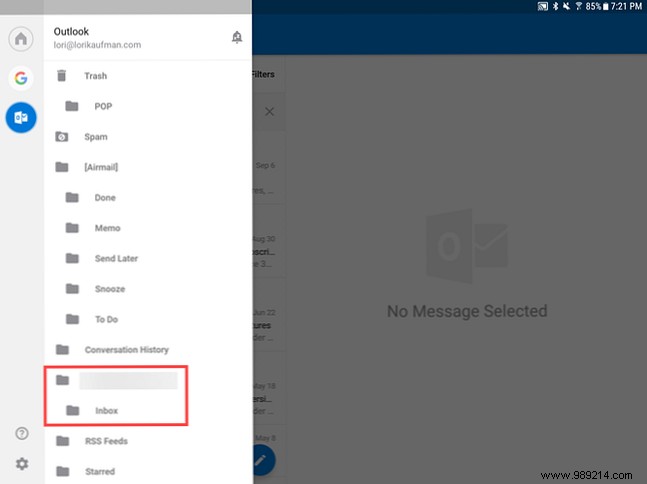
Your connected account appears under Folders, with its Inbox nested below. Click to view messages.
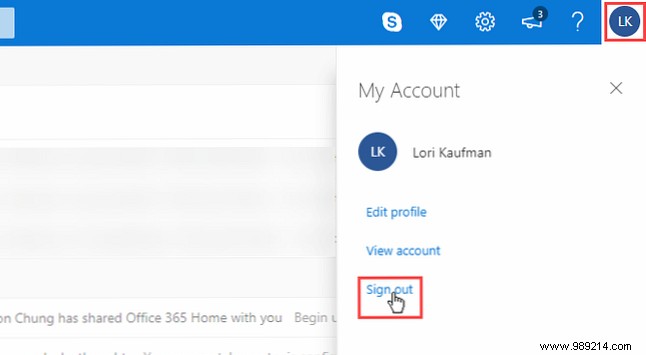
If it doesn't show, click your profile picture or initials top-right, sign out, and sign back in.
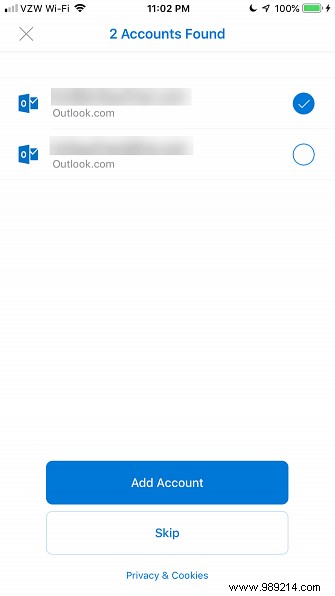
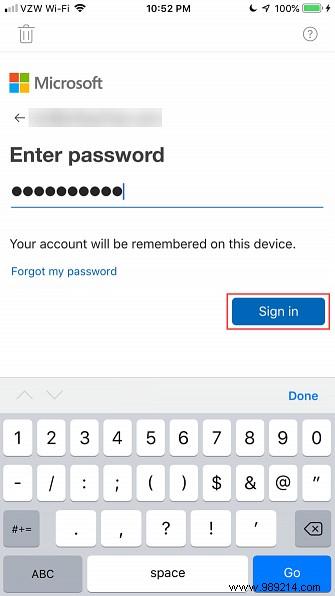
On first launch without accounts, the Accounts found screen appears—select only your POP account and tap Add account. Enter your password and tap Sign in.
Your account's Inbox will be visible in the folder list.
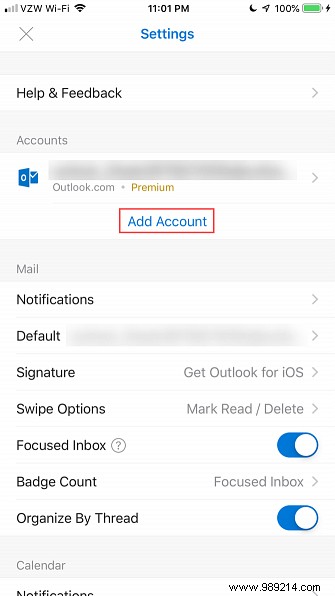
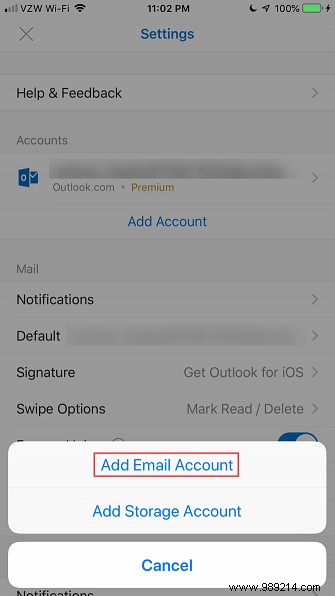
For existing setups, tap the top-left menu > Settings (gear) > Add account under Accounts > Add email account.
Outlook for Android detects connected accounts similarly. Select your POP one and tap Add account.
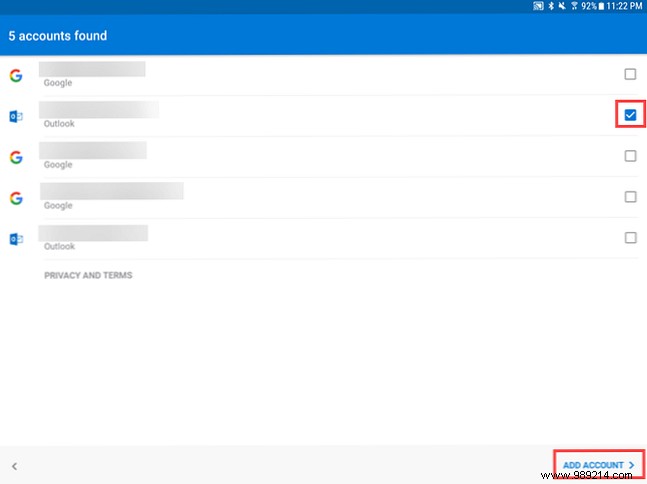
Skip adding others for now. Emails load based on account volume.
This Outlook workaround effectively brings POP to mobile. For alternatives, explore our picks like '5 Great Android Email Apps Compared' or iOS Mail tips in 'Tips and tricks for iOS Mail app to send emails like a pro on your iPhone'. Note: Most apps favor IMAP.
