Struggling with inconsistent font sizes or formatting in your Outlook emails? Outlook 2016 and later versions have quirks that can disrupt your design choices, but you can easily take control to ensure your messages arrive looking exactly as intended.
With years of experience managing Outlook for teams and personal use, I've mastered these settings. Here's a step-by-step guide to editing fonts in both desktop and web versions, plus troubleshooting tips.
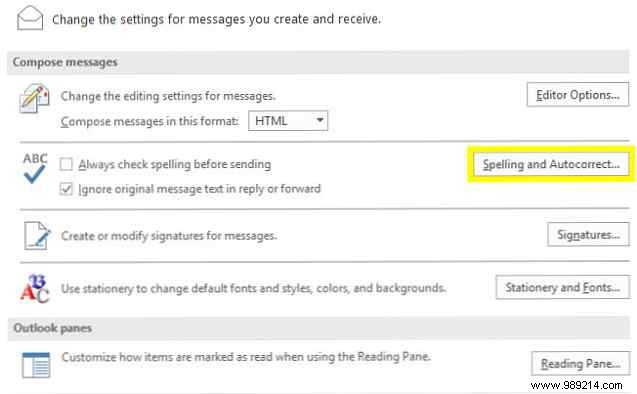
Go to File > Options > Mail, then scroll to the Compose messages section and click Stationery and Fonts.
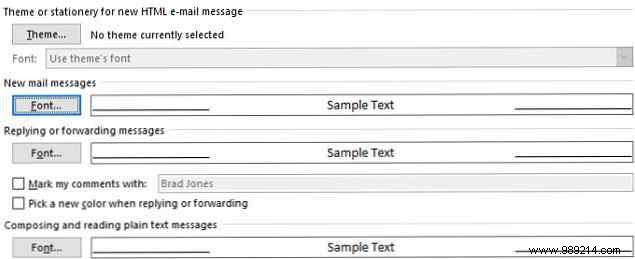
In the Personal Stationery tab, set profiles for new emails, replies/forwards, and plain text. Click Font... for each to select typeface, size, and effects like bold or underline.
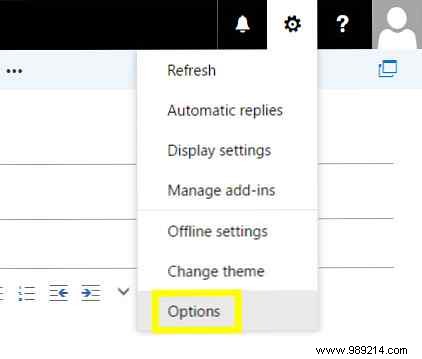
Click your profile icon in the top right and select View all Outlook settings > Mail > Compose and reply.
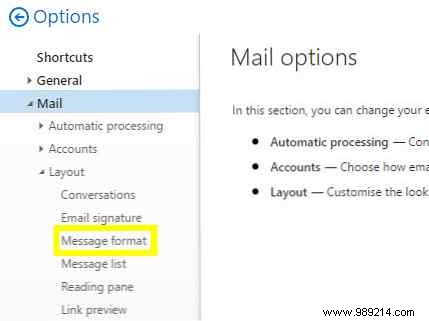
Under Message format, use dropdowns to choose default fonts for new messages, replies, and forwards.
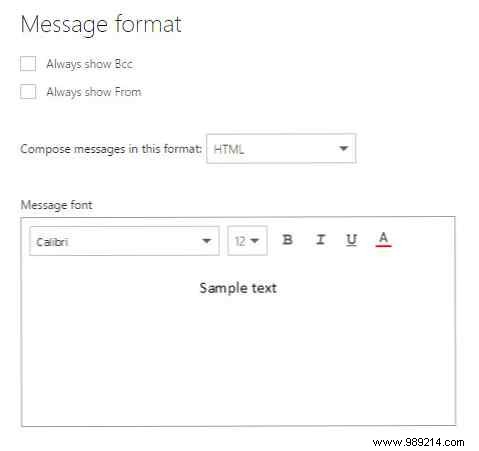
Always send a test email to verify. If issues persist, try these proven fixes.
Fonts appearing too small? Verify your browser or Outlook desktop zoom is at 100%. A mismatch can alter display sizes unexpectedly.
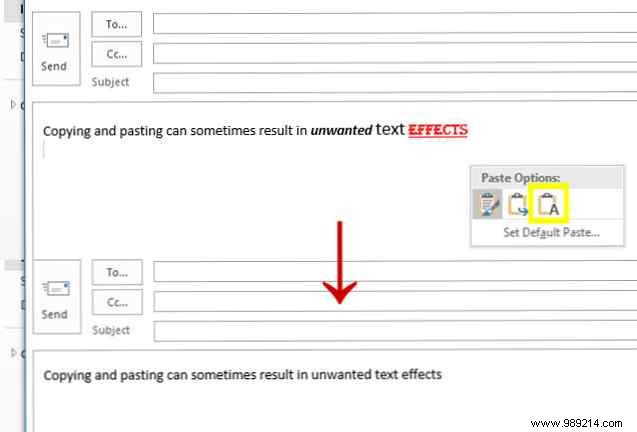
Pasted text often carries hidden HTML. Use the Paste Options menu to select Keep Text Only, or highlight and press Ctrl + Space.
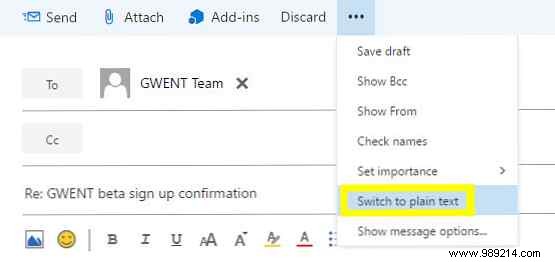
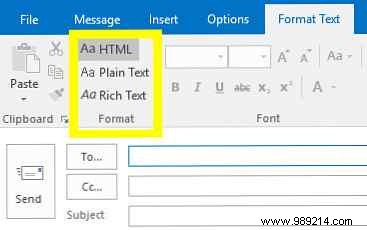
Mismatched formats (HTML vs. Plain Text) cause issues, especially in replies. In web Outlook, click the ellipsis (...) while composing and select Plain text or HTML. In desktop, use the Format Text tab.
Consistent formatting ensures professional impact. Prioritize clear, concise content—it always outperforms flashy design without substance. For signatures, embed images to avoid font reliance.
Share your tips or specific issues in the comments—let's help each other refine Outlook mastery.
