We've all hit "Send" on an email only to regret it seconds later—whether it's the wrong recipient, a heated moment, or a glaring typo. The good news? If conditions are right, you can recall it in Outlook.
Using Outlook with a Microsoft Exchange account opens this possibility, but speed is key, and success depends on several factors. As IT professionals with years of experience managing enterprise email systems, we've helped countless users recover messages. Below, we'll walk you through the process, requirements, and reliable alternatives.
Share your own recall stories or tips in the comments—we'd love to hear them.
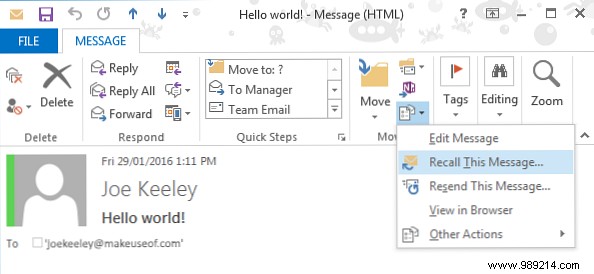
Recalling a message is straightforward. Go to your Sent Items folder, open the email, and ensure the Message tab is selected on the ribbon. In the Actions group (it may appear as an icon if your window is resized), click Recall This Message.
A dialog opens with options: Delete unread copies of this message to remove it from the recipient's inbox, or Delete unread copies and replace with a new message to send a corrected version.
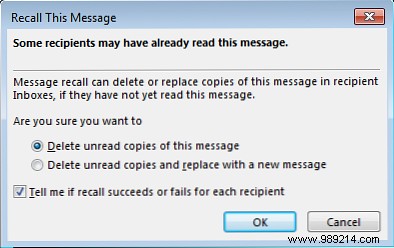
Check Tell me if recall succeeds or fails for each recipient for a status email. A Tracking icon will appear on the ribbon for results summary.
Click OK to initiate—the request goes to the recipient's server to delete the original.
This works only with Microsoft Exchange accounts where sender and recipient share the same server. Verify your account: File > Account Settings > Account Settings, check Type column on the Email tab.

It won't work for external emails (e.g., Gmail, Yahoo) once they leave your server—servers aren't required to honor recalls.
Even on the same server, success isn't guaranteed: The recipient must not have read it. If they have Automatically process meeting requests and responses to meeting requests and polls enabled (File > Options > Mail > Tracking), it processes silently.
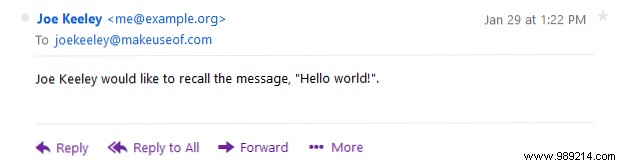
Failures occur if rules move it from Inbox, it's in a public folder read by others, or accessed via Outlook Web App or mobile—not desktop Outlook.
For frequent mishaps, prevent them proactively. Set a send delay rule: File > Manage Rules & Alerts. On Email Rules tab, New Rule, select defer delivery by a number of minutes (up to 120).

Gmail users: Settings (gear icon) > General > Undo Send—enable up to 30 seconds.
Recalling is simple, but success hinges on timing and setup. In our experience across thousands of Exchange deployments, delays are the most foolproof safeguard. Explore more Outlook tips like these hidden gems to streamline your workflow.
Got recall tips or close-call stories? Share below!
