Whether you're sketching on pen and paper, using digital notebooks, or leveraging PC apps, mind maps are powerful for organizing ideas. Microsoft Word works well for quick ones—check out our guide: How to Build a Mind Map in Microsoft Word. With thousands of daily thoughts, mind maps turn chaotic brainstorms into strategic plans. Here's how to craft one in PowerPoint.
How to Build a Mind Map in Microsoft PowerPoint
PowerPoint's versatile drawing tools shine for visuals, but SmartArt makes mind maps effortless, revealing the structure behind your ideas. Start with a fresh slide titled for your map.
- Create a new slide and add your mind map title.
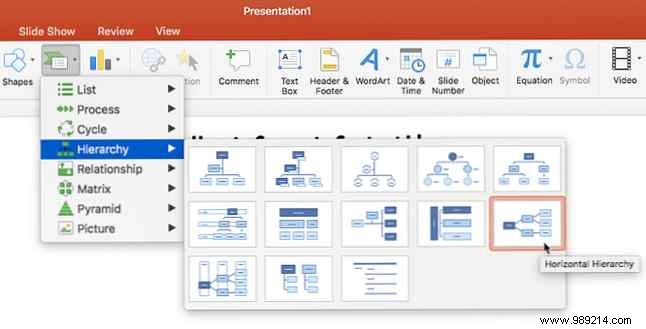
- Insert SmartArt for the layout. Choose Hierarchy > Horizontal Hierarchy from the Ribbon under Insert > SmartArt—it's ideal for mind map structures.
- Click the central box and enter your main theme, like "Content Ideas."
- Add main branches, such as "Recreate Top Posts" and "Ask Your Readers."
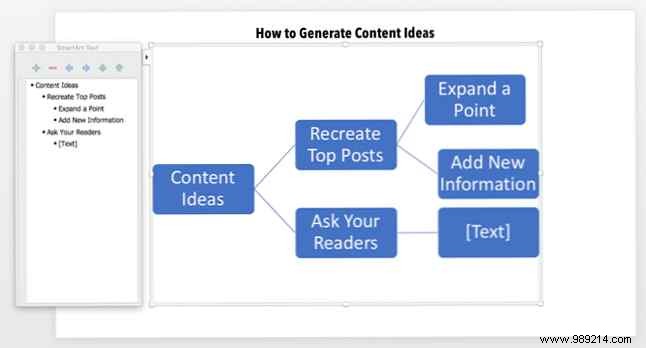
- Expand with subtopics, e.g., under "Recreate Top Posts": "Expand a Point" and "Add New Information."
- Use the SmartArt Text Pane on the left to input details, promote, or demote shapes easily.
- Add more shapes via the Text Pane or SmartArt Tools to grow your map hierarchically.
- Enhance visuals with the SmartArt Design and Format tabs for colors, styles, and layouts that impress.
If needed, hit Reset Graphic on the Design tab to revert changes and start fresh.
