As an academic researcher with years of experience using Microsoft Word for scholarly projects, I've found that an annotated bibliography not only showcases the depth of your research but also protects against plagiarism while streamlining your professor's review process.
Unlike a standard bibliography, which is simply a list of sources, an annotated bibliography includes citations followed by concise paragraphs describing each source's content, relevance, and credibility.
This document provides a quick overview for readers, highlighting how each source contributes to your thesis. Here's an example of a regular bibliography for comparison:

An annotated version adds a summary and evaluation after each citation, as shown below:
According to Merriam-Webster, an annotation is a critical or explanatory note. In practice, it summarizes the source, assesses its quality, and explains its relevance to your research. This added insight demonstrates your critical thinking and thorough preparation.
The simplest approach is using a template, but building one from scratch builds essential skills. Always match your institution's required style—APA, MLA, AMA, etc. This guide uses MLA (Modern Language Association) style in five steps.
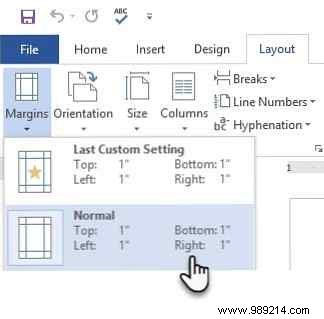
1. Set up your document. Go to Layout > Margins > Normal for 1-inch margins on all sides.
2. Format the font and spacing. Select Times New Roman, 12 pt from the Home > Font group. In Paragraph, set line spacing to 2.0 (double-spaced).
3. Add the title. Start on a new page after your main content. Center "Annotated Bibliography" at the top in title case (no bold or underline).
4. Format citations. Research your sources and cite them precisely in MLA style. For a book: Smith, John. A Great Book to Cite. Cambridge University Press, 2016.
Consult official guides or tools for accuracy.
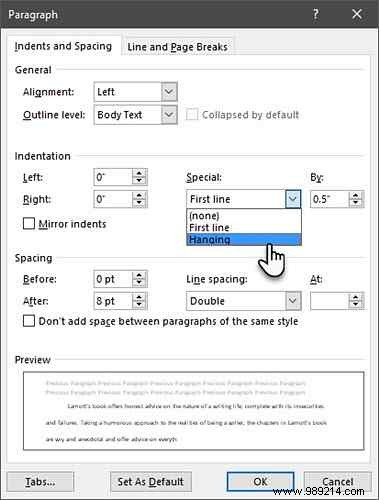
5. Apply hanging indents. First line flush left; subsequent lines indented 0.5 inches. Use Paragraph > Special > Hanging (0.5") or the ruler.

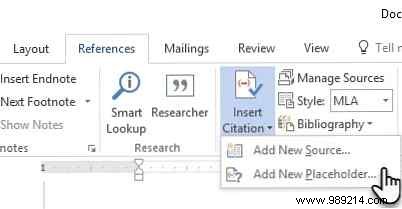
In the References tab, select your style (e.g., MLA) from Citations & Bibliography > Style.

Click Insert Citation > Add New Source to enter details.
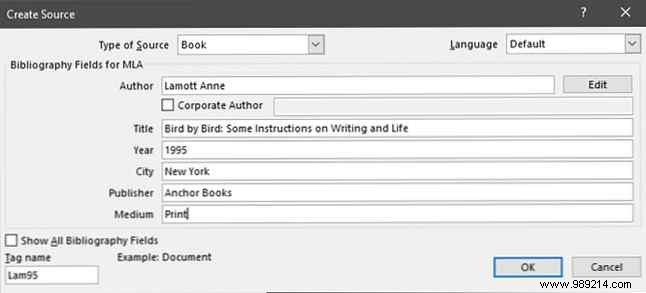
Manage sources via Manage Sources. Online generators work too, but manual entry ensures precision.
Indent the annotation paragraph 0.5 inches below the citation. Structure it as:
Arrange entries alphabetically by the first author's last name.
Watch this detailed YouTube tutorial by mistersato411 for visual guidance: [Embed or link here].
Purdue OWL is an excellent quick-reference for all styles.
The real challenge is research, not formatting. Practice MLA specifics to avoid errors. Master Word's tools for efficiency. Share your tips in the comments!
