While a simple black font works well for emails, switching to a more personalized style can add flair to your messages. Just ensure the font is commonly installed on most PCs, as recipients need it to view your emails properly.
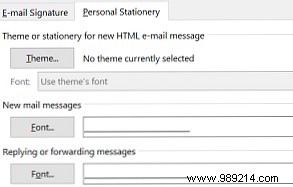
To update the default font for new emails in Outlook:
1. Click File, then select Options, followed by Mail.
2. Under Compose messages, click Stationery and Fonts.
3. On the Personal Stationery tab, under New mail messages, click Font and choose your preferred font, style, size, and color.
4. Click OK to save changes.
To change the font for replies and forwards, repeat the steps but adjust settings under Replying or forwarding messages.
Enhance your emails with a fresh font, but choose wisely for your audience—and skip Comic Sans.
