Family Encyclopedia >> Work

How to Set Your Default Font in Google Docs and Microsoft Word: Simple Steps

Everyone has a favorite font. If you prefer something beyond the defaults in Microsoft Word (Calibri) or Google Docs (Arial), changing it is straightforward. Setting a default font ensures your preferred choice is automatically selected in every new document, saving time and enhancing your workflow.

While it's wise to stay close to professional standards like Calibri and Arial, a font switch can spark fresh motivation. Feeling uninspired? 10 Office Tweaks to Revamp Your Productivity – Simple changes to reignite motivation, inspiration, and productivity. Read more.
How to Change the Default Font in Google Docs

How to Set Your Default Font in Google Docs and Microsoft Word: Simple Steps

Follow these three simple steps to update your default font in Google Docs:

  1. Open a new blank document and type some text, or use an existing document.
  2. Select the text and choose your desired font from the dropdown.
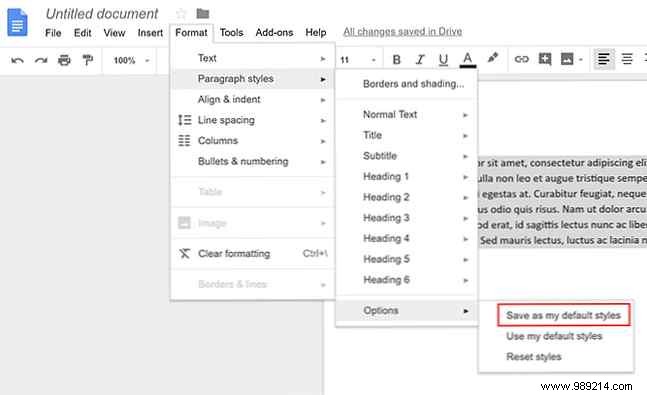
  3. Click Format > Paragraph styles > Options > Save as my default styles.

Now, every new Google Doc will open with your chosen font. You can also select text and use Ctrl + Backslash (PC) or Cmd + Backslash (Mac) to revert to the default.

How to Change the Default Font in Microsoft Word

Updating the default in Word is equally simple:
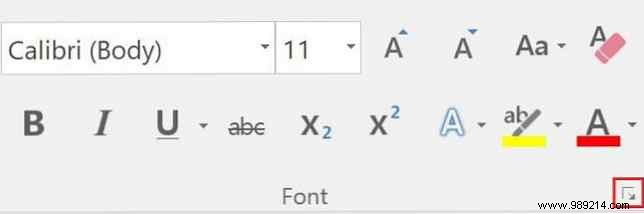
  1. Open a new document, go to the Home tab, and click the arrow in the Font group's bottom-right corner. How to Set Your Default Font in Google Docs and Microsoft Word: Simple Steps
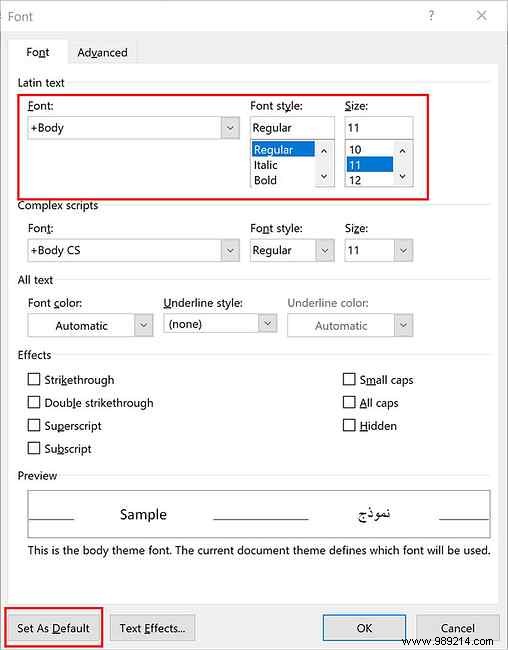
  2. In the Font dialog, select your preferred font, size, and style for Latin text. How to Set Your Default Font in Google Docs and Microsoft Word: Simple Steps
  3. Click Set As Default.
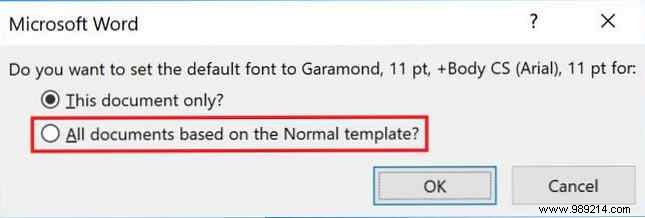
  4. Choose All documents based on the Normal template and click OK. How to Set Your Default Font in Google Docs and Microsoft Word: Simple Steps

Need font inspiration? Explore these resources: 5 Sites to Discover and Download Free Fonts – Unique options for your projects. Read more.