PowerPoint speaker notes are essential for delivering confident presentations in school, work, or any professional setting. They keep you on track, store extra details, and serve as a reliable backup—print them if needed during your talk.
In this guide, drawn from years of creating and delivering high-stakes presentations, we'll cover how to add speaker notes, view them seamlessly, format them professionally, and print them effectively.
Speaker notes project confidence by helping you recall key details without visible cues. They're visible only on your screen in Presenter View, keeping slides clean for the audience while providing private support. Use them for additional info like stats or anecdotes that enhance your delivery without cluttering slides.
Simply type your notes in the box below each slide as you build your deck. If the Notes pane isn't visible, click Notes in the bottom taskbar.
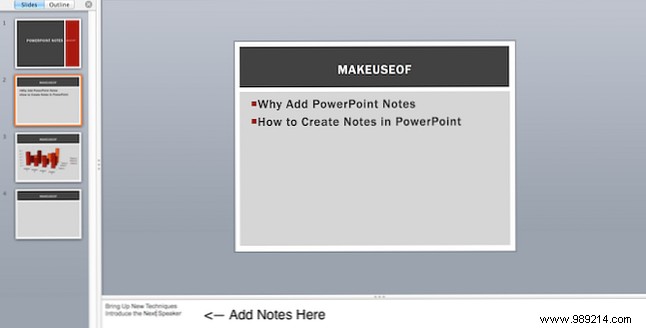
Expand the pane using the scroll bar or by dragging its top edge (not available in PowerPoint Online). In Presenter View, notes appear on your monitor while only slides show on the projector.
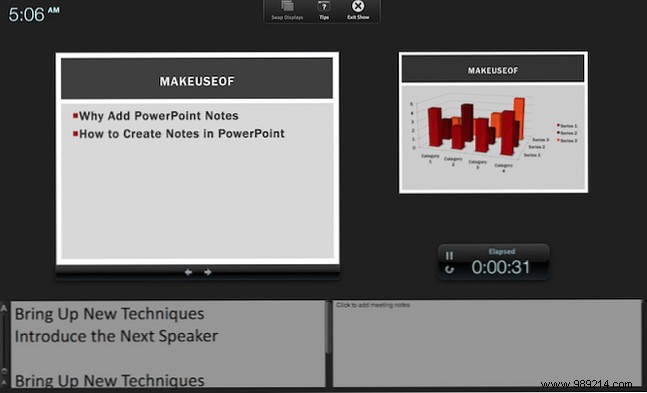
Adjust note text size for readability during delivery.
Preview and format notes before printing via Notes Page view. Go to the View tab and select Notes Page.
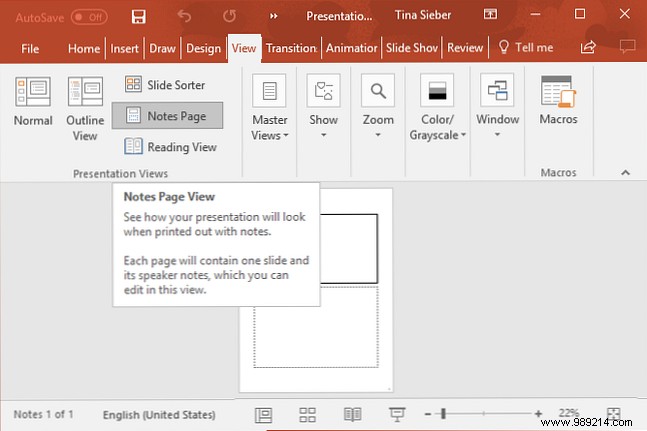
Here, notes appear below each slide. Add charts, tables, or images—they'll print but stay hidden in Normal View (text edits show everywhere). Zoom, reposition, or format freely.
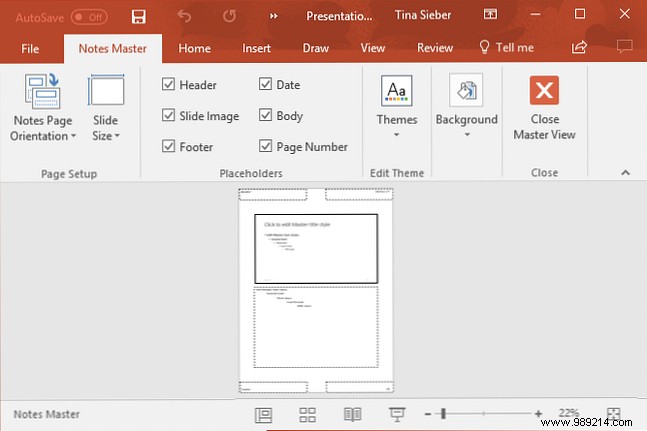
For global changes like fonts, logos, or layouts, switch to Notes Master under View > Master > Notes Master.
Print notes for handouts or backups—with or without slide thumbnails.
To print with thumbnails:
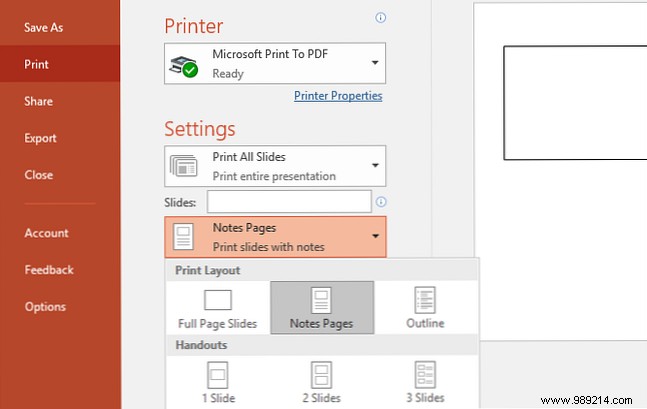
Adjust orientation via Page Setup if needed.
To print without thumbnails:
Note: One notes page per printed sheet.
Use Presenter View across two screens: notes on your laptop, clean slides on the projector—no printing required.
Run your deck from your phone in Presenter View. Swipe to advance, use a laser pointer, and view notes discreetly.
Rehearse timing and avoid common pitfalls for flawless delivery.
Have speaker notes saved your presentation? Do they help or hinder audience connection?
