Need to combine cells in Excel for cleaner layouts or combined text? Merging cells is a popular feature, but it comes with pitfalls like data loss. As an Excel expert with years of spreadsheet optimization experience, I'll walk you through merging, unmerging, and a smarter alternative using formulas to keep all your data intact.
We'll cover step-by-step instructions with screenshots to make it foolproof.
Before diving in, understand what merging does. Take this example with separate first and last name columns:
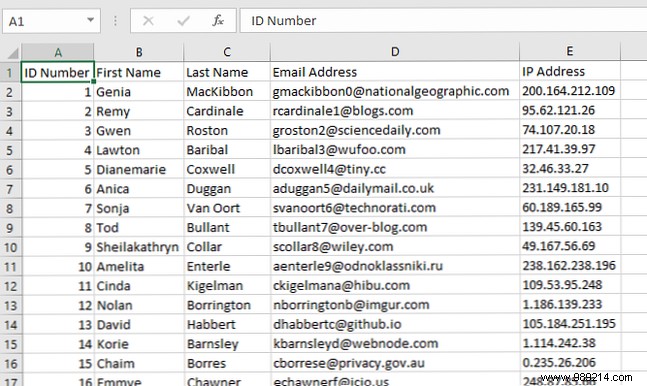
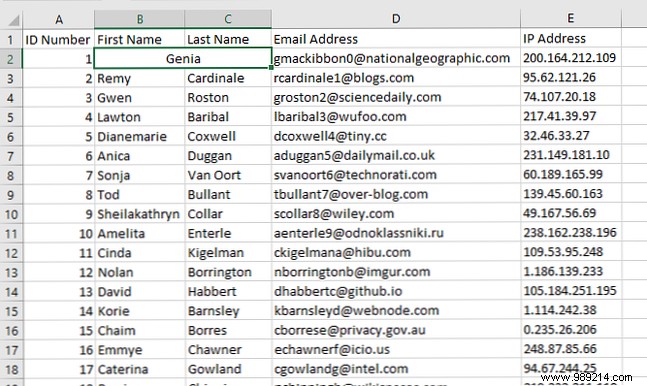
Merging combines them into one wider cell, but Excel only retains the top-left cell's value, discarding the rest:
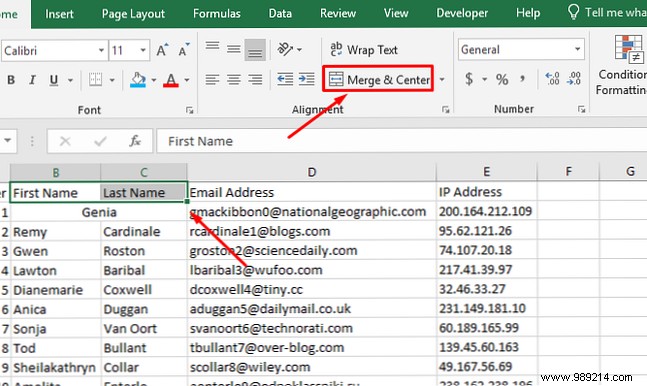
To merge: Select your cells (any number works), go to the Home tab, and in the Alignment group, click Merge & Center:
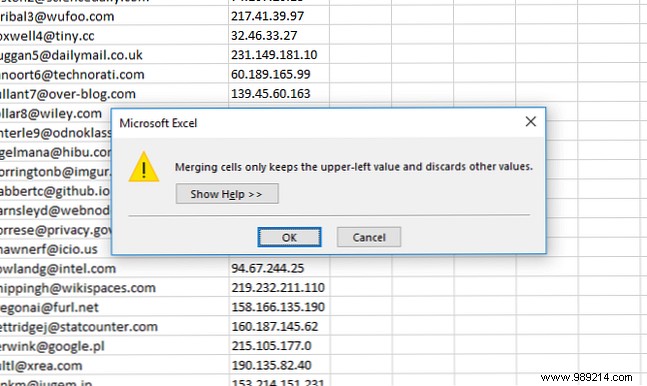
If multiple cells contain data, Excel warns you:
Click OK to proceed, and you'll see the merged result:

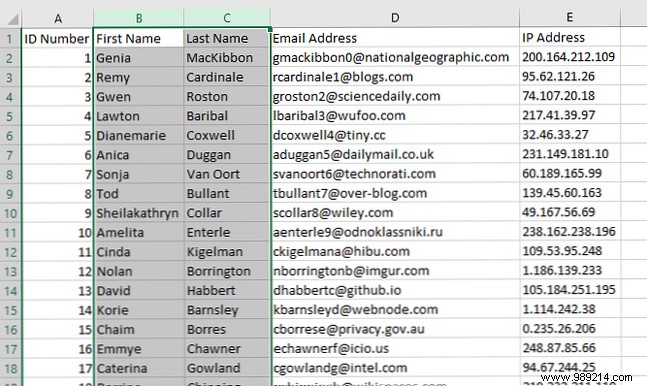
For entire columns, select them first:
Instead of Merge & Center, use the dropdown and select Merge Across:
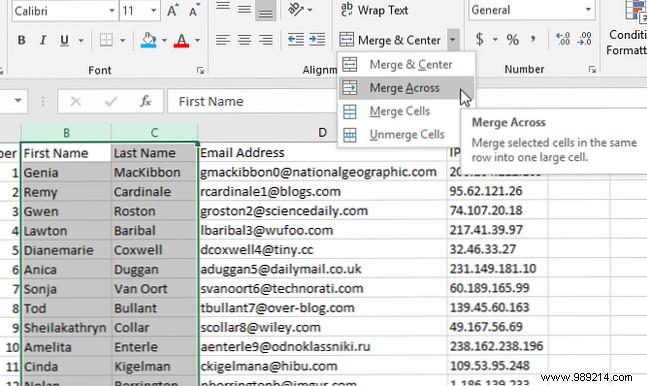
Confirm multiple warnings (one per row), and you'll have combined cells across columns:

Pro tip: Deleting the extra column often works better than merging entire columns.
Now, for a data-safe alternative.
Merging erases data, but formulas like CONCATENATE preserve everything. Syntax:
=CONCATENATE(text1, [text2], …)In our name example, add a new column with:
=CONCATENATE(B2, " ", C2)The space (" ") separates first and last names cleanly:
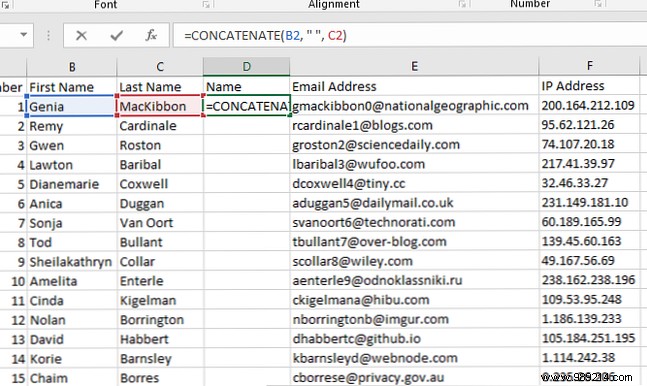
Press Enter for the result:
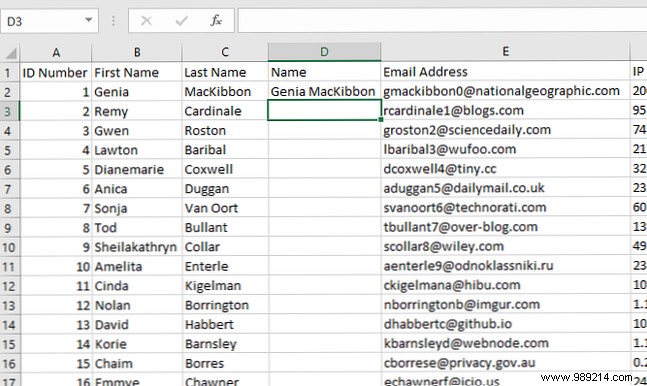
Bonus: Formulas are editable, unlike merged cells.
Changed your mind? Select the merged cell(s), click the Merge & Center dropdown, and choose Unmerge Cells:
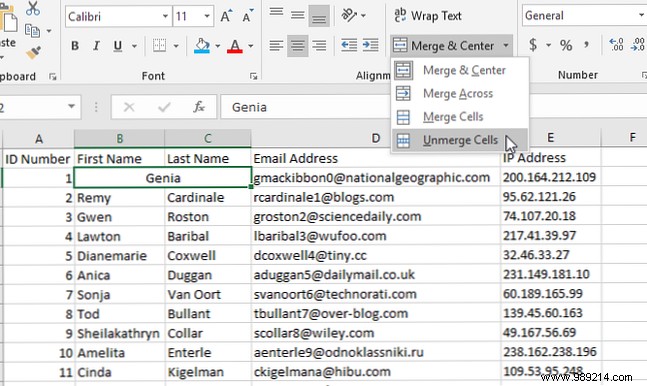
Cells revert to original size, but lost data stays gone. Always copy your sheet first or use CONCATENATE.
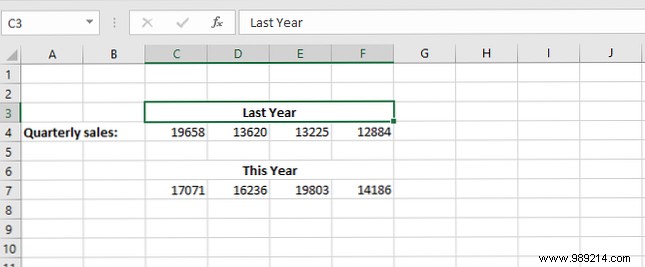
For formatting headers or titles, merging creates polished tables:
Default to CONCATENATE for data tasks. Even pros use merging sparingly.
Related: Need to combine Excel sheets or files? How to combine Excel sheets and files. Smart methods beat manual work every time. Read more!
