Microsoft OneNote goes beyond basic note-taking, serving as a powerful hub for lists, embedded files, and documents across work, school, and home. As a seasoned productivity expert with years of experience streamlining digital workflows, I've found that effective organization transforms OneNote into an indispensable system. This guide shares proven strategies to structure your notebooks for maximum efficiency.
If you're new or occasional OneNote user, start by mastering its core structure: notebooks, sections, and pages. Think of it like a multi-subject spiral notebook.
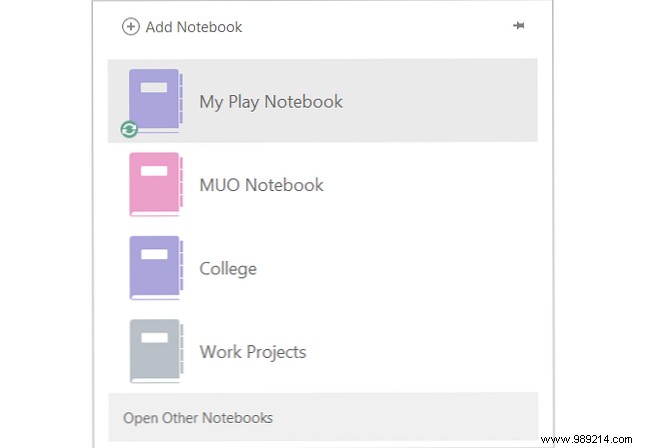
Notebooks: Top-level files containing all content. Create dedicated ones for Work, School, or Home.
Sections: Dividers within notebooks, like class tabs (e.g., Chemistry, Psychology, Math).
Pages: Individual entries inside sections, such as lecture notes, study questions, or assignments.
Section Groups elevate organization by nesting sections within notebooks, perfect for grouping related topics without separate notebooks.
For school, group classes by semester: "Semester 1" containing Chemistry and Math sections.

For work, in a "Work Projects" notebook, use groups like "IT Projects" with subsections for Website Redesign and New System.

Right-click the tab bar, select New Section Group, name it, and drag existing sections in—or add new ones directly. Navigate up with the green arrow.

Tags streamline prioritization, idea tracking, and searches. OneNote offers built-in options like "To Do" or "Important," plus custom ones.
In the Home tab's Tags section, choose from the dropdown. Tags add icons and text fields—e.g., enter a URL in "Website to visit" or a title in "Movie to watch."
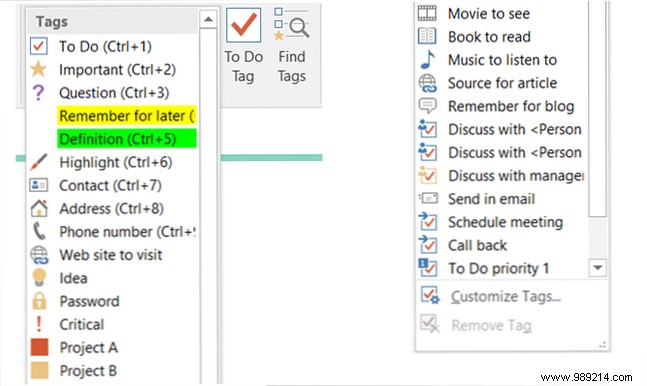
Use for homework priority or meeting scheduling, then search to view all at once.
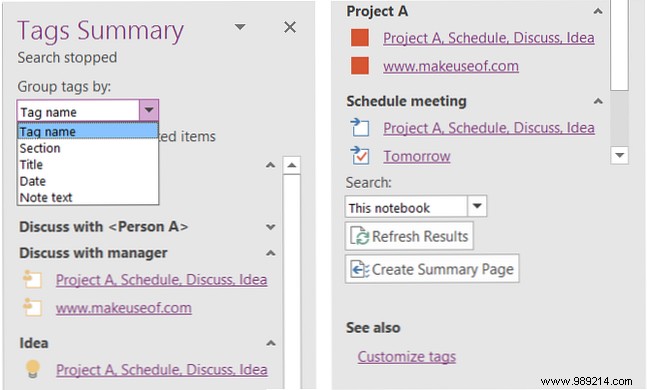
Click Find Tags in the Tags section to open the Tags Summary pane, grouped for easy sorting. Click any tag to jump to its page.
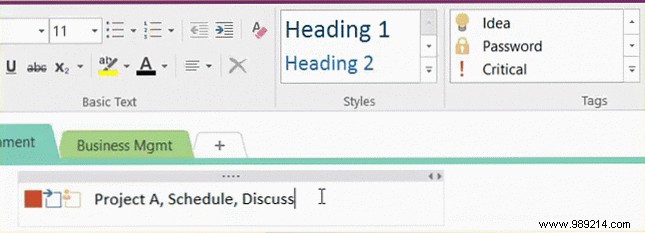
Apply multiple tags per page or nest them by selecting within an existing tag. Combine "Project A," "Scheduled Meeting," and "Discuss with Management" for flexible searches.
Customize via Customize Tags in the Tags list or Summary pane.
Link notebooks, sections, pages, external sites, or files for seamless navigation.
Reference prior project notes in a new class page, or link a "Scheduled Meeting" tag to its agenda.
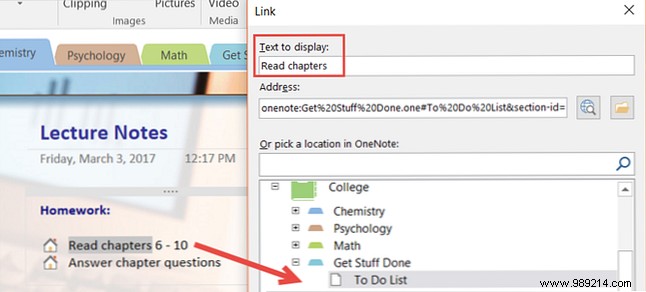
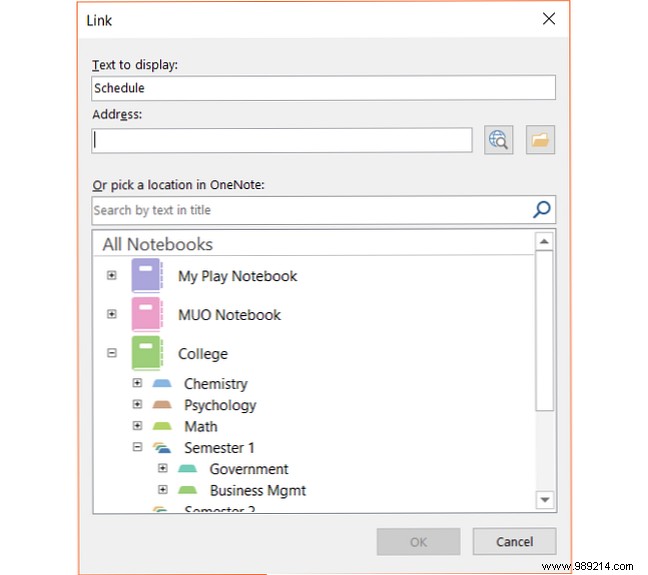
Select text, click Link in Insert tab or right-click menu. In the dialog, choose notebooks/sections/pages, or add web/file links. Click OK.
Combining these features turns simple notes into a robust productivity system. Which methods do you use? Share your most helpful features in the comments below!
