Microsoft OneNote is a powerful, free collaboration tool ideal for managing simple projects in small teams. Its built-in templates—from project summaries and meeting notes to to-do lists—streamline workflows and boost productivity. As a seasoned project manager with years of experience using OneNote, I've relied on these templates to keep teams aligned and projects on track. If you're new to them or unsure how to maximize their potential, here's a practical guide based on real-world application.
OneNote offers a variety of pre-built templates tailored for project management, categorized by type such as academic, blank, business, decorative, and planners. Access varies by version.
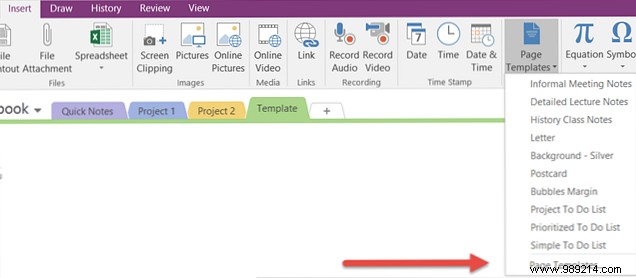
In OneNote 2016, go to Insert > Page Templates to view recent templates and the full list.
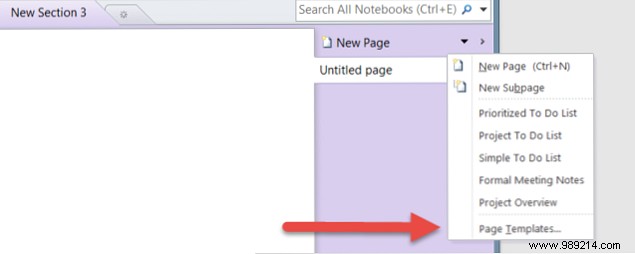
For earlier versions, add a new page in your notebook, click the arrow next to New Page, and select Page Templates.
In the Business category, the Project Description template provides a comprehensive starting point. It includes sections for company details, goals, resources, procedures, schedules, and more—all in editable bulleted lists.
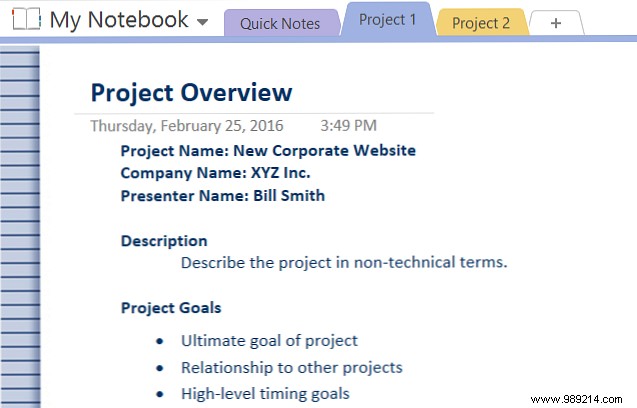
This template creates a clear, shareable overview for teams, stakeholders, or executives. Update it regularly to reflect changes, ensuring everyone stays informed.
The Business section also features versatile meeting templates, from Simple Meeting Notes for quick sessions (title, agenda, attendees, action items) to Formal Meeting Notes for executive updates (including approvals, issues, and follow-ups).
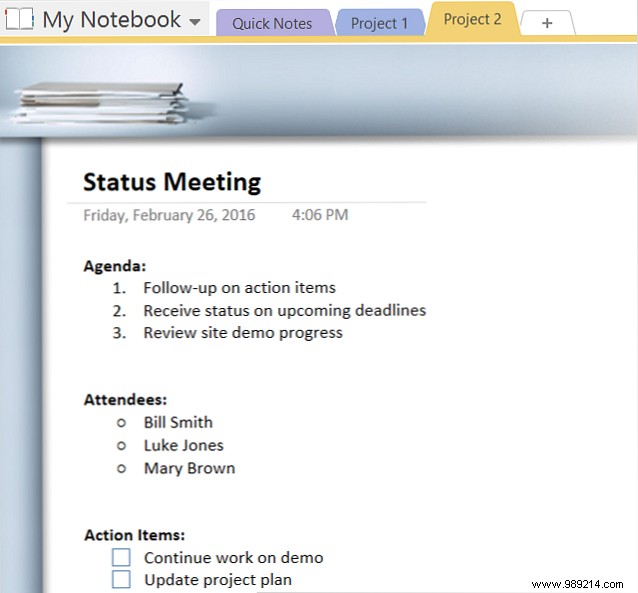
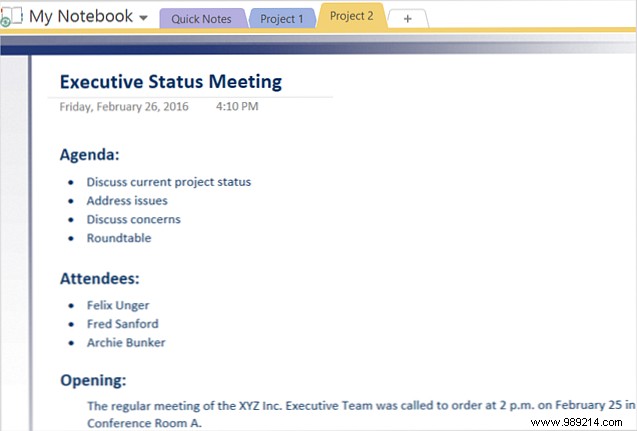
Pre-set agendas keep discussions focused, and shareable notes ensure accountability. Perfect for organizers and participants alike.
Found in the Planners category, these include Simple To Do List with checkboxes, Prioritized To Do List (high/medium/low), and Project To Do List organized by project with notes sections—flexible for reorganization by resource or date.
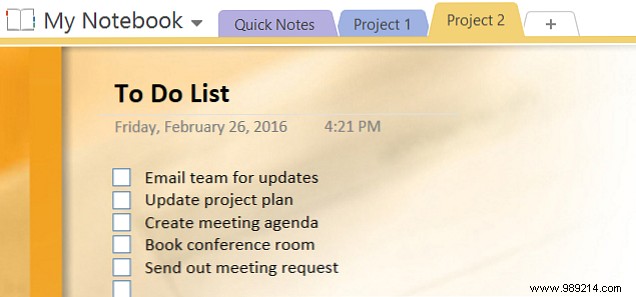
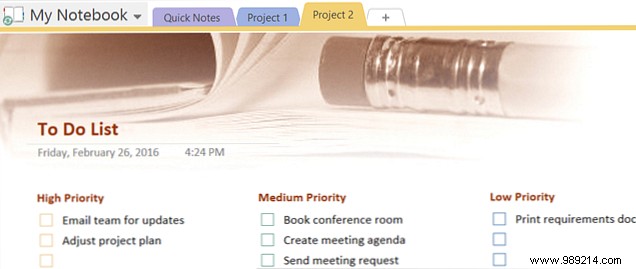
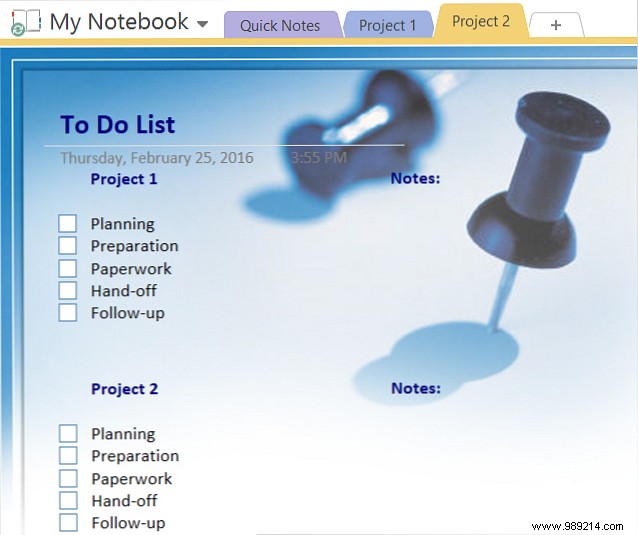
For more options, Try2Stop.Us offers a project management notebook with overview, status meeting, and hours tracking pages. OneNoteGem.com provides daily schedules and mixed notes/to-do templates.
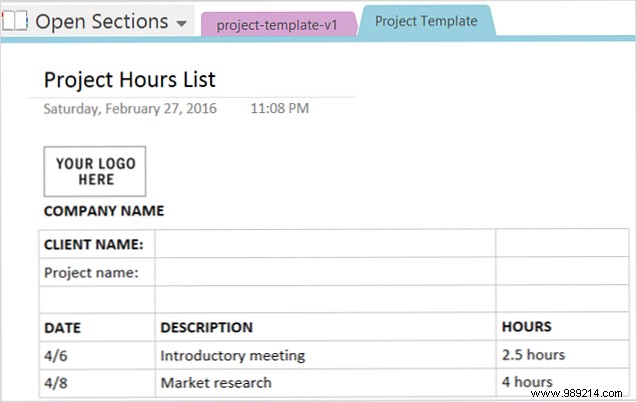
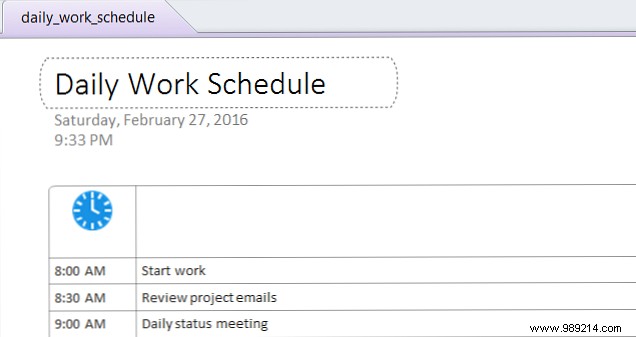
While Microsoft's template gallery lacks OneNote options, these third-party resources fill the gap—just verify compatibility with your version.
Drag elements using the four-headed arrow for intuitive reorganization.
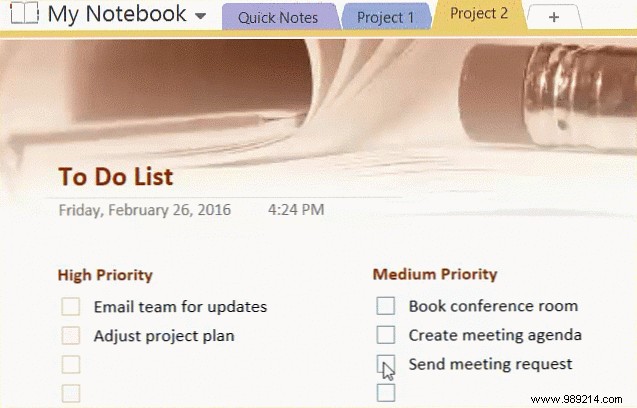
Select a block and drag the corner arrows to adjust size.
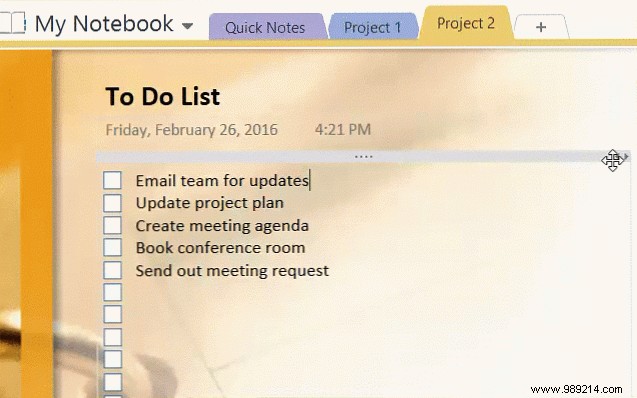
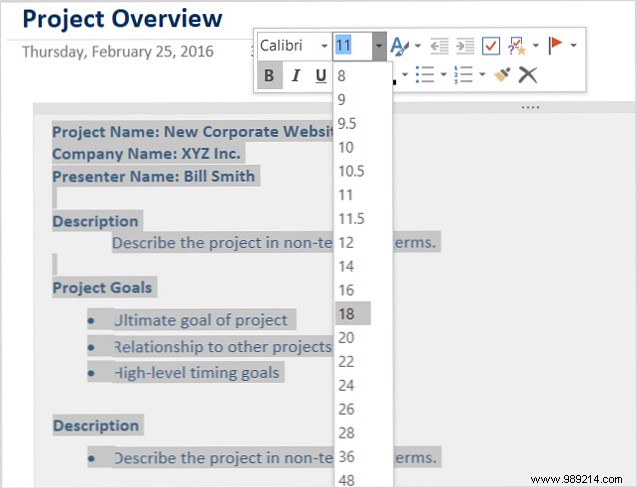
Select a section, use Home tab or right-click for fonts, colors, checkboxes, or styles.
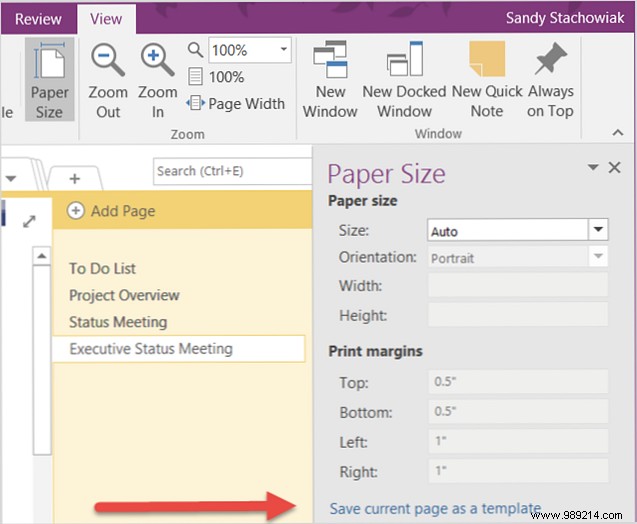
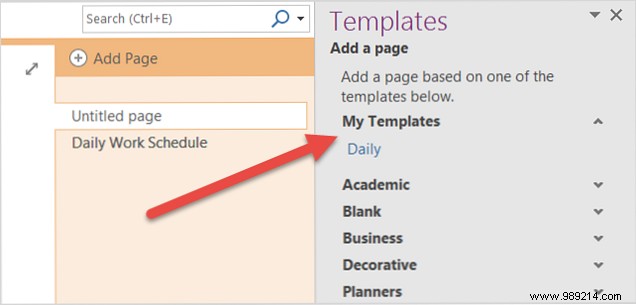
Customize, then View > Page Setup > Save current page as a template. Access via My Templates.
Templates are one of OneNote's hidden gems. Which templates do you find most useful for project management? What features can't you live without? Share in the comments below!
