Struggling to manage your time with demands from colleagues, family, and daily life? Google Calendar can transform chaos into control.
Time blocking is a proven strategy for better focus—dividing your day into dedicated blocks aligned with short- and long-term goals. As a productivity expert with years of helping professionals reclaim their schedules, I've seen it reduce distractions, procrastination, and stress while boosting output. Here's how to implement it step-by-step in Google Calendar.
Let's get started.
In our fast-paced world, rushing into tasks leads to burnout. Instead, block 30 minutes for a gentle start. Successful people often share similar morning habits—find what works for you.
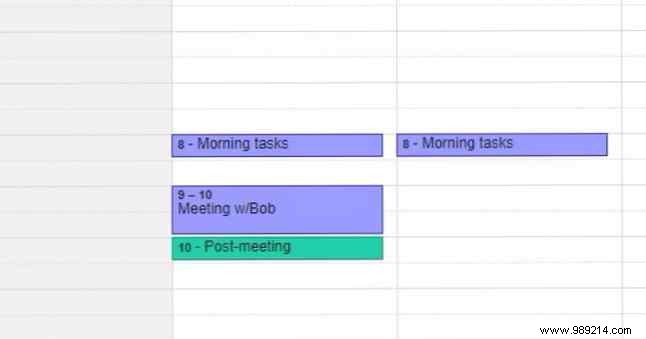
Tackle light tasks first, building to heavier ones. Create events in Google Calendar with clear, descriptive titles to stay on track.
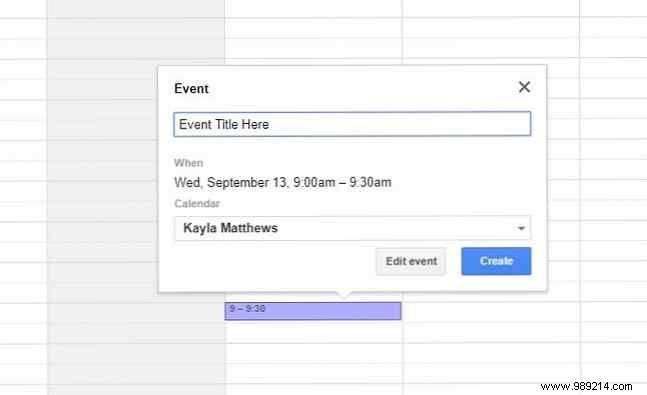
Click a time slot, add an event title, then hit Edit event for full customization over the basic Create option.
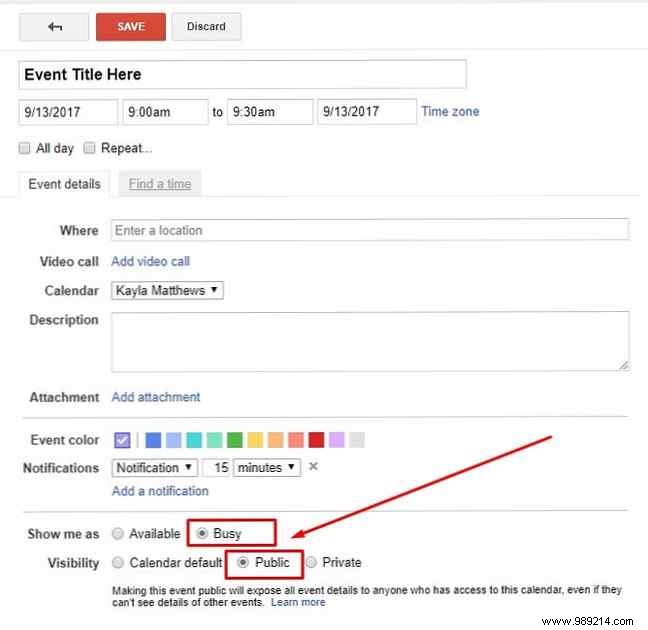
Mark yourself as busy to avoid interruptions. Adjust visibility via the Audience radio button under event settings.
Bonus: Add events directly from Gmail. It detects dates, highlights them, and offers a Create event option under More.
This gradual ramp-up prevents overwhelm, especially if mornings feel stuck.
After meetings, block 15-30 minutes immediately following to capture action items while fresh. Need templates? Check these free ones for better meetings.
What follow-ups are required—hosting events, process changes, or outreach?
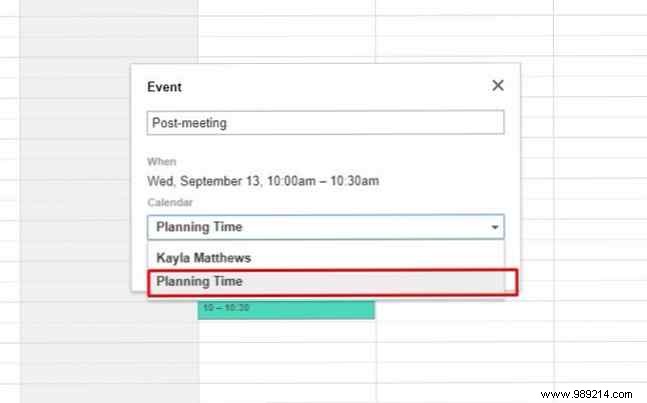
Pre-blocking ensures no other tasks intrude. Use busy status and visibility settings so others know you're unavailable.
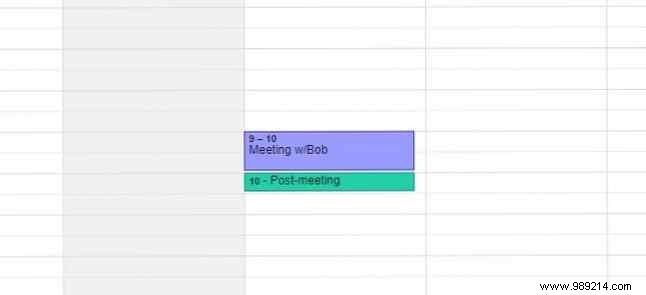
Note the Time Zone link in Edit Event for global teams.
Deadlines looming? Prioritize deep work by blocking 2-hour chunks. Create a distraction-free zone with physical cues like a "Do Not Disturb" sign or availability whiteboard.
In Google Calendar, mark as busy, customize event colors, and add details explaining the need for solitude.
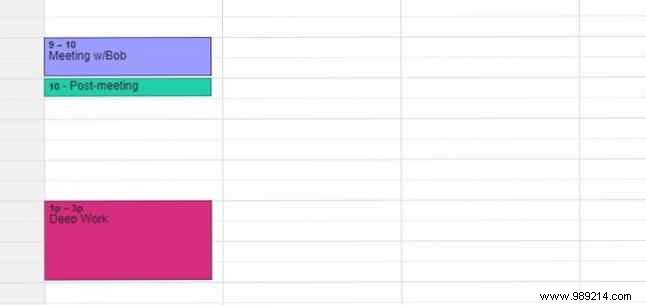
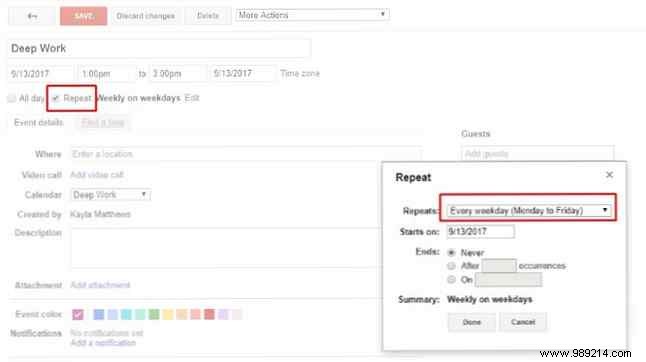
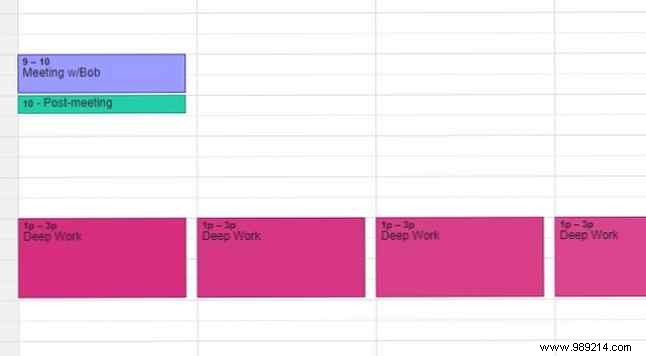
Use Repeat for recurring sessions—adjust frequency via dropdowns.
Struggling? Productivity apps can assist with scheduling.
Life throws curveballs—block buffer time for unexpected emails, calls, or overruns. Use it for high-expectation surprises or extended meetings.
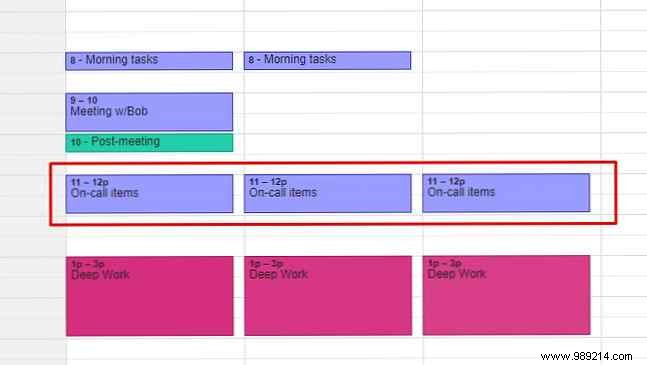
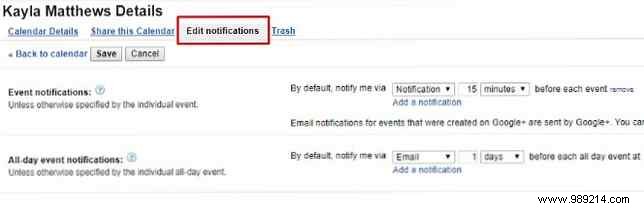
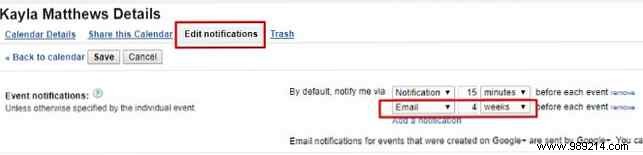
Pair with smart meeting plans. Notifications keep you adherent: Set via Edit Event dropdowns for email/pop-ups.
Customize defaults in Google Calendar Home > My calendars menu > Calendar settings > Edit notifications.
Tip: Sometimes, the best response is none—especially when emotions run high.
Productivity gurus agree: How you close today shapes tomorrow. Block 20-30 minutes to reflect—celebrate wins, note improvements without self-criticism.
Prep tomorrow's priorities, design your ideal day, and update to-do lists.
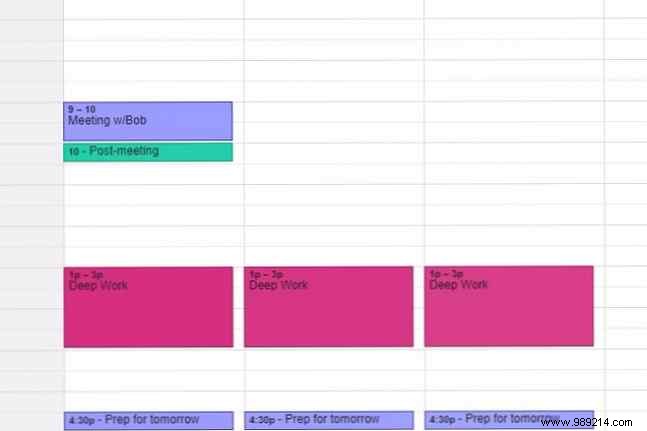
Set notifications (e.g., 1 hour prior) and repeat daily. Review and block high-priority tasks.
Time blocking keeps schedules realistic and effective. Beyond these, customize for your needs—try these Google Calendar tips to avoid over-scheduling stress.
What else blocks your calendar this week? Share in the comments!
