As a project management professional with years of experience leveraging digital tools, I've found Microsoft OneNote to be an invaluable, free platform for organizing simple projects—solo or with teams. Its flexible structure, seamless sharing, and integrations make it a standout alternative to apps like Evernote. Below, I'll share proven strategies using core and advanced features to streamline your workflow.
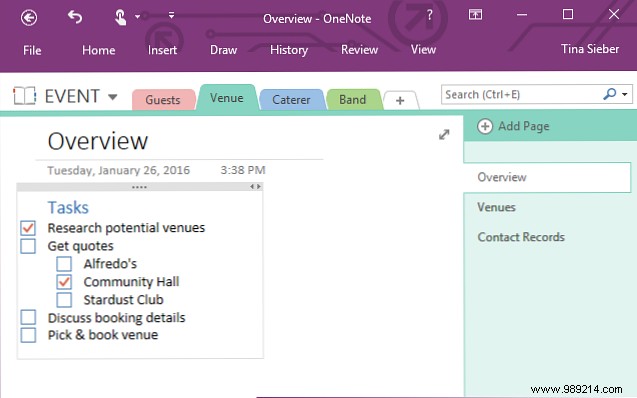
OneNote's hierarchy—notebooks, sections (top tabs), and pages (right sidebar)—is perfect for collecting and organizing project info. Create dedicated notebooks per project, sections for key deliverables or phases (e.g., using a work breakdown structure), and pages for details like research, to-dos, and contacts.
For an event-planning project, make sections for venue, suppliers, and band. Add pages for research notes, next steps, and reservations.
OneNote works across Windows, Mac, Android, iOS, web, and even Chrome via OneNote Web Clipper. Capture screens with Windows + Shift + S.
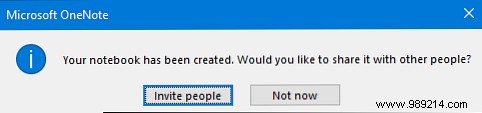
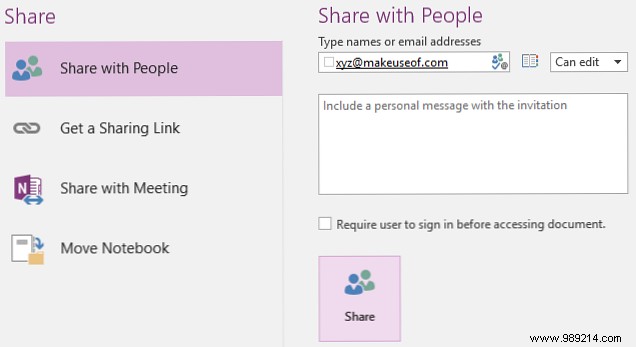
Share notebooks for team collaboration: New notebooks prompt to invite people. For existing ones, go to File > Share to add individuals or generate view/edit links.
Structure data for clarity: Use tables for stakeholders, resources, or schedules; lists for goals and ideas.
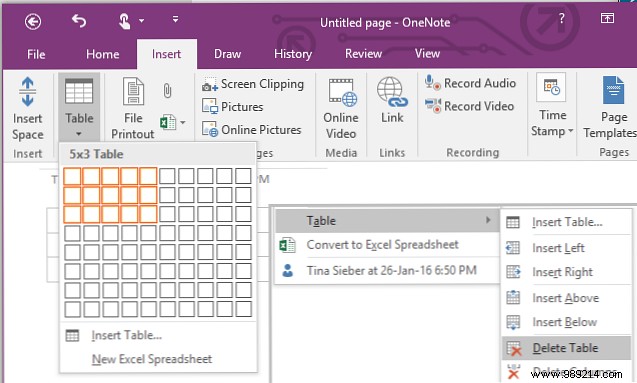
Go to Insert > Table, then right-click for inserts, sorting, shading, or borders.
Highlight text, use the floating menu for bullets, numbers, or checklists. Keyboard shortcuts: Ctrl + 1 (checklists), Ctrl + . (bullets), Ctrl + / (numbers).
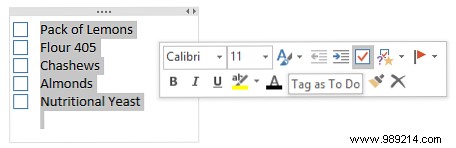
Note: For time-sensitive tasks, integrate with Outlook tasks via OneNote for automatic syncing and completion tracking across pages.
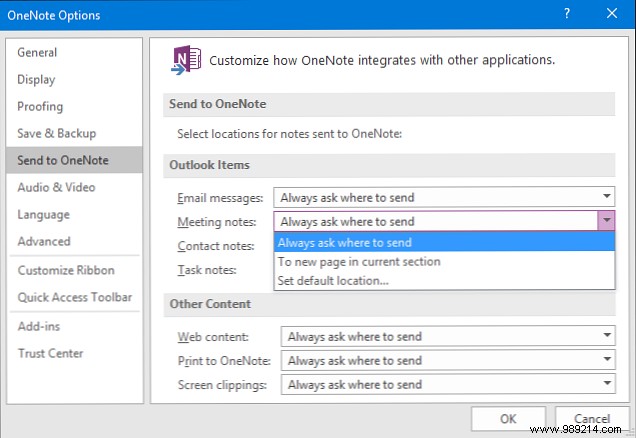
Centralize project comms by sending Outlook emails to OneNote via Send to OneNote or drag-and-drop. Customize destinations in File > Options > Send to OneNote (default: always ask).
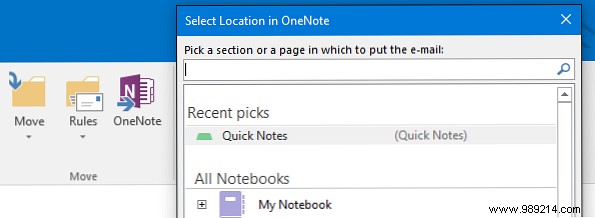
Forward emails to admin@989214.com from authorized accounts for direct import.
Create a collaborative wiki for contacts, lessons learned, or processes. Link via right-click Copy Link to... or type [[page name]]. Highlight and Link... for quick navigation.
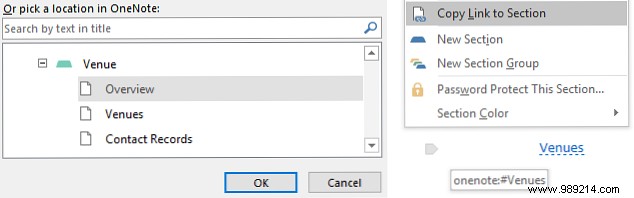
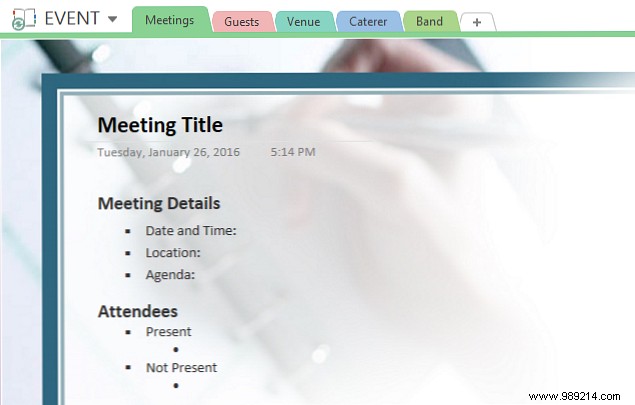
Prep agendas and minutes in shared notebooks:
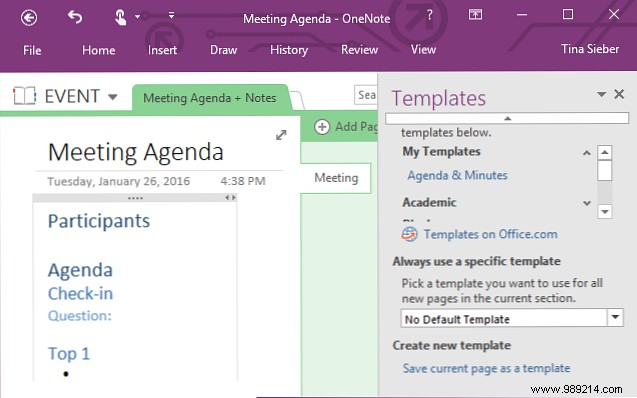
Standardize with built-in or custom templates under Insert > Page Templates > Business. Save custom ones via Save current page as a template, set as default if needed.
OneNote excels for small teams but pairs well with tools like Microsoft Project. What's your favorite OneNote PM hack? Share in the comments!
