As a seasoned Microsoft Excel specialist with over a decade of troubleshooting data loss issues, I know the panic of losing an unsaved spreadsheet due to a crash or accidental close. The good news? You can often recover it without starting from scratch. While you might not retrieve the absolute latest changes, these proven methods from Excel's built-in tools, OneDrive, and Windows File History will save hours of rework. Let's dive into the step-by-step recovery processes for Windows and macOS.
How to Recover Deleted Office Files — Lost a crucial file? These expert tips restore your Office docs fast.
Excel offers three reliable methods to retrieve unsaved or overwritten workbooks.
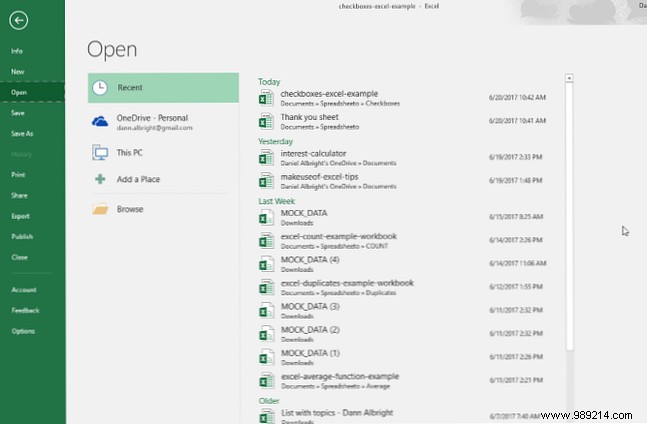
If you closed an unsaved file, use Excel's Recover Unsaved Workbooks feature. Open Excel, go to File > Open > Recent:
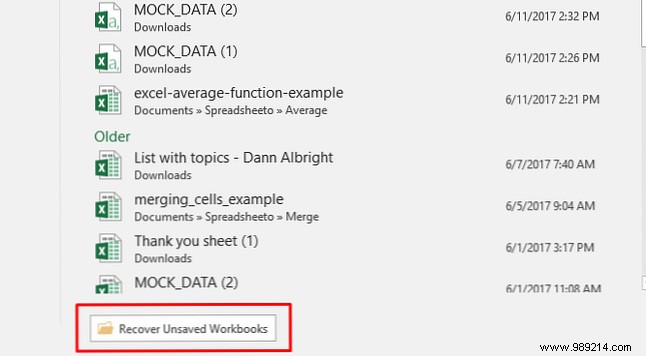
At the bottom, click Recover Unsaved Workbooks:
A list of autosaved files appears:
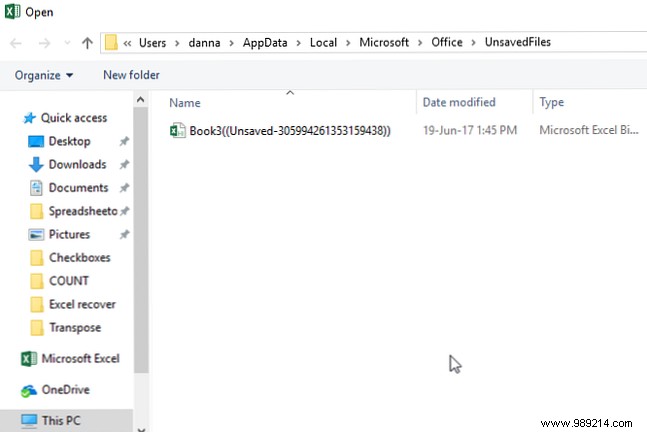
Select your file, open it, and save immediately to prevent future loss.
OneDrive's version history is a game-changer for overwritten files. If you're not syncing to OneDrive yet, start today—save to the Documents folder for convenience.
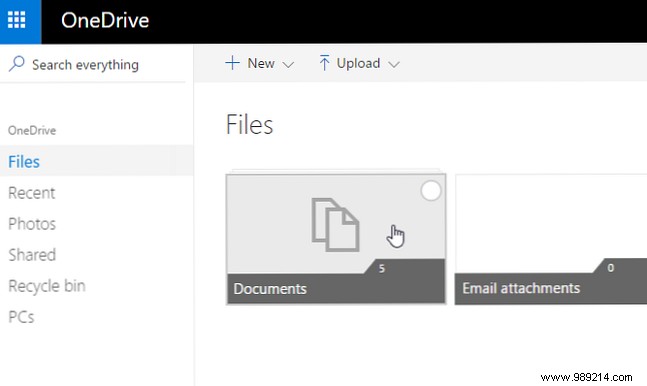
Log in at onedrive.live.com:
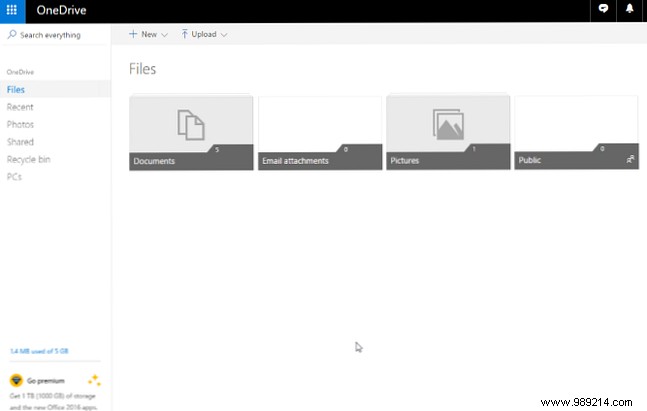
Navigate to your folder (e.g., Documents):
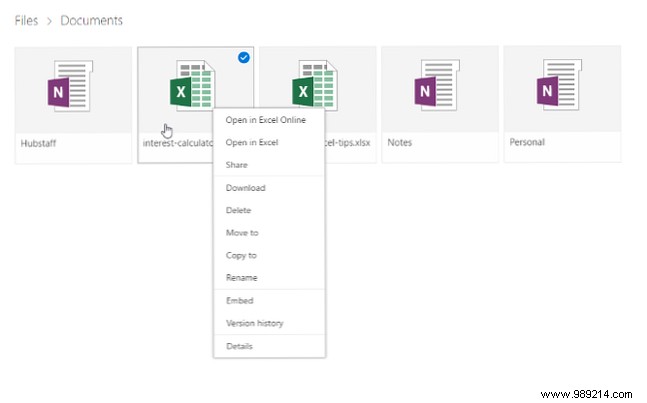
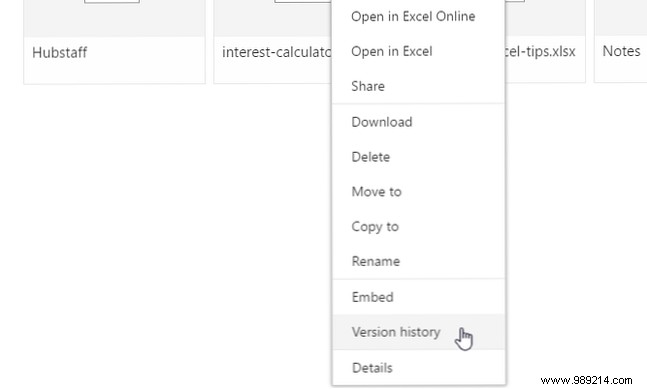
Right-click the file and select Version history:
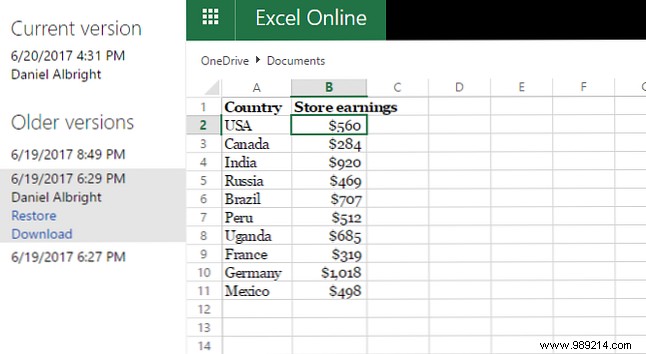
Preview versions and choose Restore to revert or Download a copy:
Without OneDrive? Enable Windows File History for backups. The Ultimate Windows 10 Data Backup Guide — Master backups, restores, and recovery in Windows 10.
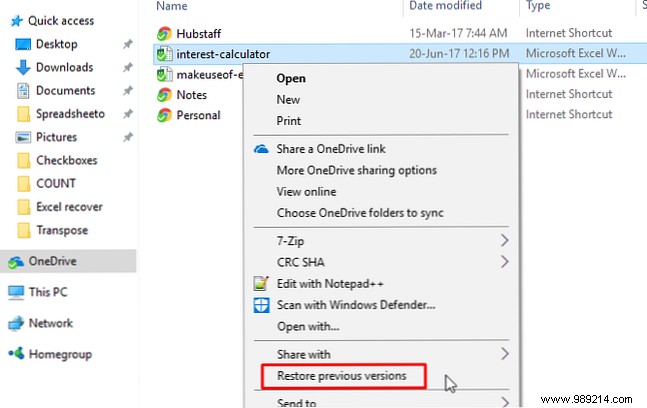
Right-click the file in File Explorer and select Restore previous versions:
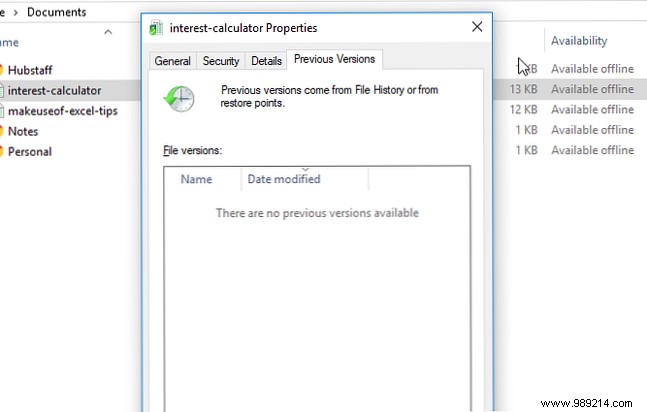
Choose a version to restore. No backups? No options appear:
macOS recovery mirrors Windows for OneDrive but uses AutoRecovery folders locally. Start with OneDrive if possible.
Open Finder and go to Macintosh HD:

If hidden, go to Finder > Preferences and check Hard disks under sidebar options:

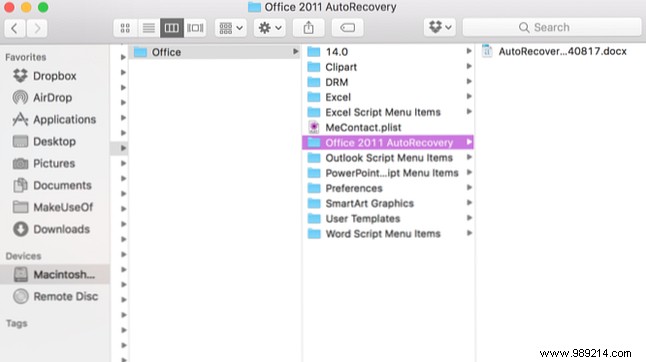
Navigate to Users > [your username] > Library > Application Support > Microsoft > Office > Office 2011 AutoRecovery:
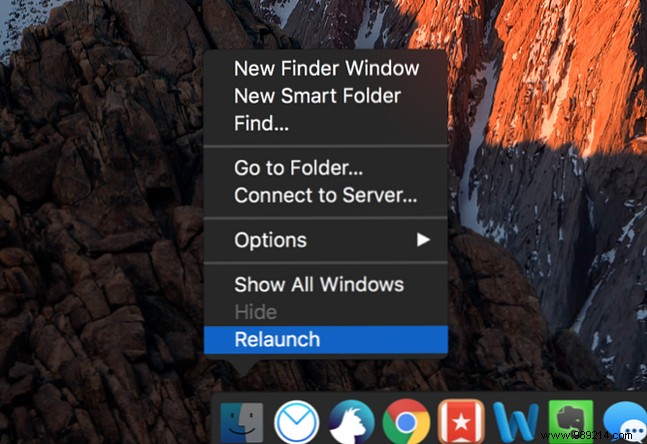
To reveal Library, run in Terminal: defaults write com.apple.finder AppleShowAllFiles YES, then Option + right-click Finder > Relaunch:
Or open directly: open "/Users/[your username]/Library/Application Support/Microsoft/Office/Office 2011 AutoRecovery"
Note: Paths vary by Office version (e.g., Excel 2016: ~/Library/Containers/com.microsoft.Excel/Data/Library/Preferences/AutoRecovery/). Search for your version if needed.
Double-click files to open and save promptly. AutoRecovery files expire, so regular backups are essential.
These methods work in a pinch, but prevention is best. Enable autosave (How to Automatically Save Your Work in Windows) and use versioning backups. Trust me—I've recovered countless files, but habits like these prevent disasters.
What's your go-to recovery tip for Excel mishaps? Share in the comments!
