As a Microsoft Office specialist with years of experience helping users recover lost files, I know the panic of closing Word 2016 without saving. Don't worry—your work isn't gone. This step-by-step guide shows you how to retrieve it quickly using built-in features like Recover Unsaved Documents and AutoRecover.
We'll also cover optimizing AutoRecover to prevent future scares. Say goodbye to frustration and lost hours.
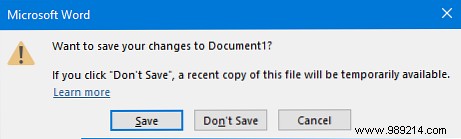
Picture this: You're editing a crucial Word document, hit close by accident, and click Don't Save in the prompt. Here's how to fix it:
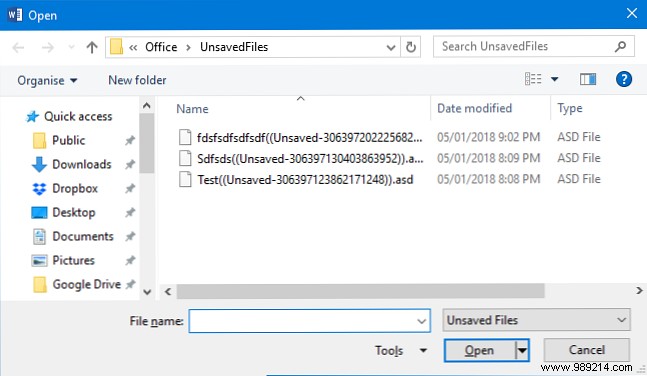
Open Word, go to File > Open. Scroll to the bottom of recent files and select Recover Unsaved Documents. This opens a folder with autosaved files from the last 4 days.
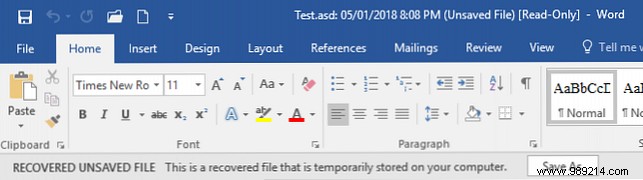
Double-click your file to open it. In the banner above the document (under the Ribbon), click Save As, choose a location, and hit Save. How to Optimize the Office 2016 Ribbon or Menu Interface — Customize for efficiency.
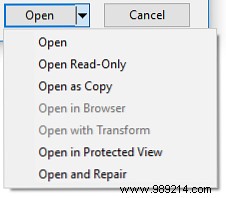
If the file won't open, select it, click the dropdown arrow next to Open, and choose Open and Repair to fix issues automatically.
Manually access the folder: Press Windows Key + R, enter C:\Users\%USERNAME%\AppData\Local\Microsoft\Office\UnsavedFiles, and press OK.
AutoRecover kicks in after crashes or power issues—it's not a full save replacement. Restart Word to see the Document Recovery pane with timestamped files.
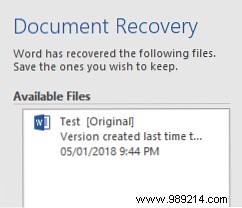
Preview files by clicking them. To keep one, use the dropdown arrow and select Save As. Act fast—these are temporary. AutoSave in Office 2016 offers version history for subscribers.
Verify it's on: File > Options > Save. Enable Save AutoRecover information every X minutes (try 10 minutes). Also check Keep the last AutoRecovered version if I close without saving.
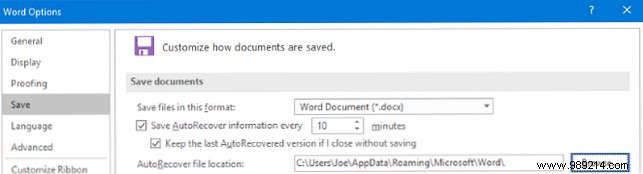
Adjust the save location via Browse under AutoRecover file location—defaults work for most.
These methods have saved countless documents in my practice. Always save manually too. Learn how to auto-save in Windows across apps like browsers and Notepad.
For corrupted files, try recovering corrupt Office files. Excel users: See recover unsaved or overwritten Excel files. Store docs in OneDrive for version history.
Mac users: Check Apple's guide to restore previous versions of Pages, Word, and more.
Did this recover your lost Word 2016 file? Share your tips below!
