As a long-time Google Calendar power user, I've fine-tuned notifications across devices to stay organized without constant interruptions. Here's how you can adjust alerts to fit your workflow perfectly—on web, Android, iOS, or desktop.
With multiple calendars in Google Calendar, tailor notifications individually. For instance, enable email alerts for shared team calendars while silencing personal ones like your spouse's.
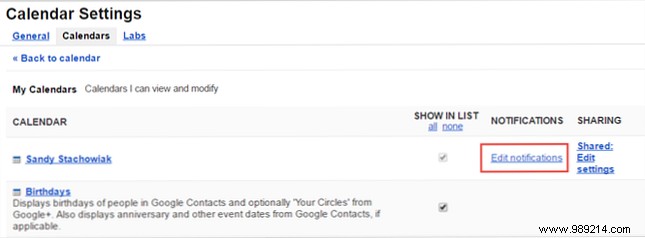
On the web, click the gear icon in the top right, select Settings, then the Calendars tab. Next to the desired calendar, click Edit notifications.
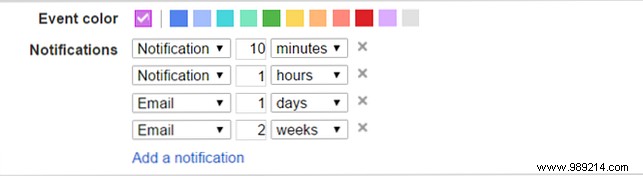
Adjust methods (email, pop-up), timing, all-day events, or add multiple alerts. Always hit Save to apply changes.
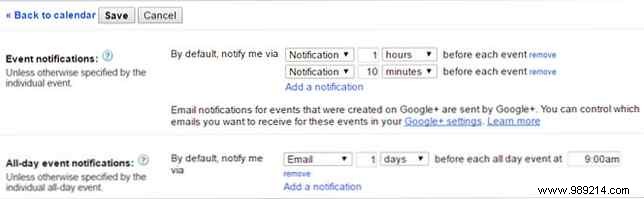
To disable entirely, follow the same path, click the remove link under notifications, then Save.

Google Calendar syncs seamlessly across devices, so web changes reflect instantly on mobile and vice versa.
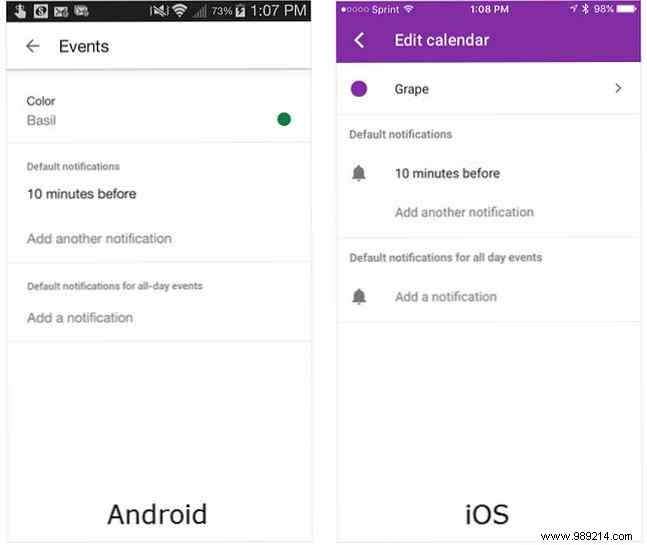
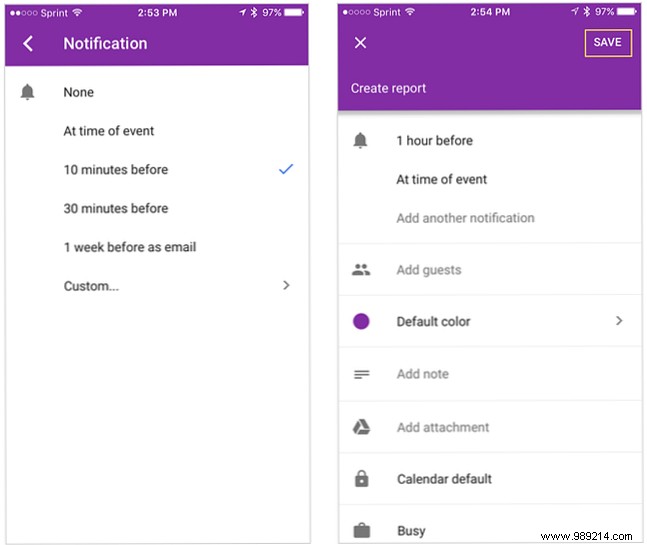
On Android, open the app, tap the menu, then Settings > Events under your calendar. For iOS, tap the gear icon > Settings > Events. Customize timings for events and all-day items, adding extras as needed.
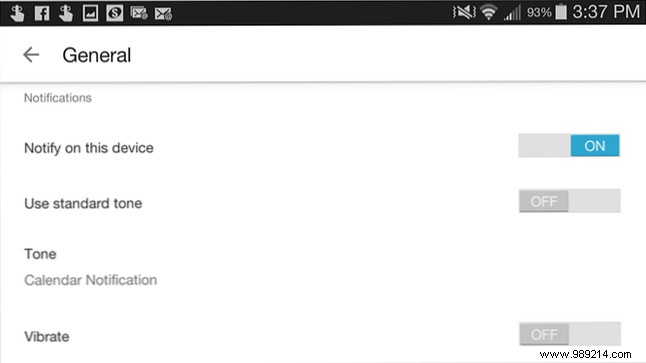
Android tweaks stay in-app: Settings > General for toggles on notifications, tones, and vibration.
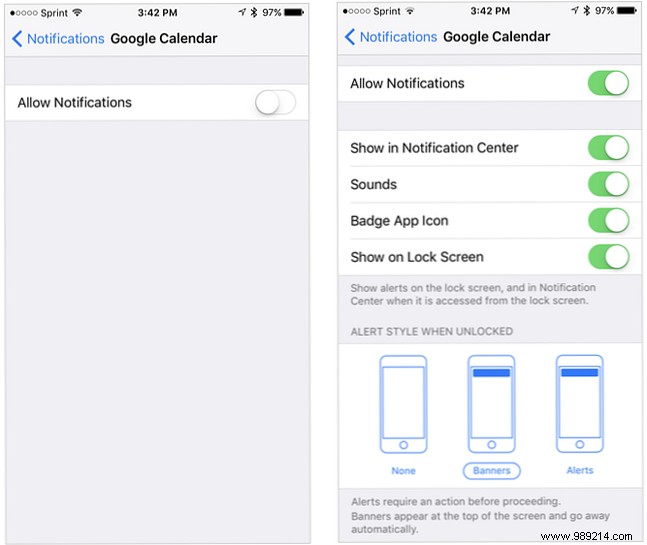
On iOS, go to device Settings > Notifications > Google Calendar to manage banners, badges, sounds, and lock screen alerts.
Opt for Pop-up alerts that interrupt your browser or Desktop notifications with optional sounds—dismiss with X or click to open the event.
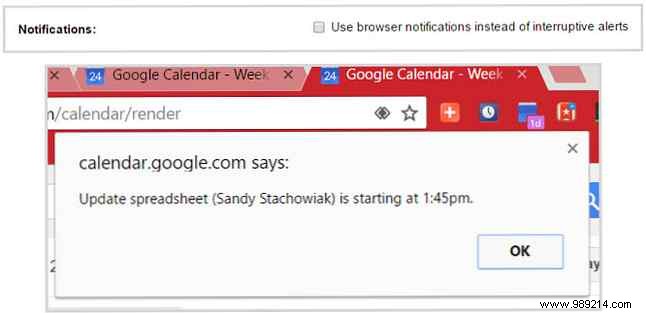
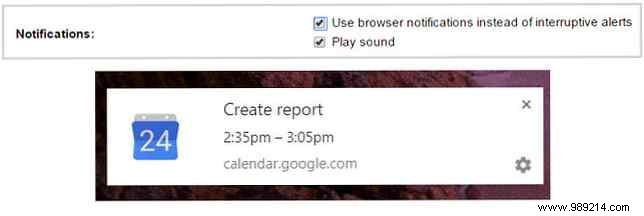
Enable via web: gear icon > Settings > General tab > Notifications > select option > Save.
On web, click the event > Edit event > scroll to Notifications > adjust > Save.
On mobile, tap event > pencil icon > tweak alerts > Save.
Automatically imported Gmail events (flights, reservations) get the same treatment—no location-based alerts yet, but manual tweaks work identically.

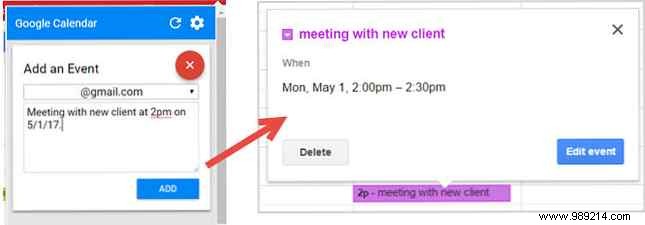
Install the official Google Calendar Chrome extension. Click the toolbar icon > + > pick calendar > enter natural text like "Lunch with Mom tomorrow at noon" > Add. It parses and schedules with alerts.
These options ensure you're always prepared, whether managing one calendar or many. Got pro tips for web, mobile, or extensions? Share in the comments below!
