Whether you're a freelancer juggling client work, a solopreneur tracking daily to-dos, or part of a small team, Microsoft Outlook's Tasks feature offers a reliable, no-cost solution for project management. With straightforward customizations, you can set reminders, due dates, assign responsibilities, and track time—all within the tool you already use for email.
For complex enterprise projects, tools like Microsoft Project or Basecamp provide advanced capabilities. But for simpler needs—freelance gigs, personal projects, or tiny teams—Outlook delivers the essentials without overwhelming complexity. Key features include:
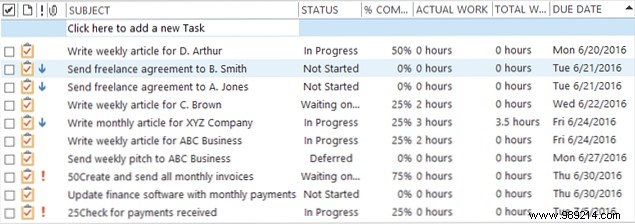
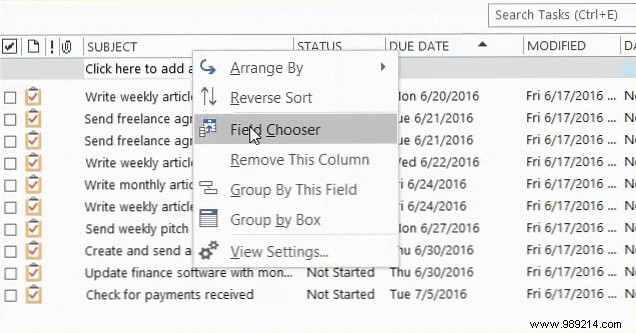
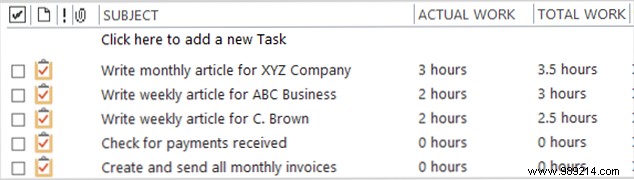
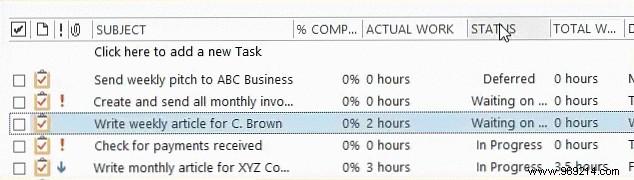
Tailor the task view by adding or removing fields like Actual Work and Total Work for time tracking, or Percentage Complete and custom status for progress monitoring. Right-click a column header, select Field Chooser, and drag desired fields into place.
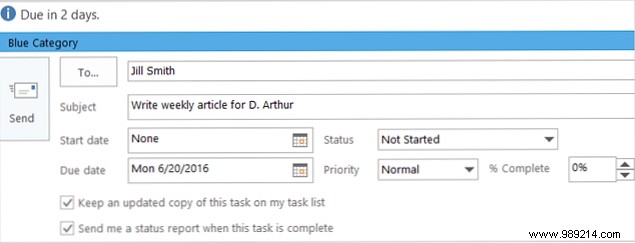
Collaborating with a colleague? Open a task, click Assign Task, then hit the To button to pick from your contacts. Add them and hit Send—the task lands in their inbox. Include Team checkboxes or an Assigned To field for quick oversight.
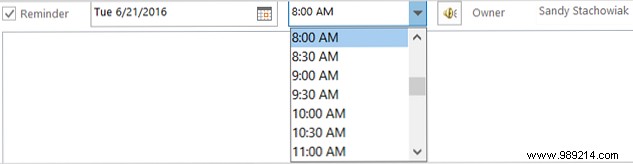
Reminders keep you on track: pick a date via calendar, set time in 30-minute slots, and even choose a sound. Essential for any productivity setup.
Freelancers, use Actual Work for billable hours and Total Work for overall effort—both in decimal hours. Perfect for client invoicing.
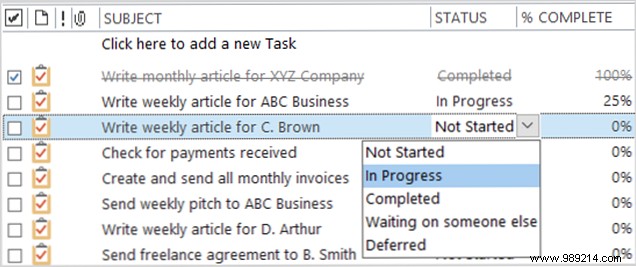
Combine Percentage Complete and Status fields: hit 100%, and it auto-marks as Completed with a strikethrough. Options like In Progress, Waiting On, or Deferred provide clear visibility.
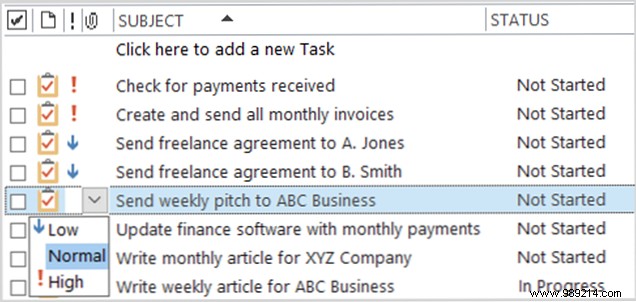
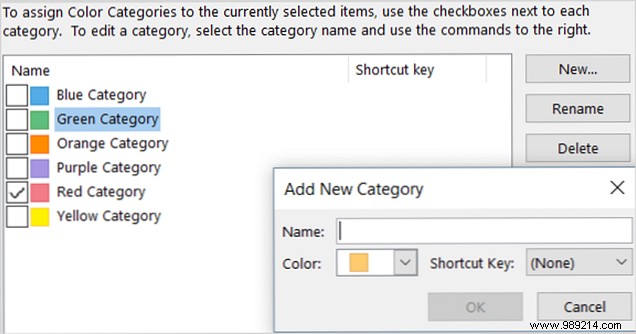
Priority flags shine: red exclamation for High, blue arrow for Low. Add custom priorities if needed. Categories let you color-code tasks (e.g., green for finance)—rename defaults for intuitive grouping.
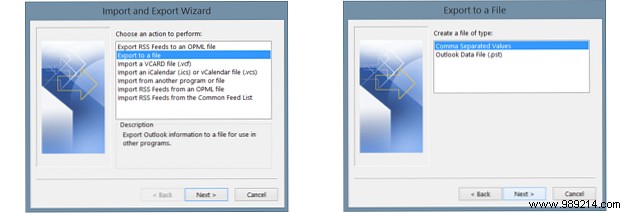
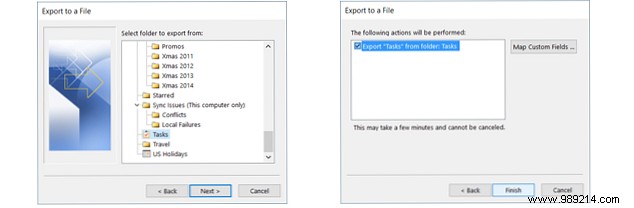
Need data in a spreadsheet? Go to File > Open & Export > Import/Export, choose Export to a file, then Comma Separated Values (.csv) or Outlook Data File (.pst). Select Tasks folder, map fields if desired, set date range, and finish. CSV works great for Excel or databases.
Outlook Tasks includes extras like sorting by column, drag-and-drop rearranging, one-click status reports, detailed views for billing info, and keyword filters.
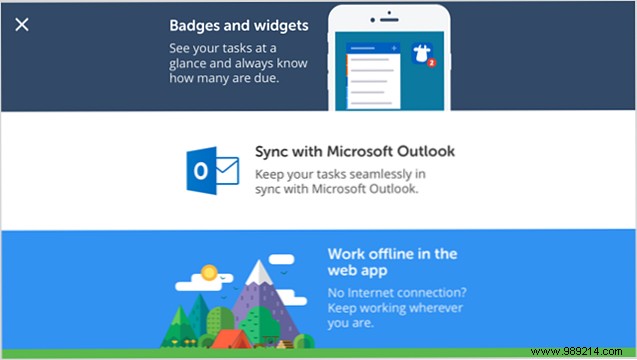
Outlook's mobile app lacks native Tasks, but third-party apps sync via Exchange:
It's ideal if you're already in the Outlook ecosystem and need lightweight management. For hidden gems, explore 10 Little-Known Outlook Features. Have you used Outlook Tasks for projects? Share your experience in the comments!
