Excel excels at calculations when you have all the necessary data. But what if you need to solve for unknown variables? That's where Goal Seek and Solver come in. As experienced Excel users, we've relied on these tools for years to optimize spreadsheets efficiently. This comprehensive guide walks you through using Goal Seek for simple equations and Solver for complex, multi-variable problems.
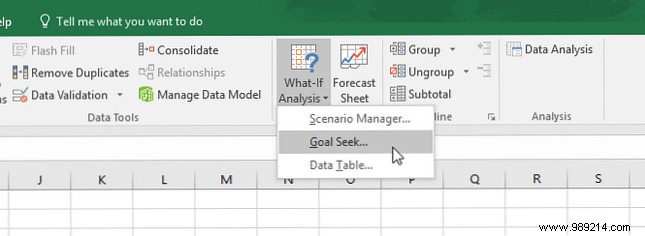
Goal Seek is built into Excel and found under the Data tab in the What-If Analysis menu:
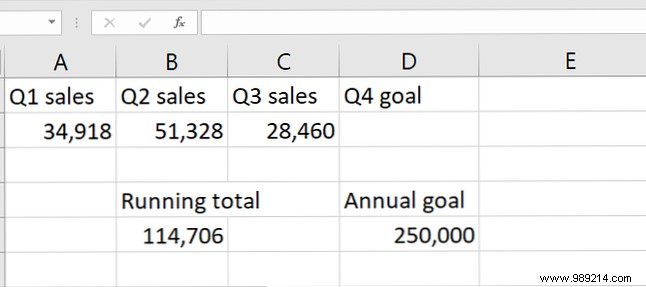
For this example, consider quarterly sales data with a yearly target of 250,000 units. Current total sales stand at 114,706 units after three quarters. Goal Seek reveals the Q4 sales needed to hit the target.
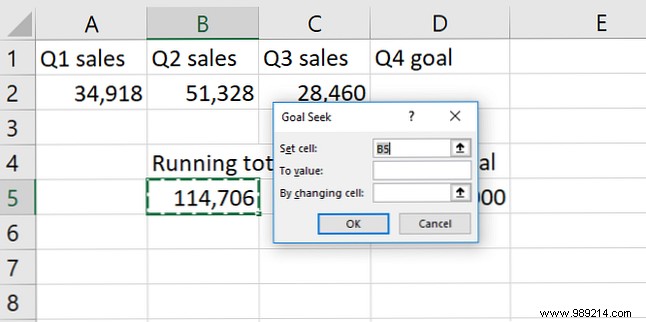
Follow these steps:
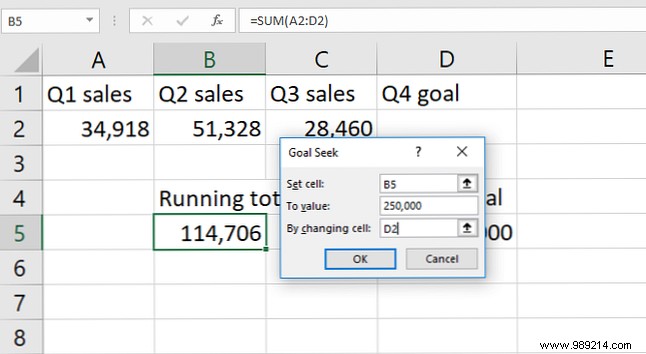
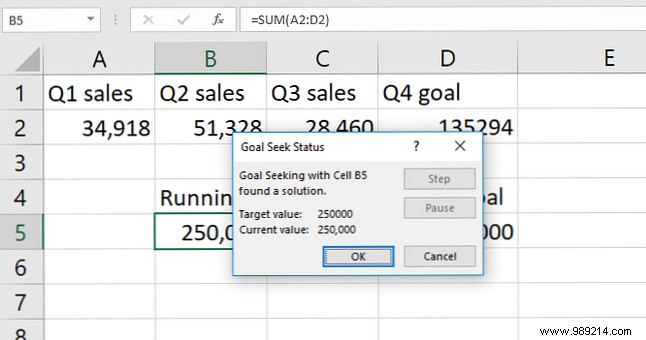
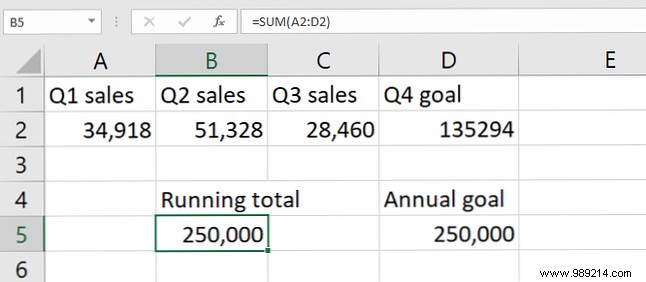
Simple subtraction works here, but Goal Seek shines with cells containing existing data. Pro tip: Always run on a data copy—Excel overwrites originals. Note solved values separately to avoid confusion with live data.
Goal Seek saves time on what-if scenarios. For more, check 16 Excel Formulas to Help You Solve Real-Life Problems.
Now, discover Solver, the powerhouse for multivariate optimization.
Solver is Goal Seek on steroids: it adjusts multiple variables to maximize, minimize, or hit a target value, respecting constraints. Ideal for budgeting, scheduling, or resource allocation. It's an add-in, but pre-installed on most systems.
Navigate to File > Options > Add-Ins. Beside Manage: Excel Add-ins, click Go.
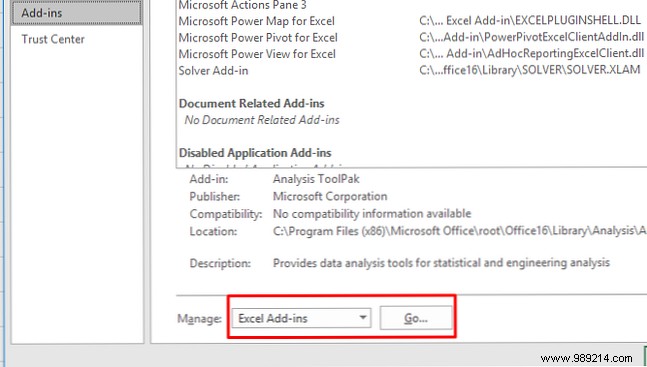
Check Solver Add-in and click OK:
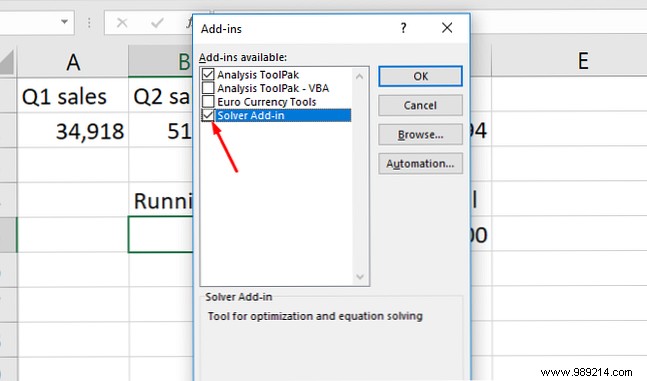
Solver now appears in Data > Analyze:
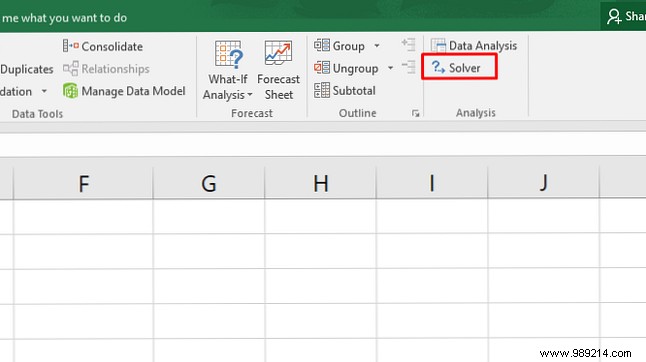
Users of Data Analysis Toolpak will see it grouped there. Learn basics in How to Do Basic Data Analysis in Excel. Boost Excel further with 10 Add-Ins to Process, Analyze and Visualize Data Like a Pro.
Solver involves three elements: objective, variables, and constraints. Here's the process:
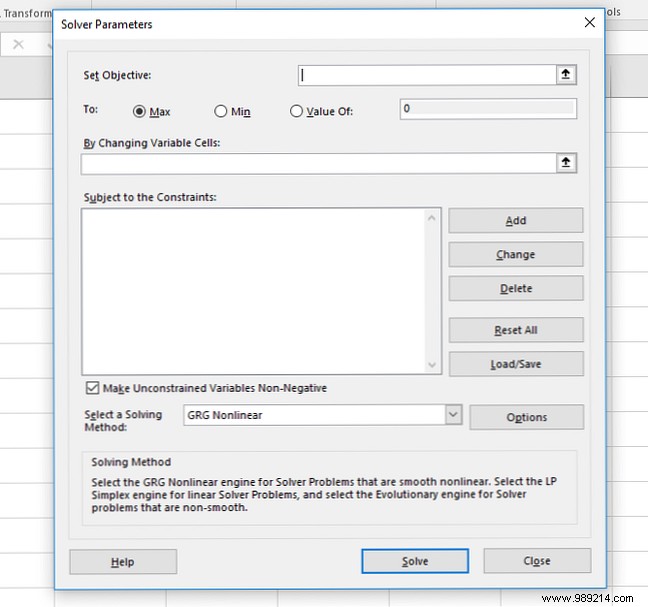
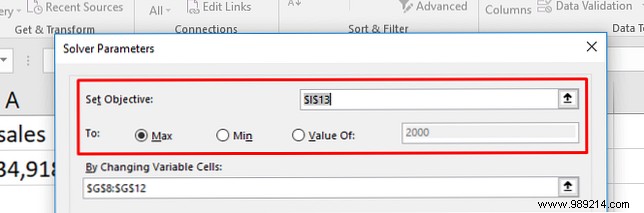
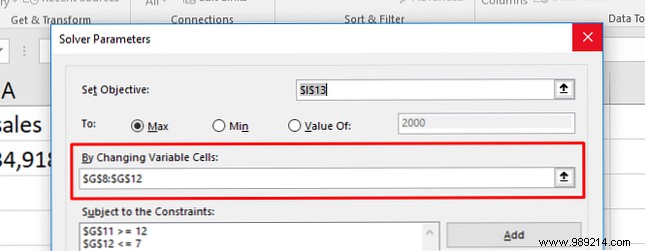
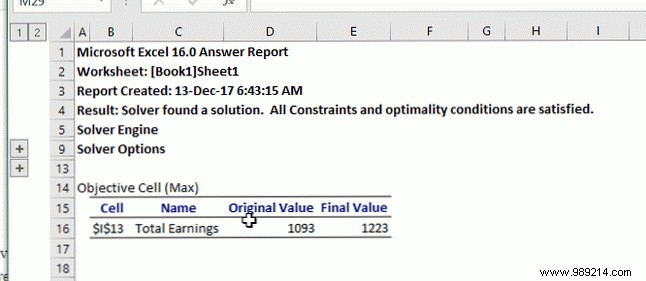
Generate reports for insights.
Constraints limit variables, e.g., >=200.
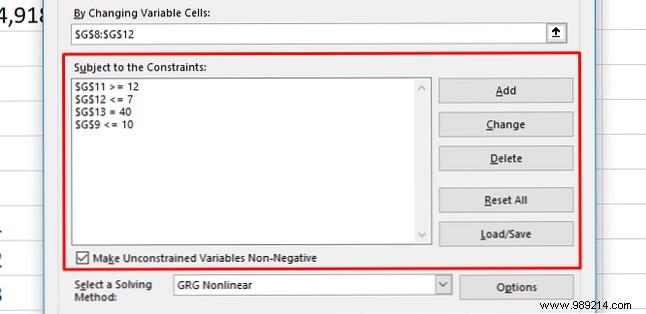
Click Add, select cells, operator, and value:
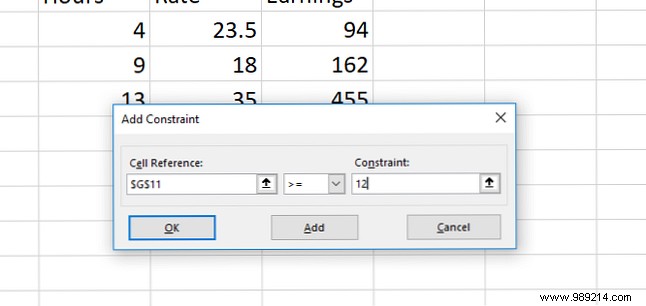
Apply to multiple cells at once. Uncheck Make Unconstrained Variables Non-Negative for negatives.
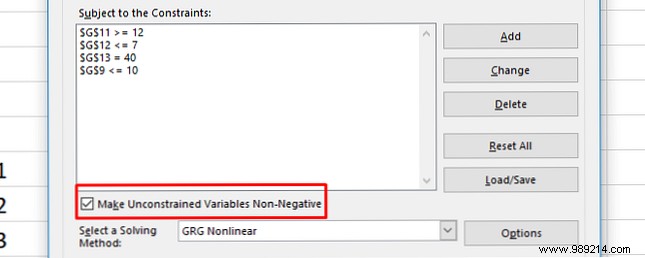
Maximize weekly pay from five jobs (rates vary) under constraints:
Starting data:
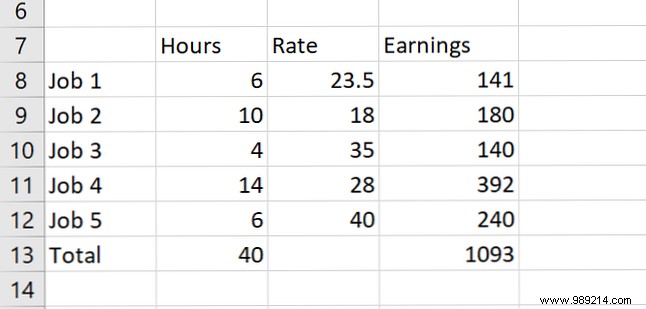
Solver setup (on data copy; adjust for >=/<=):
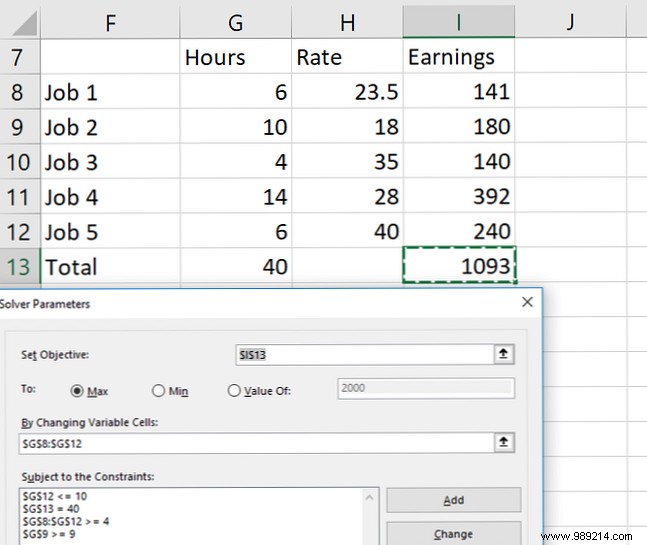
Result: +$130 earnings, constraints met:
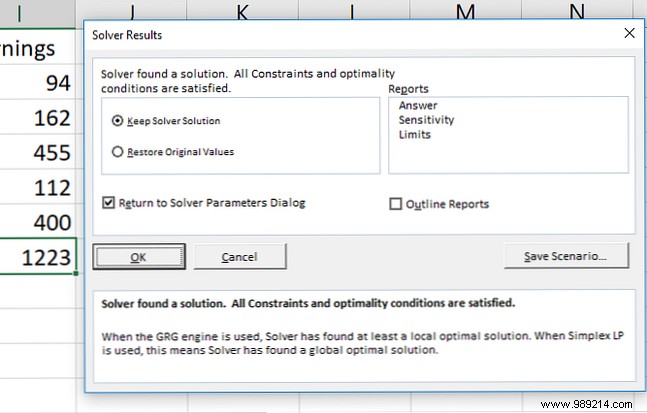
Select Keep Solver Solution. Generate reports for details (new sheets).
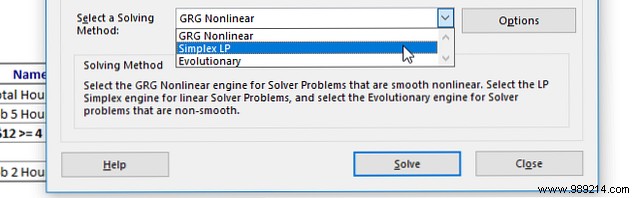
For complex models, choose solving method: GRG Nonlinear, Simplex LP, or Evolutionary (best for precision, but slower).
Tweak via Options: precision, iterations, convergence. See Learn Stats for Free with These 6 Resources or Engineer Excel for method guidance. Start simple—advanced tweaks build with experience.
Master these tools to unlock Excel's full potential for real-world problems like budgeting or stats. See How to Calculate Basic Statistics in Excel: A Beginner's Guide.
Do you use Goal Seek or Solver? Share tips in the comments!
