Microsoft PowerPoint isn't just for presentations—it's a versatile design tool that lets you edit images with precision. As an expert in presentation software, I've used these techniques for years to create polished slides. Master image cropping to add professional flair to your work.
Discover three reliable methods to crop photos and images in PowerPoint.
Method 1: Crop by Dragging Handles
- Select Insert > Pictures on the ribbon to add an image to your slide.
- Select the image, go to Picture Format, and click Crop. Black crop handles appear on the edges and corners.

- Drag the handles inward to crop. For equal cropping on all sides, hold Ctrl while dragging a corner handle; for parallel sides, hold Ctrl on side handles. Reposition the image as needed.
- For exact dimensions, enter values in the Height and Width boxes beside the Crop button.

- Press Esc or click outside the image to apply.
Method 2: Crop to Aspect Ratio
Quickly crop to standard ratios like square or 16:9 with one click—ideal for consistent layouts.
- Select the image on your slide.
- Go to Picture Format. In the Size group, click the arrow below Crop.
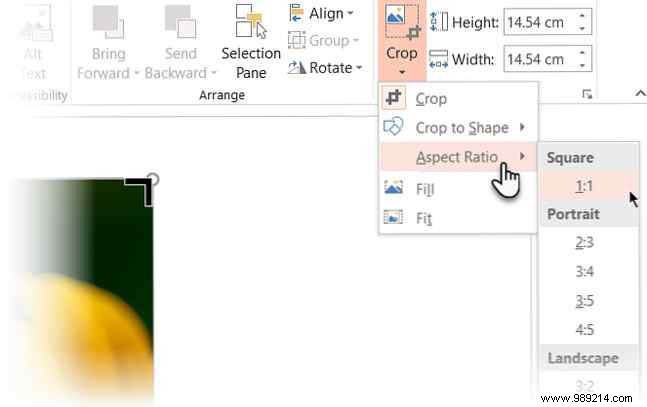
- Choose your desired aspect ratio from the menu.
- Adjust the cropping rectangle or use handles to refine the view.
Method 3: Crop to a Custom Shape
Use shapes for creative crops, like circles for headshots, by filling them with images.

- Select Insert > Shapes and draw your shape.
- With the shape selected, go to Shape Format > Shape Fill > Picture.
- Insert your image as the fill.
- Select the shape, then Picture Format > arrow below Crop.
- Choose Fill or Fit.
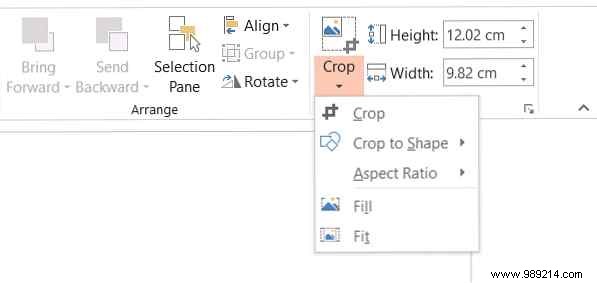
Fill scales the image to the shape's larger dimension; Fit matches both height and width exactly. Use crop handles to adjust positioning.
PowerPoint offers endless design solutions, even for beginners. Check out The Beginner's Guide to Microsoft PowerPoint: From Rookie to Master for more tips on crafting stunning slideshows.
