Microsoft Word documents rarely hog storage space compared to videos or games. But when emailing attachments, publishing online, or optimizing storage, trimming bytes matters. As a Microsoft Office expert with years of document management experience, here are three reliable methods to reduce your Word file size effectively.
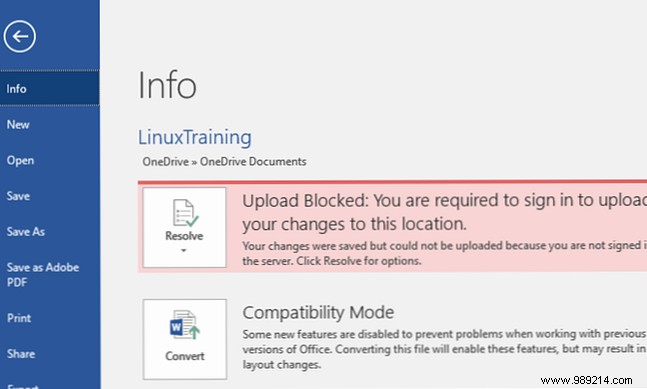
Since Word 2007, the default DOCX format replaces the older DOC, offering much smaller files—often reducing a multi-megabyte DOC to just hundreds of kilobytes. Use DOC only for legacy compatibility.
To switch, go to the File tab, select Info tab, and choose Convert. Confirm the prompt and save with a new name.
Edit images in dedicated software before inserting, like these 10 easy-to-use photo editing programs for novices. Editing directly in Word retains originals and extra data, bloating the file.
Insert via Insert > Pictures from space-efficient formats like JPG—avoid pasting, which defaults to larger PNG or BMP.
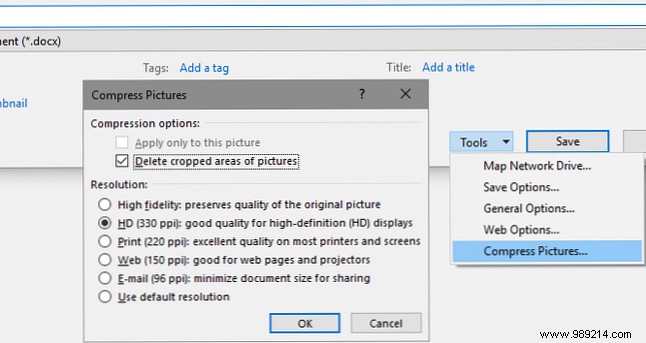
Finally, in Save As, click Tools > Compress Pictures and choose a lower resolution to balance quality and size.
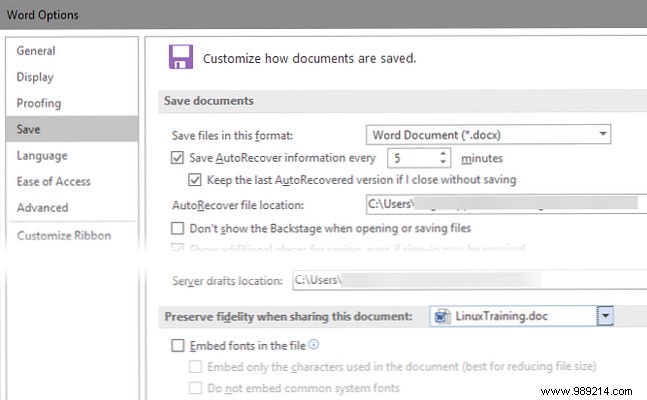
Custom fonts ensure consistency across systems but increase file size. Learn more in our guide on styling fonts in Microsoft Word.
Avoid this by going to File > Options > Save and unchecking Embed fonts in the file. For necessary embeds, select Do not embed common system fonts to exclude standards like Arial.
For additional productivity boosts, explore these 10 hidden Microsoft Word features that streamline your workflow.
