Beautiful Microsoft Word documents demand well-formatted tables. As versatile tools, tables are indispensable for organizing data effectively. Microsoft has streamlined table creation and formatting in Word for Office 365, Word 2019, Word 2016, and Word 2013.
We've received numerous questions on table formatting, so here are eight practical tips to elevate your skills and achieve professional results.
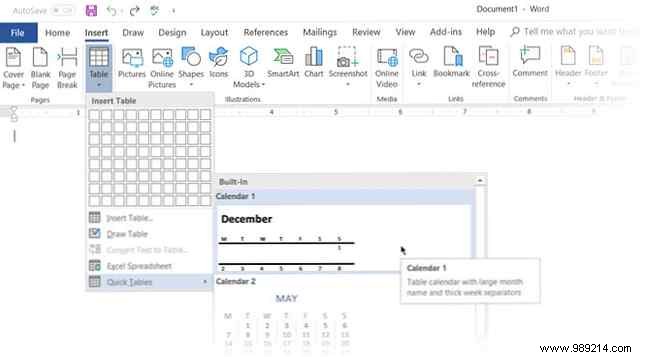
Newer versions like Word 2019 and Office 365 offer intuitive tools for creating and adjusting tables dynamically. Start by going to Ribbon > Insert > Table > Insert Table.
This provides five options. For speed, use Quick Tables—pre-built layouts you can customize by adding or removing rows and columns.
Alternatively, use the Insert Control: Hover over table edges to reveal a bar between rows or columns, then click to add one instantly.
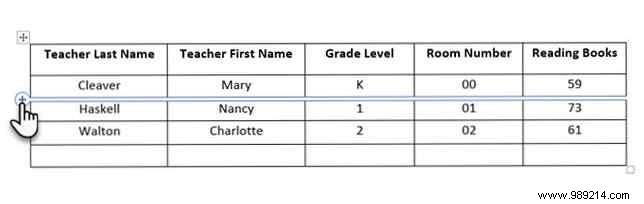
To move rows, select them and use Alt + Shift + Up Arrow or Alt + Shift + Down Arrow.
Right-click the table, select Table Properties, and use the dialog for precise control over size, alignment, and indentation.
Tables align left by default. For centering, go to the Table tab and click Alignment > Center.
The Indent from left setting adjusts distance from the left margin.
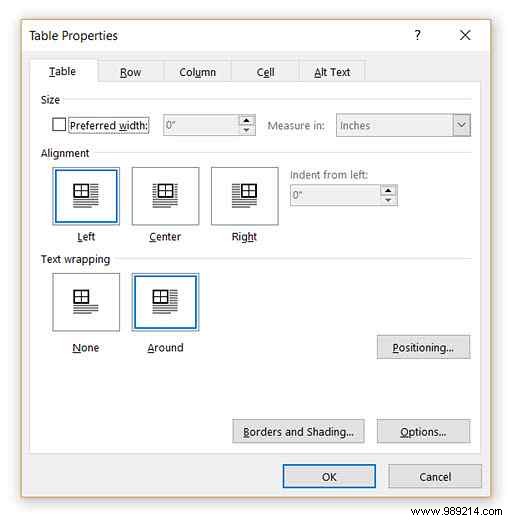
For text wrapping, drag the table handle—wrapping switches from None to Around. In Table Positioning, set Distance from surrounding text.
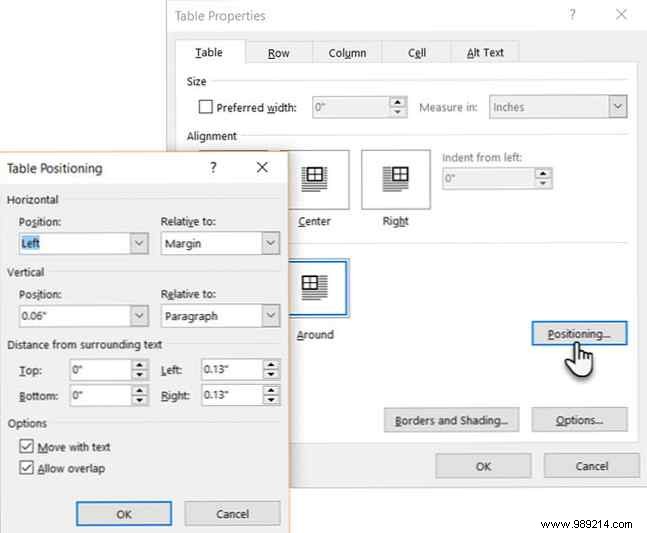
Check Move with text for content tied to specific paragraphs; leave unchecked for document-wide data.
Precise resizing is key. Enable the ruler for exact measurements.

Hover over an edge until the double-arrow appears, then hold Alt while dragging for inch-level precision.
Transform unstructured data into tables instantly. Select text, then go to Ribbon > Insert > Table > Insert Table.
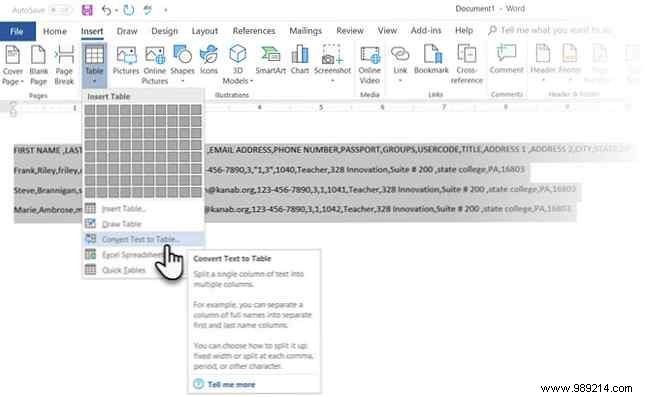
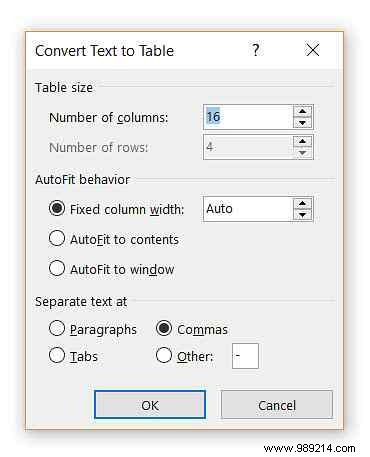
Word auto-detects separators. For more control, use the Convert Text to Table dialog to specify paragraphs, tabs, commas, etc.—ideal for CSV or TXT imports.
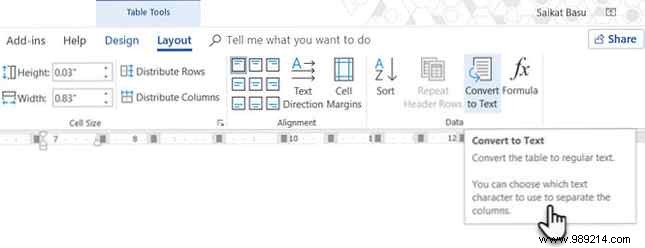
Reverse the process: Select the table (via the move handle), go to Ribbon > Table Tools > Layout > Data, and click Convert to Text.
Prefer visuals? Convert tables to charts using Word's underutilized features. 10 Hidden Microsoft Word Features That Will Make Your Life Easier.
Skip manual numbering: Add a column, select it, go to Home > Paragraph, and click Numbering.
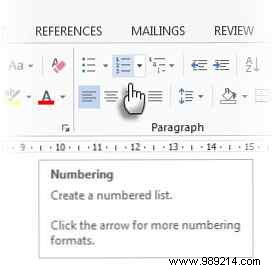
Numbers populate automatically.
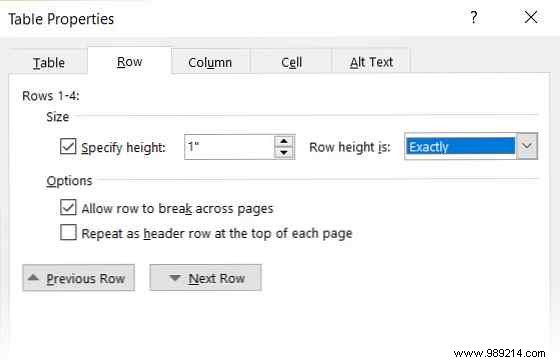
Prevent resizing: In Table Properties > Row, set Specify height to Exactly.
Then, Table tab > Options > uncheck Automatically resize to fit contents.
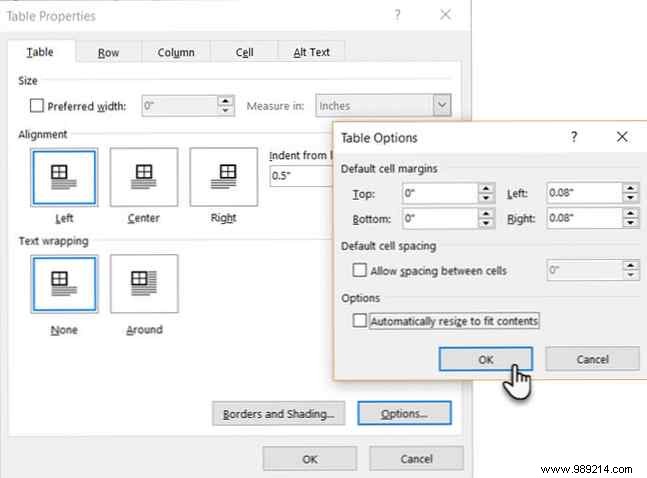
This keeps images from expanding cells—they crop to fit.
No direct tool? Paste into Excel, use Transpose, then copy back.
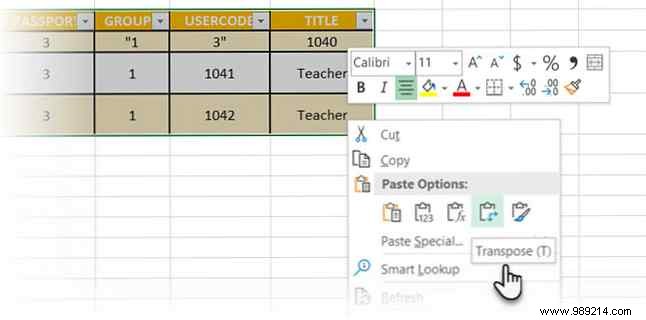
Excel Quick Tips: How to Flip Cells and Swap Rows or Columns. Check Microsoft support for issues.
Gmail strips Excel formatting—use Word as intermediary: Paste Excel table into Word, then copy to Gmail.
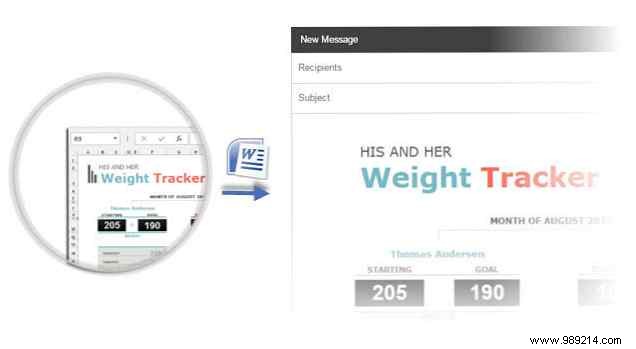
Most formatting survives.
Save time on reports: Select table, go to Ribbon > Insert > Text > Quick Parts > Save Selection to Quick Parts Gallery.
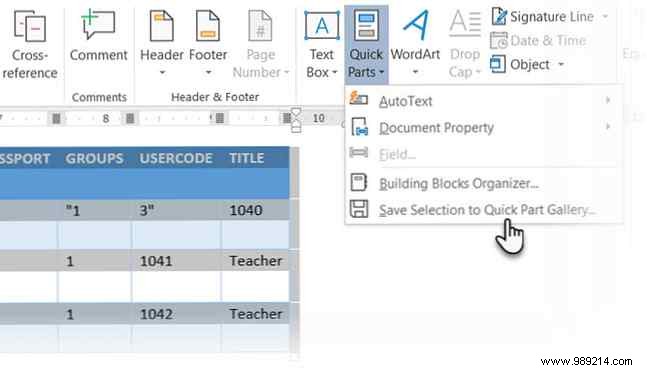
Reuse via Quick Parts or manage in Building Block Organizer. How to Create Professional Documents and Reports in Microsoft Word.
Explore the Design tab for styles. Master these alongside Excel skills. 5 Microsoft Word and Excel Skills You Must Have for Office Success.
