Gmail seamlessly manages your emails, calendars, contacts, and cloud storage. While Google helps spot duplicates, keeping your contacts current requires manual steps. Here's our expert guide to adding, importing, and removing contacts efficiently.
How to Add New Contacts in Gmail
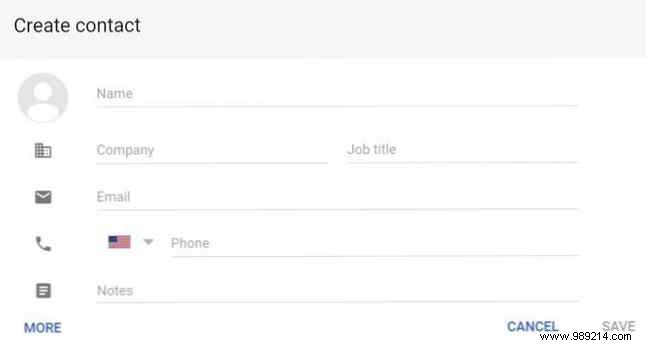
- Visit contacts.google.com. Or, from Gmail, click the dropdown under the Google logo and select Contacts.
- Click the More button in the bottom right.
- Enter the name and details, then click Save.
How to Add Contacts from an Email Message
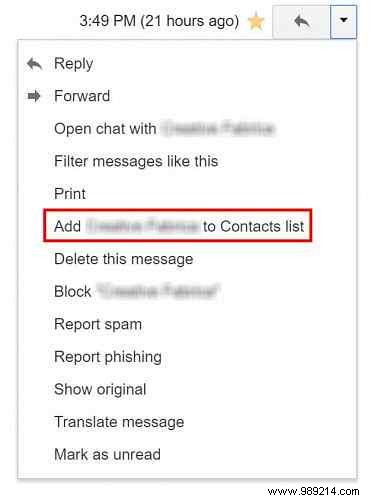
To save a sender directly:
- Open the message and click the arrow next to Reply.
- Select Add [Contact Name] to Contacts.
How to Import Multiple Contacts into Gmail
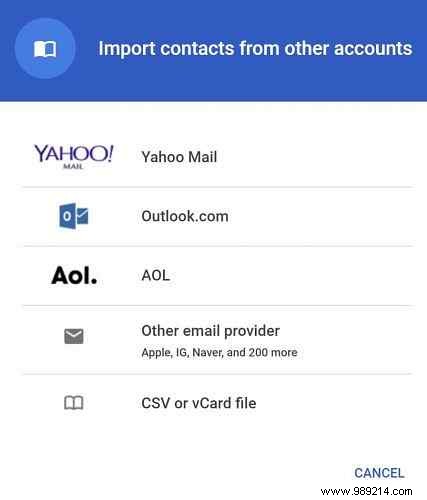
Switching providers? Export contacts as CSV first. Google supports imports from Yahoo, Outlook.com, AOL, and more. For CSV:
- Go to contacts.google.com.
- Click More in the left sidebar.
- Select Import > CSV or vCard file.
- Click Go to old Google Contacts in the popup.
- Click Import Contacts, choose your file, and import.
Refresh to view in the new interface.
How to Delete Contacts in Gmail
- Visit contacts.google.com.
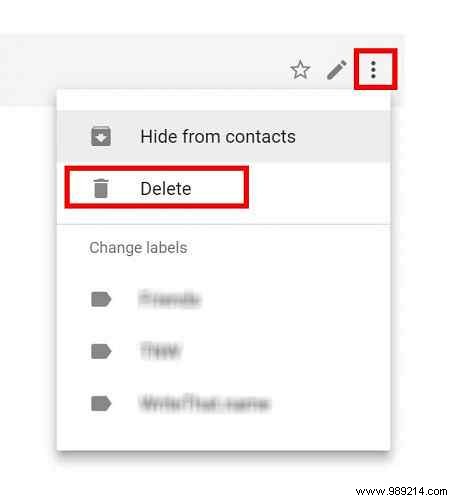
- Search or find the contact, click the three-dot menu > More actions > Delete.
To hide without deleting: Select Hide from contacts. Note: The Gmail mobile app doesn't support adding or deleting contacts.
Do you rely on Google Contacts? Share your preferred method in the comments!
