As a seasoned Google Sheets user and Apps Script developer with years of experience automating workflows, I've helped countless teams supercharge their spreadsheets. If you've ever needed calculations beyond built-in formulas, custom functions via Google Apps Script are the solution.
Google Sheets offers robust built-in functions for sums, averages, lookups, and more. But for complex logic like dynamic tax calculations varying by location, nested IFs become unwieldy. Here's how to build reusable custom functions efficiently.
Start with what's available: SUM or AVERAGE handle basics effortlessly.
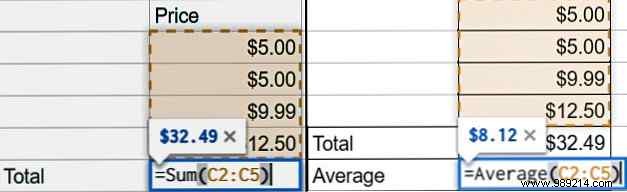
For dynamic needs, like adding location-based taxes to purchases, long IF chains like '=IF(A2="PA",B2*0.06,IF(A2="CA",B2*0.0625,B2*0))' quickly spiral out of control. Custom functions keep things clean and scalable.
Google Apps Script is beginner-friendly. This tax calculator example demonstrates the process.
From your Sheet, go to Extensions > Apps Script (updated menu).
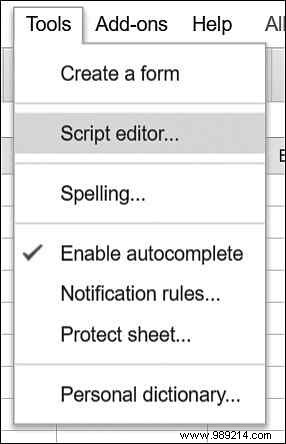
Name it descriptively, like calculateTax. Parameters go in parentheses.
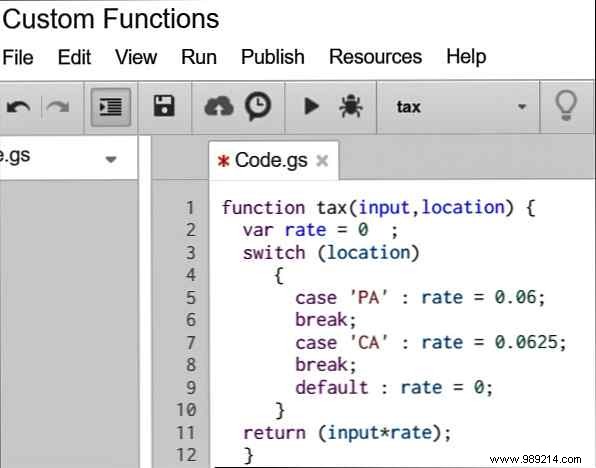
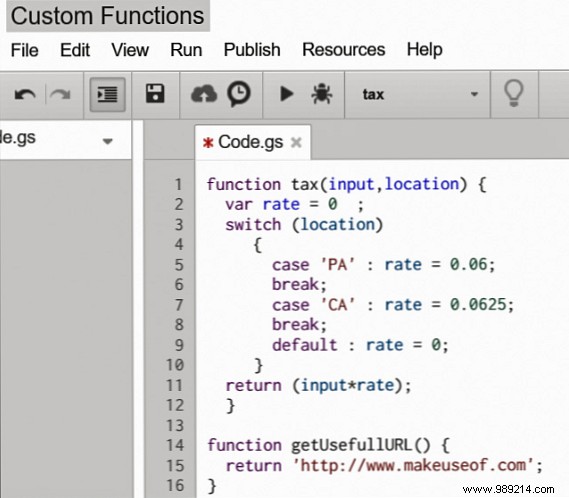
Paste this into the editor:
function calculateTax(amount, location) {
  var rate = 0;
  switch (location) {
    case 'PA':
      rate = 0.06;
      break;
    case 'CA':
      rate = 0.0625;
      break;
    default:
      rate = 0;
  }
  return amount * rate;
}
Note: Add more cases as needed for additional locations.
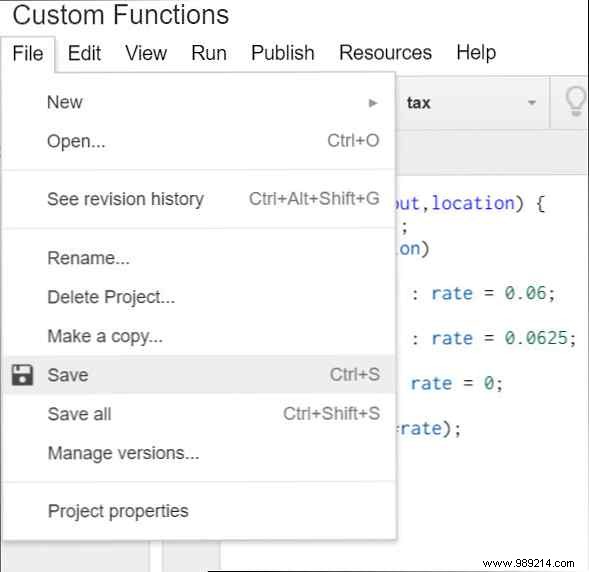
Click File > Save, name your project, and hit OK.
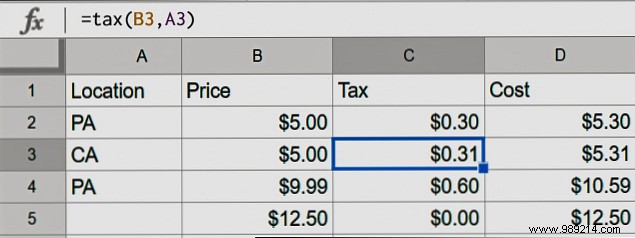
Treat it like any built-in: Enter =calculateTax(B2, A2) where B2 is the amount and A2 the location.
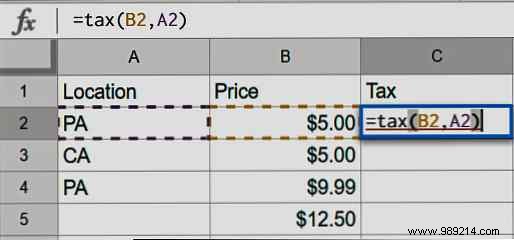
Drag to autofill rows, just like SUM.
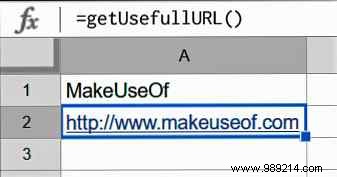
Add more functions to the same script anytime.
Result:
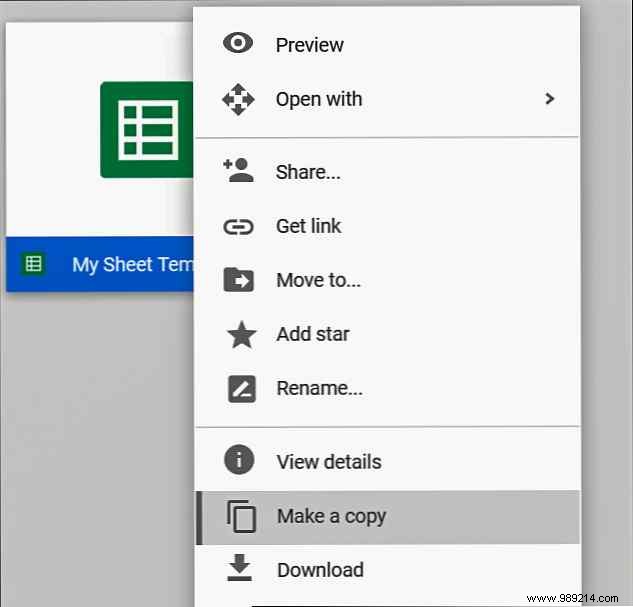
Save effort across sheets:
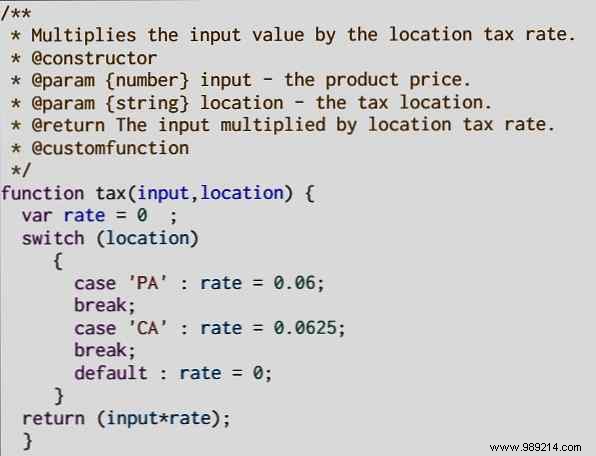
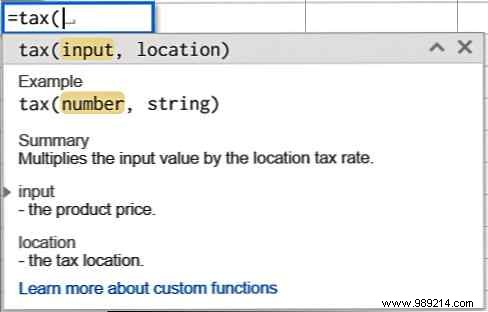
Use JSDoc for professional help text:
Custom functions unlock Google Sheets' full potential, often surpassing Excel for collaboration. For more, check Google's custom functions guide.
Have you built custom functions? Share in the comments!
