Google Calendar is an invaluable tool for managing schedules and events. Unlock its full potential by customizing settings tailored to your workflow—saving you time and boosting productivity with just a few clicks.
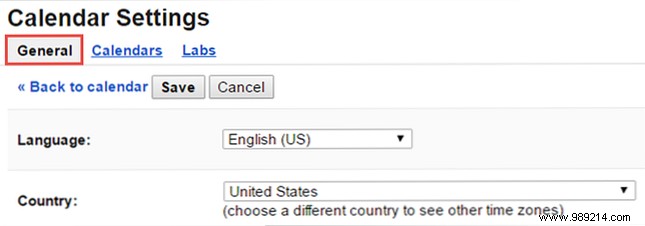
Basic options like language, country, and date formats are straightforward, but deeper customizations can transform your experience. Access these via calendar.google.com: sign in, click the gear icon for Settings, stay in the General tab, and hit Save after changes.
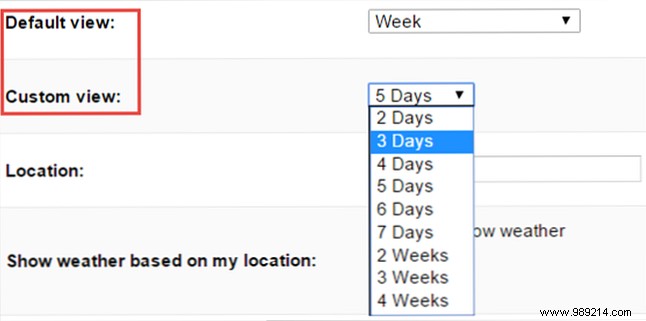
Tired of switching views on login? Set your preferred Default View (Day, Week, Month, Custom, or Agenda). Below it, configure Custom View for 2-7 days or 2-4 weeks, overriding the standard five-day week.
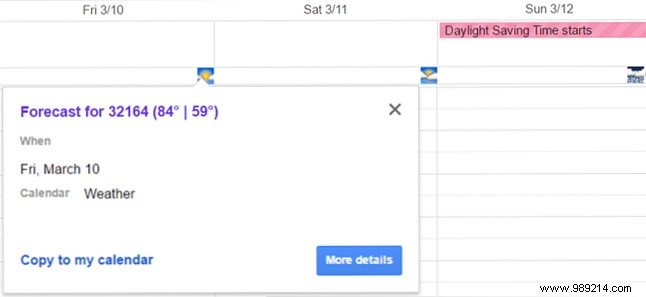
Plan trips effortlessly with weather integrated into your calendar. Enter your Location (city, state, or ZIP) and select Celsius or Fahrenheit. Icons appear daily (sun, clouds, rain), with highs/lows on hover or click. Share via Copy to calendar for group visibility.
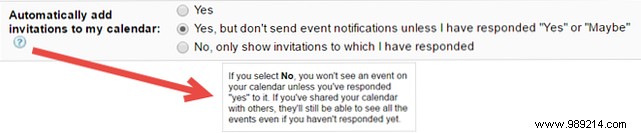
Avoid calendar clutter from unwanted invites. Under Automatically add invitations, choose: Yes (all show), No (none until accepted), or middle option (shows but no RSVP until you respond). Note: 'No' hides desired events pre-response; shared calendars show invites regardless.
Set Default event duration from No end time to 120 minutes. Enable Speedy Meetings to end 30-min events 5 minutes early and longer ones 10 minutes early (e.g., 25, 50, 80, or 110 minutes)—perfect for back-to-back schedules.


Manage created, imported, public, or shared calendars for optimal use. In Settings > Calendars, view and edit accessible ones.
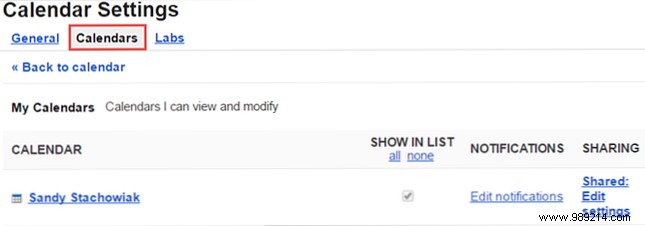
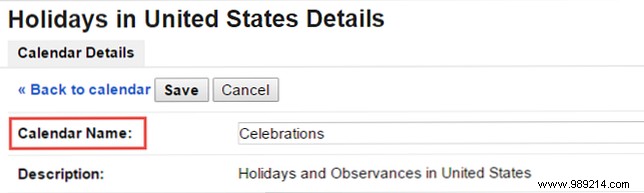
Personalize shared/public calendars (e.g., 'Spouse' or 'Holidays') by editing Calendar name and saving.
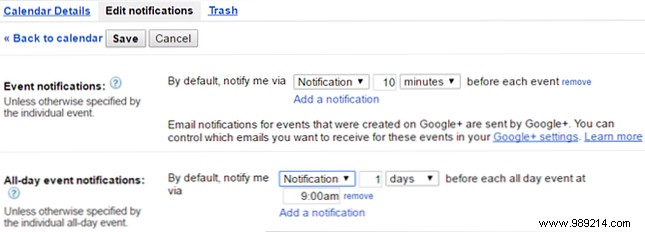
Fine-tune alerts: Add email notifications for events, changes, cancellations, responses, or daily agendas via checkboxes.

Adjust Share with specific people: Add/remove emails, set permissions (full edit, event changes, free/busy, or details only)—ideal for teams.

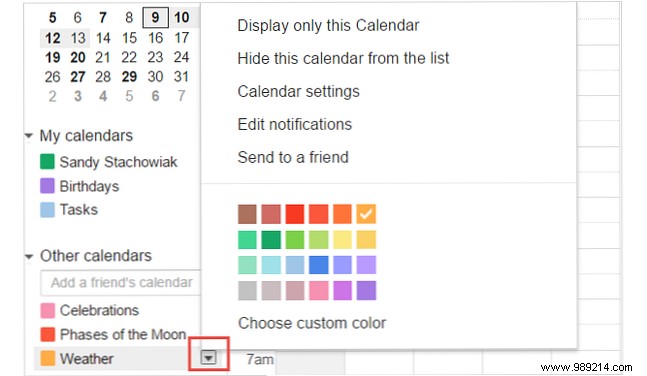
From the left sidebar, click the arrow next to a calendar and pick a color. Great for distinguishing work (red) from personal (yellow) across multiple calendars.
These settings, often overlooked, make a big difference for daily users. What's your go-to customization for work or home? Share in the comments!
