Working with shared Google Sheets often means dealing with inconsistent data entry, which can derail your workflows. As a Google Workspace expert with years of experience managing team spreadsheets, I've relied on dropdown lists to enforce data accuracy, speed up input, and minimize errors.
Dropdowns restrict entries to predefined options, making collaboration seamless. Here's how to set them up using Google Sheets' built-in Data Validation feature.
- Create or open your Google Sheet and select the cells where you want the dropdown (entire rows or columns work too).
- Go to Data > Data validation.
- The Cell range field auto-populates with your selection. Edit manually if needed by clicking the grid icon.
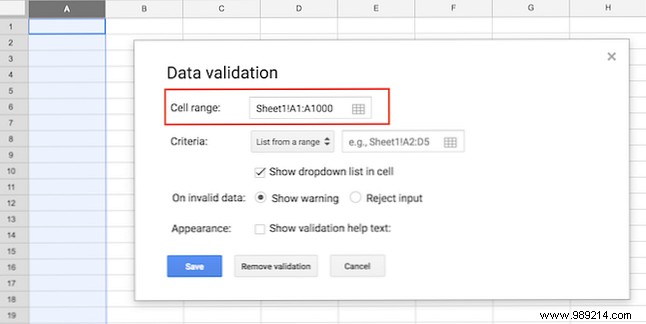
- Under Criteria, choose from two reliable options:
- List from a range: Pull options from specific cells for easy updates.
- Add a new sheet via the + icon at bottom-left (optional but recommended for lists).
- Click in the Criteria field, then select your range by dragging or typing it. A dialog lets you refine.
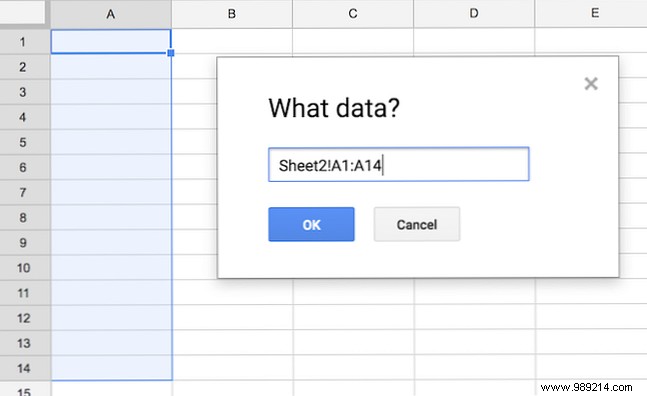
- Enter your items in those cells—edit the sheet anytime to update the dropdown.
- List of items: For static lists, type options separated by commas.
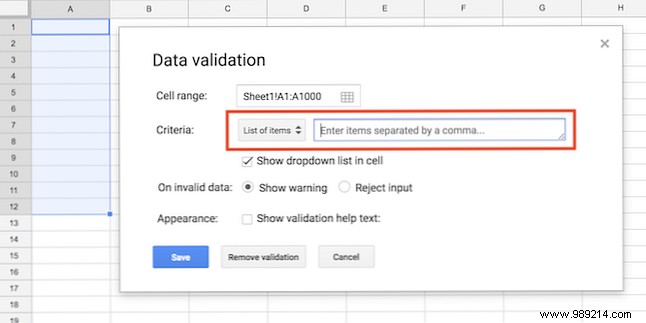
- Example: Apple,Banana,Orange
- Ensure Show dropdown list in cell is checked.
- For invalid entries, select Reject input for strict control or Show validation help text for guidance.
- Click Save.
To remove a dropdown, select the cells, go to Data > Data validation, then Remove validation.
To edit items, revisit Data validation on the cells and adjust the criteria.
This technique is a game-changer for efficient Sheets workflows. Pair it with macros—no coding required—to automate repetitive tasks further.
