As a seasoned Gmail user with years of managing high-volume inboxes, I know the frustration of inbox overload all too well. With these proven strategies, drawn from real-world experience, you can streamline your workflow, prioritize what matters, and eliminate that nagging anxiety.
A flooded inbox makes it tough to spot critical messages. Fortunately, Gmail's built-in tools and simple tweaks make organization effortless and effective.
Gmail offers customizable inbox views to match your needs. Tailor it to highlight important or unread emails first via the Inbox Type settings.
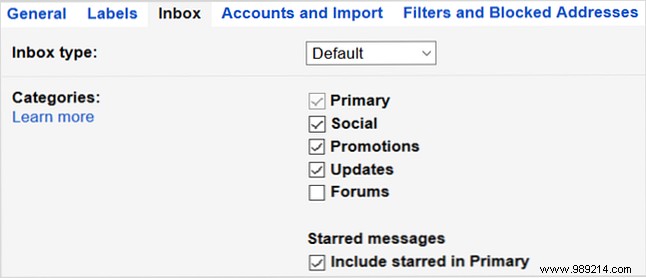
The Default inbox sorts emails into tabs for Primary, Social, Promotions, Updates, and Forums—keeping distractions separate. Enable or disable tabs as needed.
Important First prioritizes critical messages at the top, with everything else below. Customize sections to show 5-50 items each.
Unread First and Starred First follow the same two-section format, surfacing your priorities.
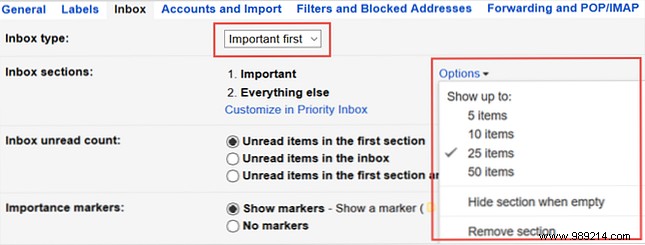
To adjust, click the gear icon > See all settings > Inbox, then select from the Inbox type dropdown.
Switching layouts can instantly transform your inbox experience.
Gmail's prioritization tools ensure important emails rise to the top. Fine-tune them for automatic sorting and flagging.
The Priority Inbox divides your inbox into customizable sections: important and unread first, starred next, then others. Add label-based sections for quick access to key categories.
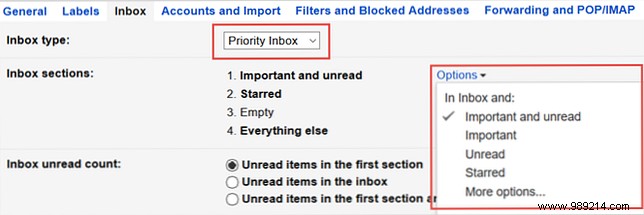
For instance, reorder to show unread before important, or create a section for specific labels.
Gmail's AI analyzes your interactions—who you email, keywords, and patterns—to mark messages as important. Review and tweak these in settings.

Access via gear icon > See all settings > Inbox. Disable auto-marking if preferred.
With Priority Inbox and tuned markers, your must-sees are always front and center.
Labels act like smart folders, letting you categorize, color-code, and nest for instant visual organization.
They appear in your sidebar, grouping relevant emails. Apply them on the fly or automate via filters.
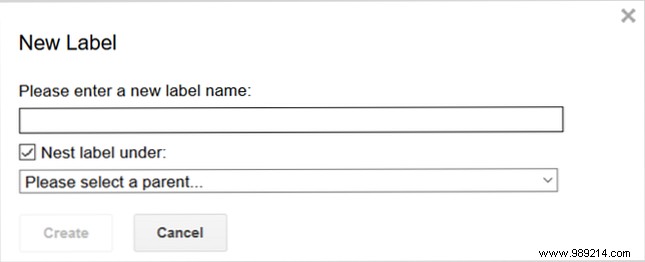
Manage labels at gear icon > See all settings > Labels. Or, from any email, click the label icon to apply or create new ones.
Filters automate actions like labeling, starring, archiving, or forwarding based on rules—similar to Outlook rules.
Create them via gear icon > See all settings > Filters and Blocked Addresses. Or, from an open email, click the three dots next to Reply > Filter messages like these.
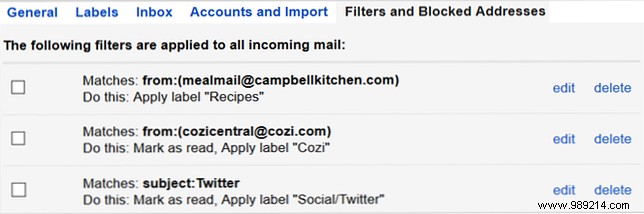
Define criteria (sender, keywords, attachments), then choose actions like apply label or mark important.
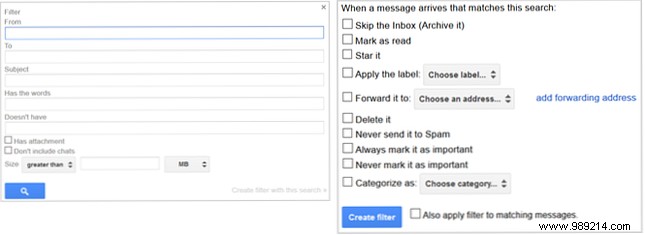
Test with Create filter with this search before applying.
Enable shortcuts at gear icon > See all settings > General > Keyboard shortcuts on. Here's a starter list (full details in Gmail Help):
Gmail's features are robust, but apps add polish.
Schedule sends, set reminders for no-replies, and follow up effortlessly—perfect for precise timing.
This Google app bundles emails into 'Bundles,' adds Snooze, Reminders, and turns messages into tasks. Labels sync seamlessly, with extra categories like Travel and Finance.
Explore these for next-level management.
Implement these tips to banish inbox anxiety. What's your go-to Gmail hack? Share in the comments!
