As a productivity expert with years of experience using Google Workspace tools, I rely on Google Calendar daily to manage schedules for teams and families. This versatile app serves millions for seamless diary and task management, and its sharing features make collaboration effortless—especially after recent redesigns that enhance usability.
You have two straightforward options: share publicly for anyone to view or grant access to specific individuals. Follow these proven steps to get started.
How to publicly share a Google Calendar
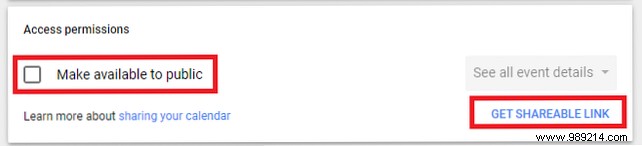
To share your Google Calendar publicly:
- Go to calendar.google.com.
- Log in to your account.
- In the left pane, find the calendar you want to share.
- Hover over the calendar name and click the three vertical dots.
- Click Settings and Sharing.
- Scroll down to Access Permissions and check the box next to Make available to public.
- Click Get shareable link to obtain the public URL.
How to share a Google Calendar with specific people
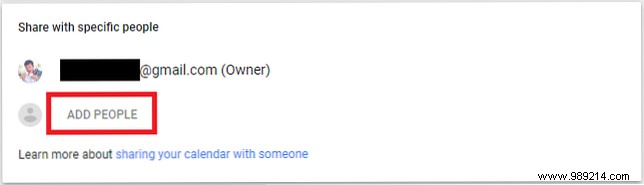
To restrict access to select individuals:
- Go to calendar.google.com.
- Log in to your account.
- In the left pane, find the calendar you want to share.
- Hover over the calendar name and click the three vertical dots.
- Click Settings and Sharing.
- Scroll down to Share with specific people.
- Click Add people.
- Enter the person's name (from your contacts) or email address.
Do you use Google Calendar's sharing features? Has the redesign made it easier? Share your thoughts in the comments below.
