Google Takeout makes it straightforward to download your Gmail data as an MBOX file. But what can you actually do with it? This versatile format excels for creating offline backups or transferring emails to a new service or Gmail account.
In the past, grabbing an offline Gmail copy required exporting your entire archive. Now, it's just a few clicks on Google Takeout. For details on backing up Gmail and other Google data, see our guide: How to Download and Backup Your Gmail and Other Google Data. We've relied on these methods for years to safeguard cloud-stored email, contacts, docs, photos, and more—especially as services evolve. Learn more about IMAP in Thunderbird.
Mozilla Thunderbird is our go-to choice: it's free, open-source, cross-platform (Windows, Mac, Linux), and natively handles MBOX files.
Install and launch Thunderbird, then add any email account to set it up properly—you won't need to use it.
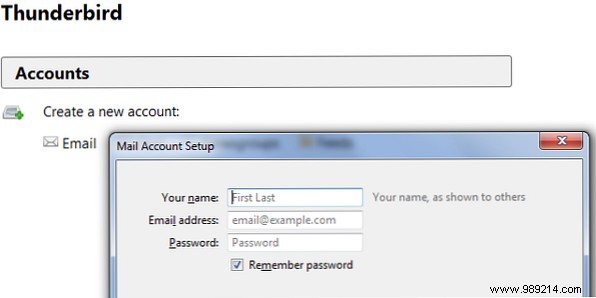
Close Thunderbird. Navigate to C:\Users\YOURNAME\AppData\Roaming\Thunderbird\Profiles\XXXXXXXX.default\Mail\Local Folders\ (replace YOURNAME and XXXXXXXX with your details).
In Windows Explorer, type %appdata% in the address bar and hit Enter, then drill down to Local Folders.
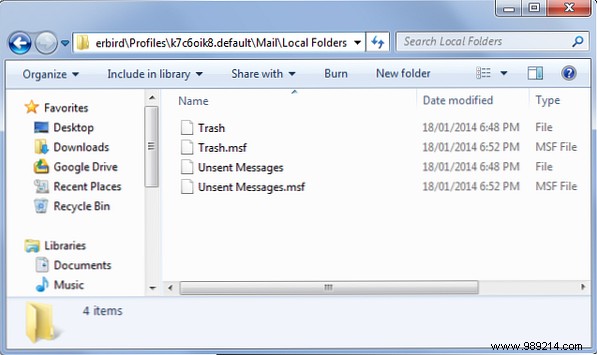
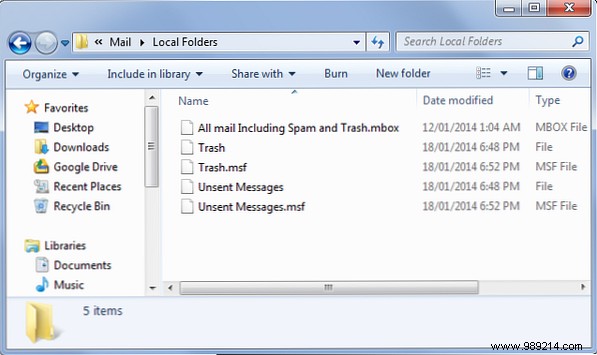
Copy your MBOX file here—no renaming needed.
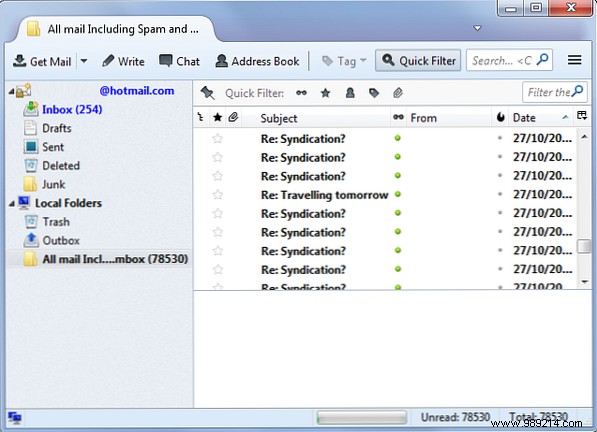
Restart Thunderbird. Your Gmail emails will now appear under Local Folders.
On Mac, use Mail app: File > Import Mailboxes. For Outlook, convert MBOX first, as it lacks native support.
Thunderbird delivers full offline access: browse, search, read, and download attachments—just like Gmail online.
This reliable setup offers true peace of mind. Store your MBOX on an external drive or USB with other backups, refreshing periodically if you still use Gmail.
Even if you lose account access, Gmail ends, or the internet fails, your archive stays accessible.
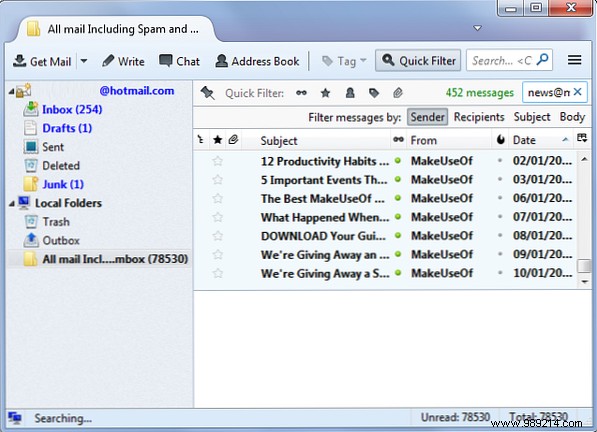
Migrate via Thunderbird to any IMAP-supported service (not POP3). Read our explainer: IMAP vs. POP3: What Is It and Which Should You Use?
Works for new Gmail, Outlook.com, Yahoo Mail, or others. Perfect for switching providers or starting fresh.
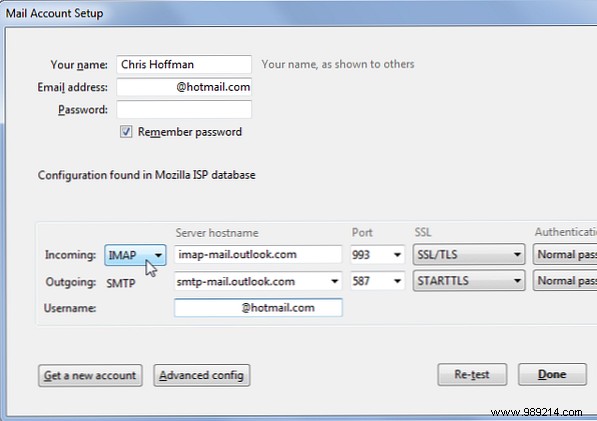
Add the target account in Thunderbird: Menu > New > Existing Mail Account. It auto-detects settings; ensure Incoming Server is IMAP (check provider docs for hostname, port, SSL if needed).
Your accounts appear in the sidebar. Drag-and-drop emails from Local Folders to the IMAP account—Thunderbird uploads them seamlessly, even in bulk.
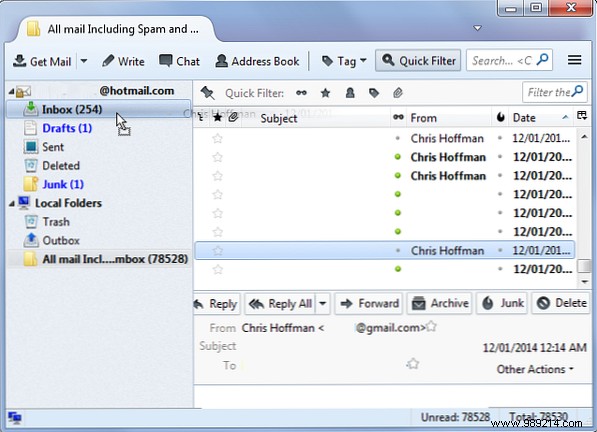
IMAP handles the upload; no direct MBOX import needed from the service. For Gmail in Outlook, see: How to Set Up Gmail in Microsoft Outlook. This bidirectional trick moves mail between any IMAP accounts.
What creative uses have you found for Gmail MBOX files? Share in the comments!
