Microsoft Outlook is a powerhouse email client used by millions, yet many overlook its advanced features. As seasoned IT professionals with years of experience optimizing workflows for teams, we've compiled these proven tips to unlock Outlook's full potential and transform it into a productivity powerhouse.
We've curated lesser-known tricks—from recovering sent emails to automating attachments—that deliver real results. Whether managing projects or handling high-volume inboxes, these strategies have helped us save hours weekly. Share your favorites in the comments!
For frequent travelers or global teams, displaying multiple time zones is invaluable. Go to File > Options > Calendar, then scroll to Time zones. Label your primary zone, enable Show a second time zone, configure it, and click OK.
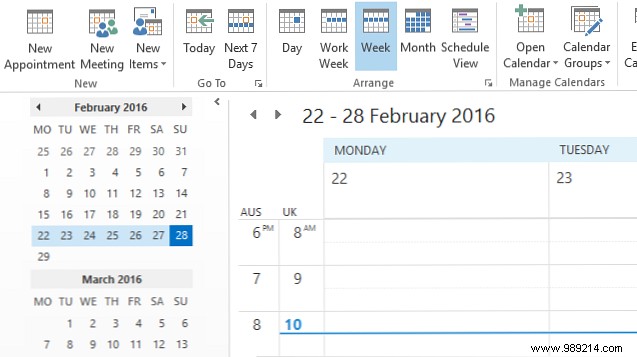
Switch to Day, Work Week, or Week view in the View tab's Current View group to see both zones displayed.
To block potential HTML-based threats, set Outlook to read emails in plain text by default (note: this isn't foolproof protection). Navigate to File > Options > Trust Center > Trust Center Settings > Email Security.
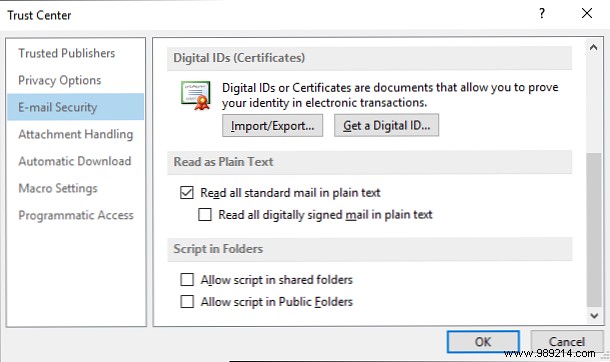
Check Read all standard mail in plain text and optionally Read all digitally signed mail in plain text. Click OK. For HTML views, use the message's info bar.
Shared mailboxes often hold emails in Outbox until manual send/receive. Edit the registry carefully (back up first—improper changes can cause issues).
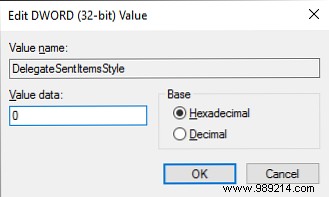
Close Outlook, search for regedit, and navigate to:
HKEY_CURRENT_USER\Software\Microsoft\Office\x.0\Outlook\Preferences
Replace x.0 with your version (e.g., 16.0 for 2016). Double-click DelegateSentItemsStyle, set Value data to 0, and click OK. Restart Outlook for instant sending.
Schedule emails for later delivery. In the compose window, go to Options > Delay Delivery. Set Do not deliver before date/time (requires Outlook open unless on Exchange).
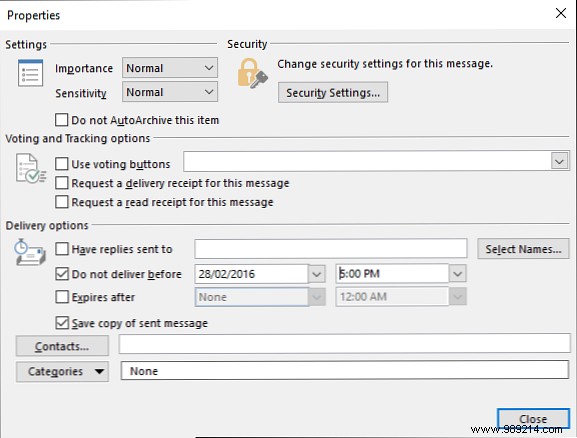
For rules: File > Manage Rules & Alerts > New Rule, add conditions, and select defer delivery by minutes.
On Exchange servers, recall messages quickly. In Sent Items, select the email > Move tab > Actions > Recall This Message.
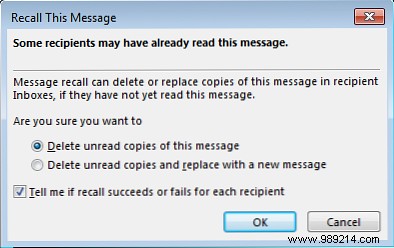
Choose Delete unread copies or replace with a new one. Check Tell me if recall succeeds or fails and click OK. Success varies by recipient status.
Save time on repetitive text. Highlight a phrase in compose mode > Insert tab > Quick Parts > Save Selection to Quick Part Gallery.
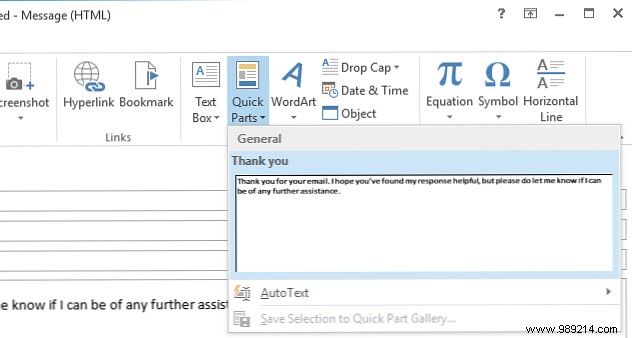
Outlook suggests it as you type (hit Enter) or access via dropdown. Right-click to organize/delete.
Outlook's depth rewards shortcut mastery. Key combos like Ctrl + N (new message), Ctrl + Enter (send), Ctrl + R (reply), Ctrl + F (forward), Insert (flag), F7 (spelling), F9 (send/receive) streamline everything.

Explore our full guide for 25+ shortcuts.
Create contacts, tasks, or events instantly from clipboard text. Copy content, navigate to the folder (e.g., Inbox for mail), and press Ctrl + V.
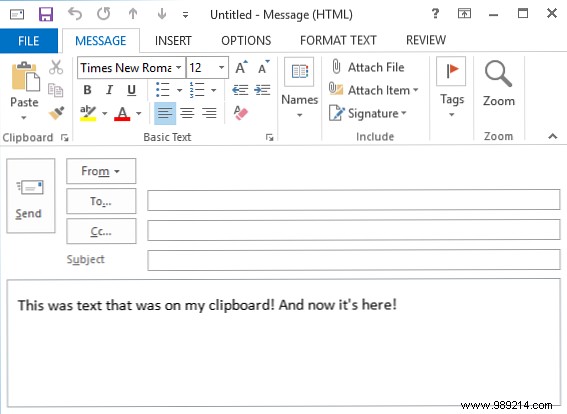
A game-changer for efficiency.
Prevent premature 'read' status. Go to File > Options > Mail > Reading Pane button.
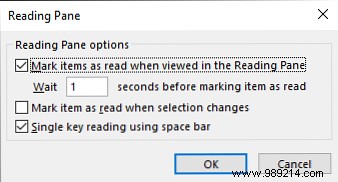
Set seconds before marking read and selection behavior. Click OK to apply.
Outlook scans for phrases like 'attached' and prompts if nothing's attached. File > Options > Mail > Send messages > check Warn me when sending a message that may be missing an attachment.
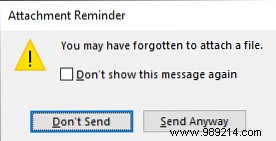
Click OK.
These desktop-focused tips enhance daily workflows. For web vs. desktop choice, see our comparison. Which will you try first? Drop your pro tips below!
