Using the new Outlook.com web app? Microsoft has rolled out updates to Outlook.com, with full migration expected for all accounts later this year. Check out what's new in your inbox. But watch out for unauthorized email forwarding, often set up via filters. Learn how to create email filters in Gmail, Yahoo, and Outlook to keep your inbox organized.
Unauthorized access to your email is alarming, and hidden forwarding rules are especially dangerous. Without your knowledge, someone could be receiving copies of all your messages—including password reset links, financial details, and personal notes—exposing you to risks.
Thankfully, checking for forwarding rules is straightforward. Sign in to Outlook.com, click the gear icon in the top-right corner, and select View all Outlook settings. In the left sidebar, go to Mail > Rules. Under Inbox rules, review any forwarding rules. Click on one to view details.
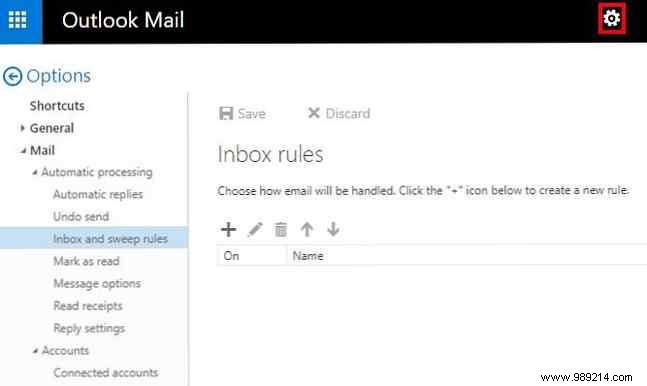
Email forwarding can be useful, so only delete suspicious rules—like those sending everything to an unfamiliar address. Use the trash icon to remove them.
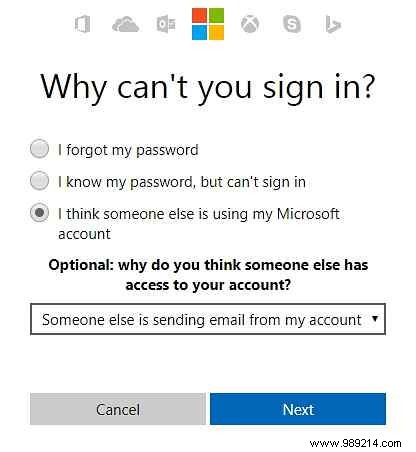
Next, secure your account by changing your Microsoft password. Visit the password reset page, select I think someone else is using my Microsoft account, and follow the prompts. Monitor for unusual activity afterward.
Unauthorized forwarding is one way compromised accounts spread spam. See if your email is spamming contacts and how to stop it.
Encountered unauthorized forwarding in your Outlook.com account? Share your experience in the comments!
