Electronic signatures verify document authenticity and build trust, even if not always legally binding. Adding one to Microsoft Word is straightforward and completely free.
We've tested these reliable methods extensively to help you create and insert signatures professionally. If you need Microsoft Word without the subscription, explore our guide to free alternatives.
For a personal touch, use a scanned handwritten signature. You'll need a scanner or mobile app.
First, sign a blank white paper, then scan it. Try apps like CamScanner for quick phone scans.
Crop the image in an editor if needed, then save as JPG, GIF, or PNG. In Word, go to the Insert tab, select Pictures, choose your file, and click Insert.
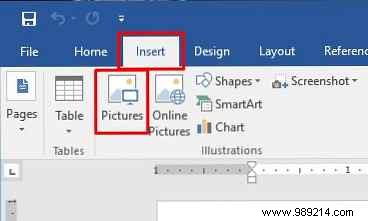
Resize as necessary and save your document.
Enhance your signature with job title or contact info using Word's Quick Parts feature.
Insert the scanned signature and type text below it. Select both, then from the Insert tab, go to Text > Quick Parts and choose Save Selection to Quick Part Gallery.
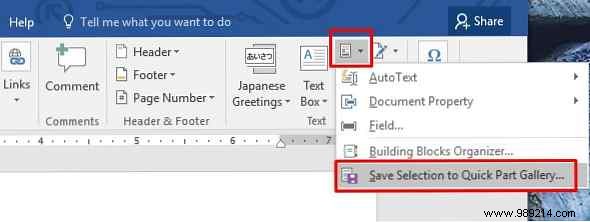
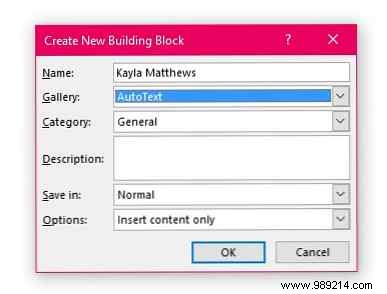
In the dialog, name it, set Gallery to AutoText, and click OK.
To reuse: Place cursor, go to Insert > Quick Parts > AutoText, and select your entry.
HelloSign (now Dropbox Sign) lets you sign Word files, PDFs, and more via drag-and-drop.
The free tier allows 3 documents monthly, plus Google Drive integration and notifications.

Download: HelloSign for iOS | Android (free, premium from $13/month)
Upload your Word file to Google Drive and use add-ons for signatures.
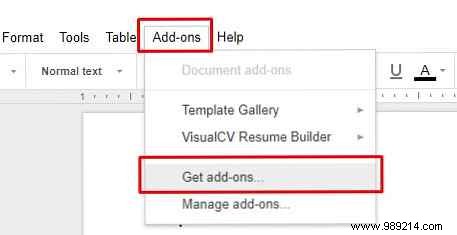
Install HelloSign from the Google Docs add-on store.

Draw or select a signature; signed docs sync to HelloSign's web version. Search 'signature' in Extensions > Add-ons > Get add-ons for more options.
Download: HelloSign for iOS | Android (free, premium from $13/month)
Download: Google Docs for iOS | Android (Free)
Note: Mobile apps may not support add-ons fully.
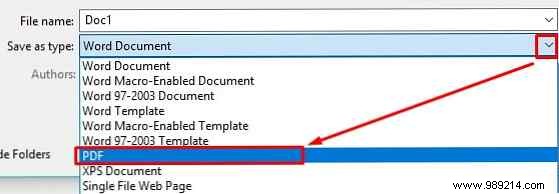
Save as PDF via File > Save As > PDF to unlock advanced tools.
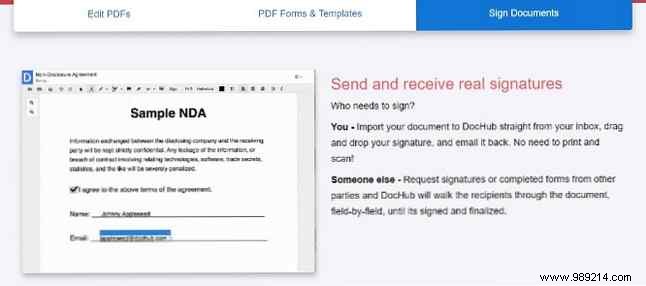
DocHub offers legally binding e-signatures; free tier: 5 docs/month, 3 signers, 3 requests.
Access via browser on any device; draw or select signatures.
Free tool for PDFs. Open file, go to Tools > Fill & Sign > Sign.
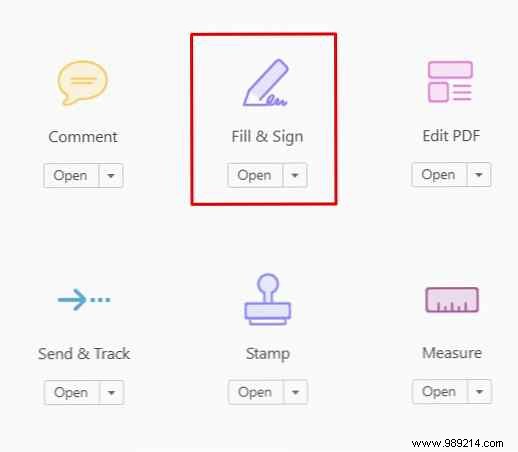
Type, draw, or import; save and apply.
Download: Adobe Acrobat Reader for Windows | iOS | Android (Free)
Open PDF in Preview, click Markup > Signature > Create Signature > Trackpad. Draw and insert.
These proven, free techniques make signing Word documents effortless. Which one suits you best?
