Microsoft Word provides robust tools for custom layouts, templates, and themes in versions like Word 2013 and 2016. As experienced Word users know, testing your design with placeholder text prevents formatting glitches mid-project.
Enter Lorem Ipsum—the industry-standard dummy text that mimics real content without distractions.
Lorem Ipsum is placeholder text, often called Greek text, hidden text, dummy text, or filler text.
To the untrained eye, it resembles Latin, but it's actually a jumbled version of Cicero's 1st-century BC work, De finibus bonorum et malorum, with added words for variety.
It's been a staple in printing and typesetting since the 1500s, gaining popularity in the 1960s.
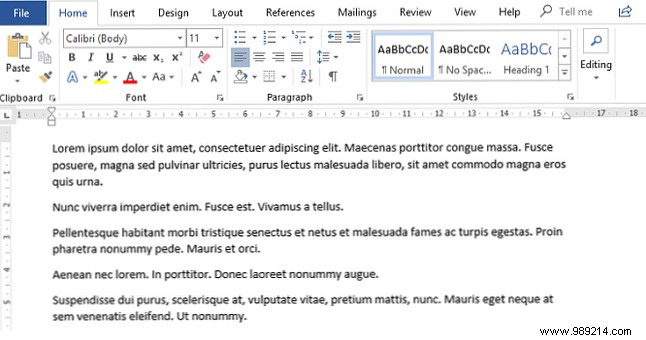
Adding Lorem Ipsum in Word is simple and fast. Follow these steps:
By default, this inserts three paragraphs of three lines each. Customize by adding numbers: the first for paragraphs, the second for lines. For example, =lorem(6,8) creates six paragraphs of eight lines, while =lorem(2,10) makes two paragraphs of 10 lines.
Once inserted, format and edit the text using standard Word tools and shortcuts, just like regular content.
For more layout mastery, check our guide on essential Microsoft Word formatting tricks you need to know.
