Creating a professional document in Microsoft Word is straightforward: open a blank page and start typing. With extensive formatting options, fonts, and design tools, you can elevate your work. For tips on making Word documents shine, explore our guide to 10 Simple Design Rules for Professional and Beautiful Word Documents.
Text boxes offer a powerful way to enhance layout and visual appeal. Why use a dedicated text box when you can type anywhere? They provide precise control for standout elements like quotes or stats. Here's how to add and customize them effectively.
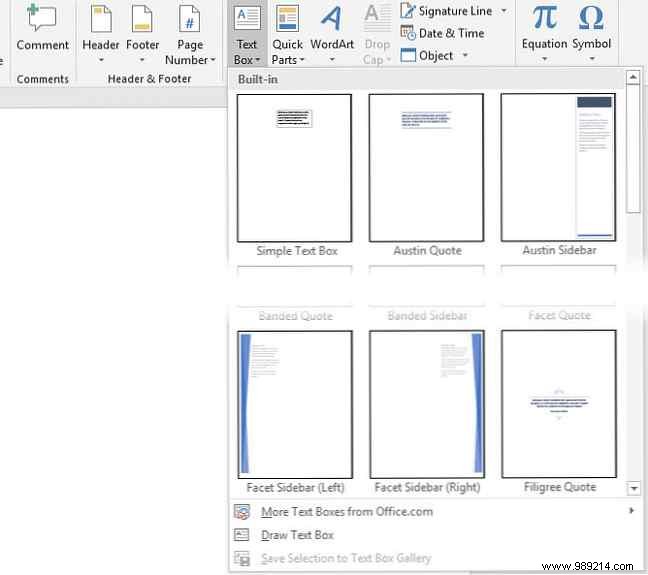
Open your Word document and navigate to the Insert tab. In the Text group, click the Text Box button.
A dropdown menu appears with built-in styles, from simple Simple Text Box to elaborate designs like Banded Sidebar. Select one to insert it directly into your document.
Word positions the box with placeholder text, ready for your customizations.
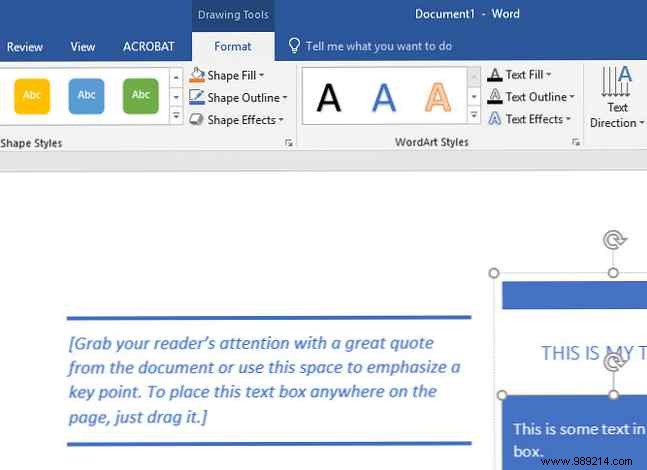
Click and drag the text box outline to reposition it. Use the resize handles to adjust its size.
Double-click inside to replace the placeholder text. With the box selected, the Shape Format tab appears—use it to tweak colors, fonts, alignment, and styles for a polished look.
For simple documents with standard layouts, text boxes may not be essential. However, they add dynamic flair to reports, academic papers, or presentations. Ideal for highlighting quotes, key stats, or visually distinct sections, they make your content more engaging.
Experiment with text boxes in your next project! Discover more Word tips in our guide to 10 Hidden or Overlooked Microsoft Word Features That Make Life Easier, including Researcher, Smart Chart, Read Aloud, and Ribbon customizations.
