As a productivity expert with over a decade of experience optimizing email workflows for professionals, I've streamlined countless inboxes. Whether forwarding specific emails or all incoming messages, Outlook and Gmail offer reliable, set-it-and-forget-it automation. Here's how to do it securely and efficiently.
How to Automatically Forward Emails in Outlook
To set up automatic forwarding in Outlook, create a custom rule using these proven steps:
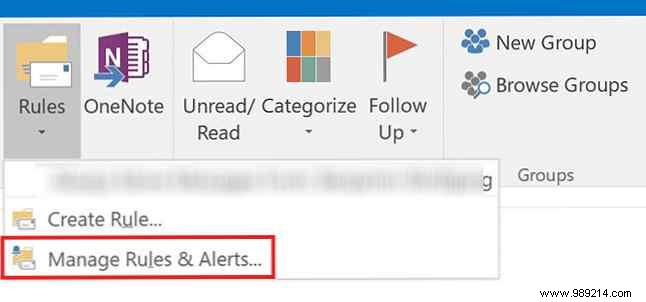
- Open Outlook, go to the Home tab, and click the arrow below Rules > Manage Rules & Alerts.
- Click New Rule.
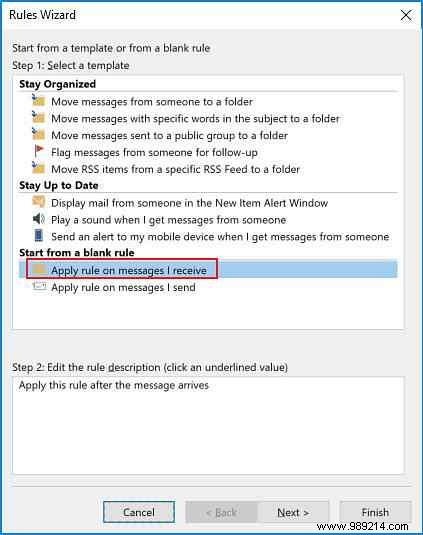
- Under Start from a blank rule, choose Apply rule on messages I receive, then click Next.
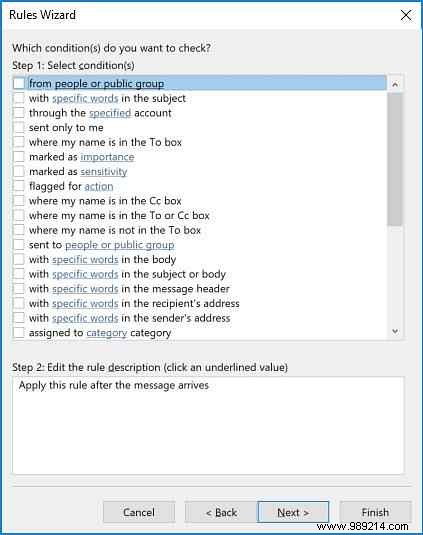
- Choose criteria for messages to forward (leave blank for all emails). Click Next.
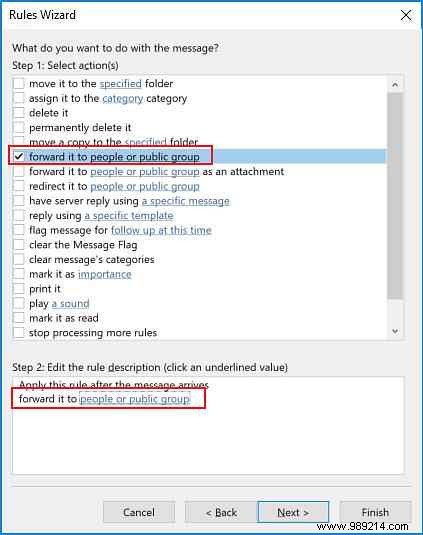
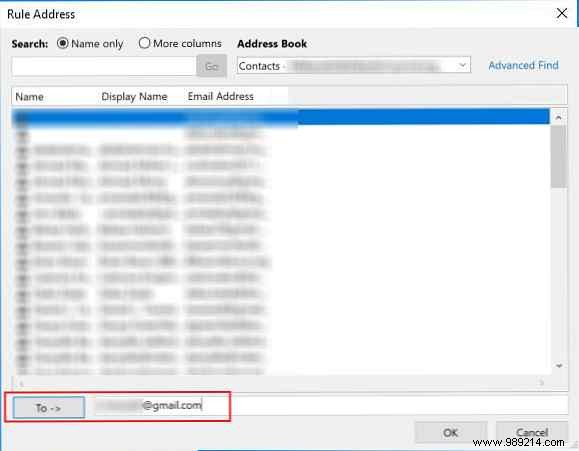
- Select forward it to people or public group (or as attachment). In Step 2, click the people or public group link.
- Enter the email addresses to forward to.
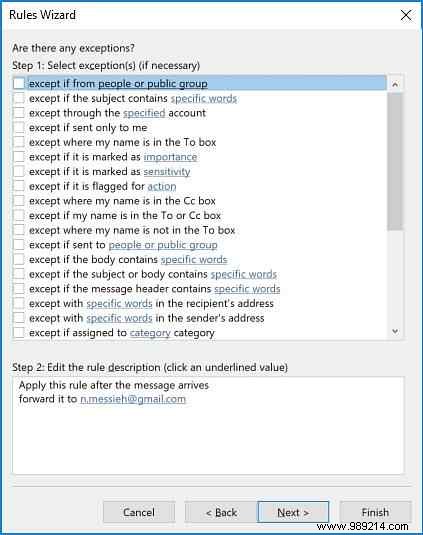
- Select any exceptions.
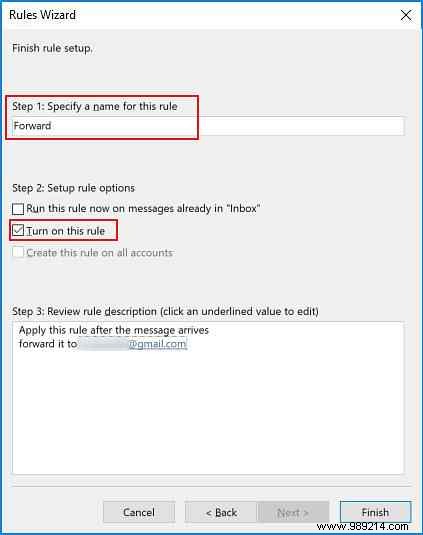
- Name the rule, ensure Turn on this rule is checked, and click Finish.
Forwarded emails appear as standard forwards, except for the subject line. To disable, revisit Home > Rules > Manage Rules & Alerts and uncheck the rule.
How to Automatically Forward Emails in Gmail
Gmail's process is straightforward but requires recipient verification for security—unlike Outlook. First, add forwarding addresses:
- Go to Gmail Settings > Forwarding and POP/IMAP.
- Click Add a forwarding address.
- Enter the email (one at a time) and click Next.
- The recipient clicks a verification link in their email.
Then, create a filter:
- Settings > Filters and Blocked Addresses.
- Click Create a new filter.
- Set criteria (e.g., your email in 'To' for all). Click Create filter.
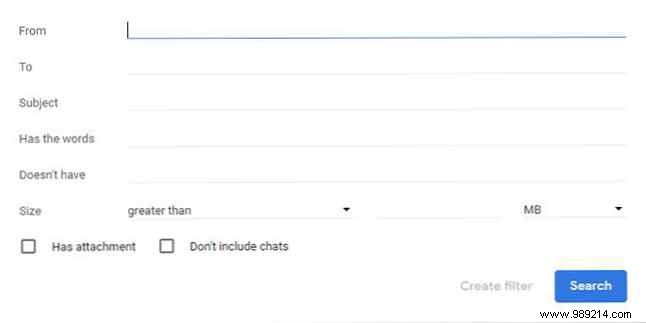
- Check Forward it to, select the address from the dropdown, and click Create filter.
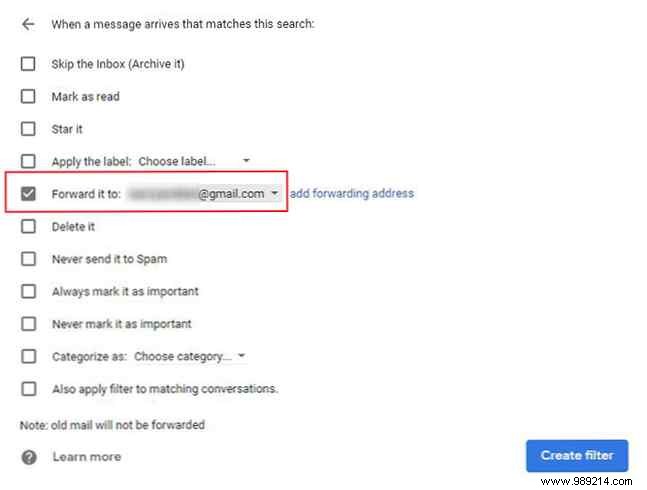
To stop, go to Settings > Filters and Blocked Addresses and delete the rule.
Explore more email automation: Send personalized bulk emails in Outlook with mail merge, Email from Google Sheets via Google Apps Script, or Set up auto-replies and scheduled emails in Mozilla Thunderbird.
