Blocking and unblocking contacts in Gmail is straightforward with just a few clicks. Blocked senders' emails go directly to your Spam folder without notifying them, helping you maintain a cleaner inbox.
How to Block a Contact in Gmail
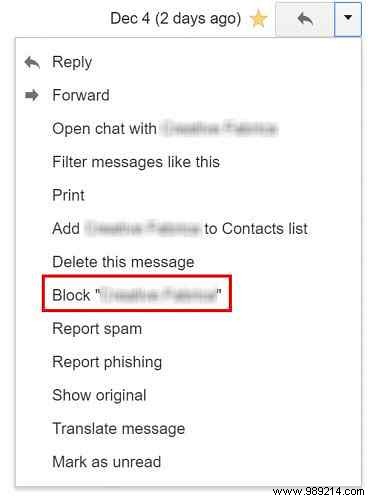
To block someone who's emailed you:
- Open the email from that contact.
- Click the three-dot menu next to the Reply button.
- Select Block "contact name".
- Confirm by clicking Block in the pop-up.
How to Unblock a Contact in Gmail
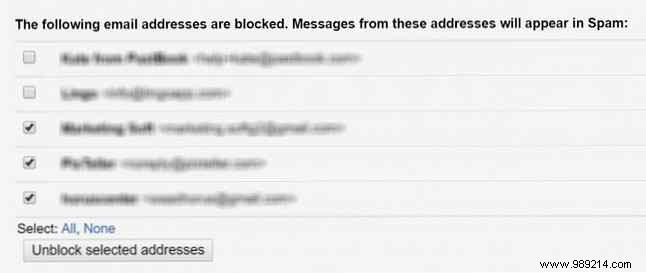
Changed your mind? Here's how to unblock:
- Click the gear icon to open Gmail settings.
- Go to the Filters and Blocked Addresses tab.
- Scroll to the list of blocked addresses at the bottom.
- Find the contact, click Unblock, or select multiple and choose Unblock selected addresses.
- Confirm by clicking Unblock in the pop-up.
How to Block All Emails from a Domain
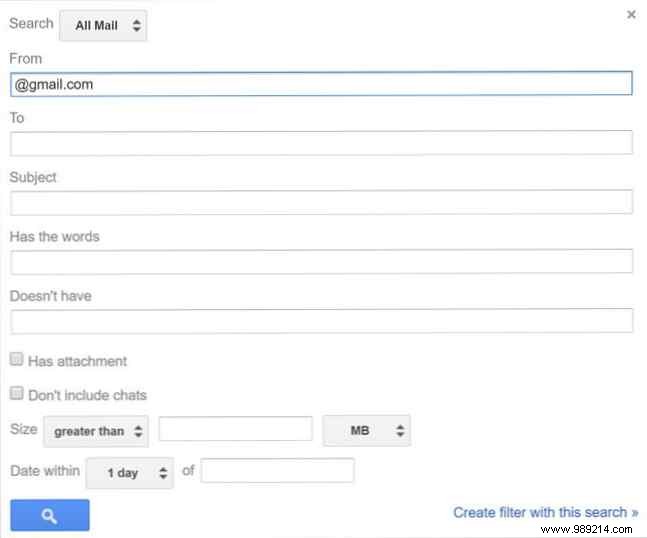
For broader protection, create a filter to block an entire domain. 4 Smart Gmail Filters That Help You Deal With Too Many Emails. Discover smarter ways to automate email sorting. Read More
- Click the gear icon to open Gmail settings.
- Go to the Filters and Blocked Addresses tab.
- Click Create a new filter.
- In the filter window, enter the domain in the From field (e.g., @gmail.com).
- Click Create filter with this search.
- Check Delete it from the options.
- Click Create filter.
What tips and tricks do you use to keep your Gmail inbox organized? Share in the comments below.
