Microsoft OneNote often flies under the radar at first glance, but seasoned users know its true power as a versatile task and project management tool. While Outlook's Tasks feature is excellent for quick overviews, combining it with OneNote elevates your workflow significantly.
Outlook Tasks shine for daily summaries with due dates, descriptions, priorities, and categories. Yet, their simplicity limits deeper organization. Why not leverage both? As someone who's relied on Microsoft Office for years, I've found their seamless integration transforms productivity.
In this guide, drawn from real-world experience managing multiple projects, I'll walk you through linking Outlook Tasks with OneNote to handle complex workloads effortlessly.
I've used Outlook Tasks for years as a go-to for at-a-glance action items. They're straightforward, but notes within tasks are basic—limited to simple text.
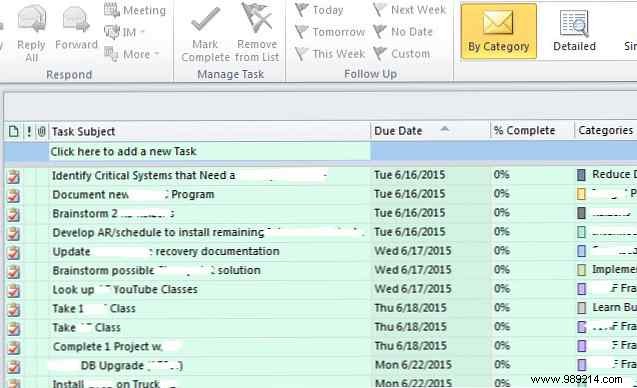
This simplicity hinders storing spreadsheets, documents, meeting notes, and more. You need a dedicated notebook per task or project, with tabs for easy access during reviews.
OneNote integrates smoothly with desktop Outlook (not Outlook.com). Go to File > Options.
Select Add-ins from the left menu.
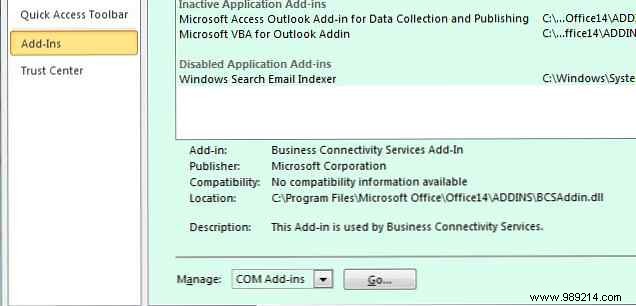
At the bottom, in Manage, choose COM Add-ins and click Go.
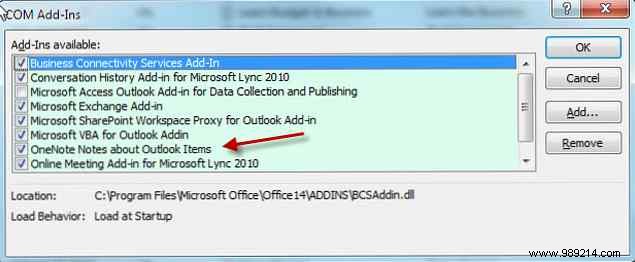
Check OneNote Notes on Outlook Items—assuming OneNote is installed (it's free with robust features)—then click OK.
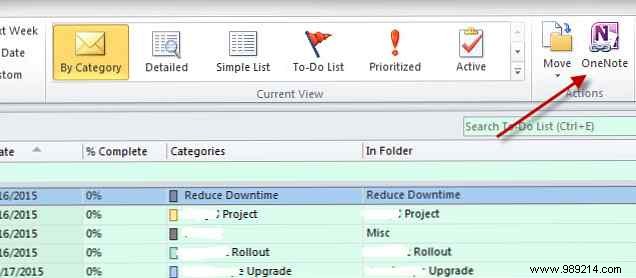
A "OneNote" icon now appears atop the Tasks view, unlocking greater productivity.
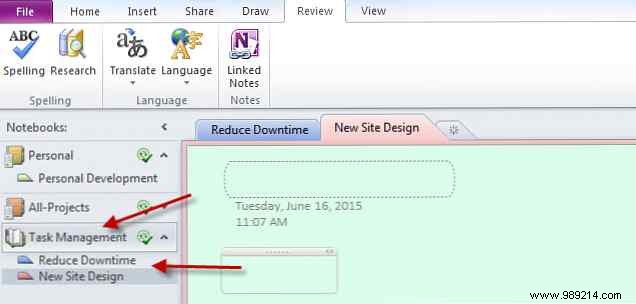
Open OneNote and create a Task Management notebook.
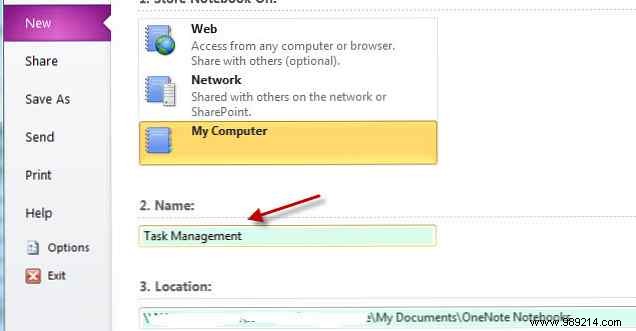
Add sections for each project. Outlook lists tasks in one long view with basic categories, which can overwhelm.
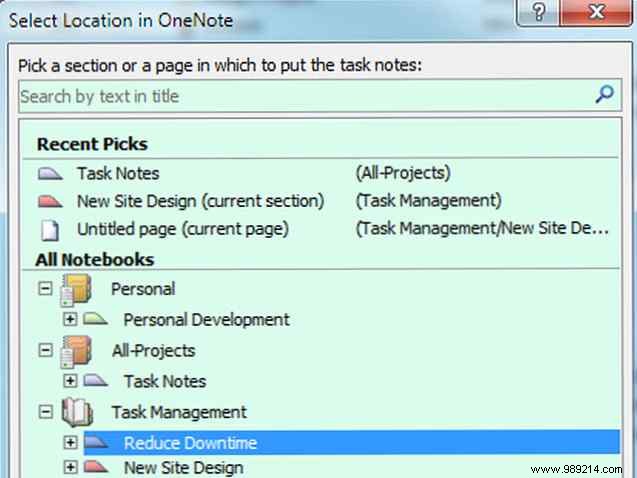
OneNote's sections provide clean visual project separation.
For new tasks from emails or assignments: create in Outlook Tasks, select it, and click the OneNote icon.
Choose the relevant project section. OneNote auto-creates a page with the task details.
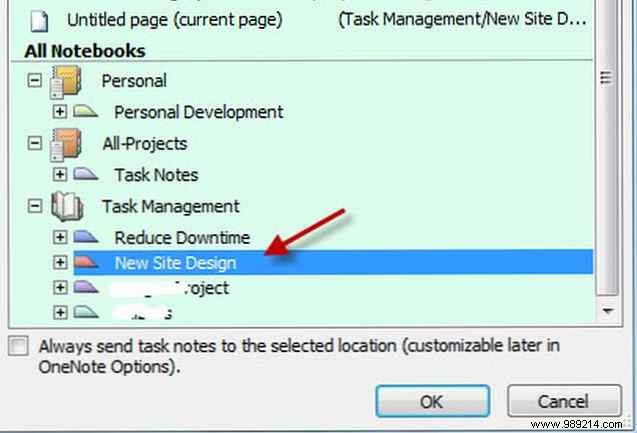
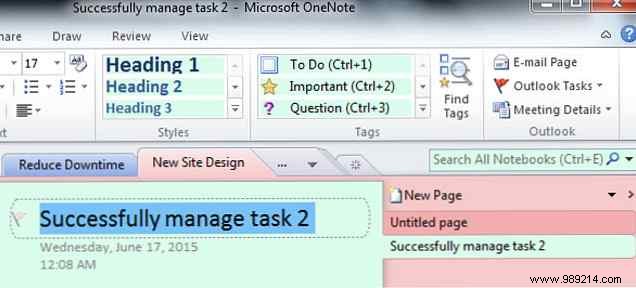
Sections = projects; pages = tasks. Focus on one project amid multiples without clutter.
Each OneNote page centralizes everything: tables, Excel embeds, files, clippings, images, audio, links—even sub-to-do lists.
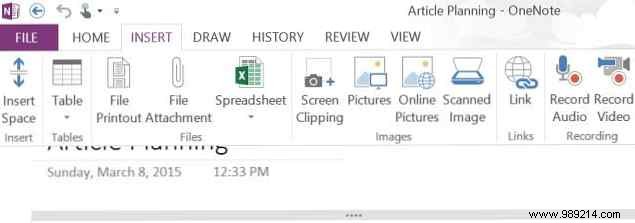
Link all resources here for instant access, streamlining your process. For advanced setups, explore Outlook-OneNote-Trello integrations too.
