As someone who's guided countless students and professionals through academic writing, I know bibliographies and citations are non-negotiable. Skip them, and you risk plagiarism accusations or failing grades.
Fortunately, Microsoft Word simplifies this with built-in tools for flawless, formatted bibliographies. Follow this proven step-by-step guide to master citations and bibliographies effortlessly.
Start by adding citations throughout your document where you reference sources.
Go to the References tab, then select Citations & Bibliography > Insert Citation > Add New Source.
In the dialog box, pick your source type (e.g., Book, Journal Article, Website, or Film) from the dropdown. Required fields adjust automatically based on the selection.
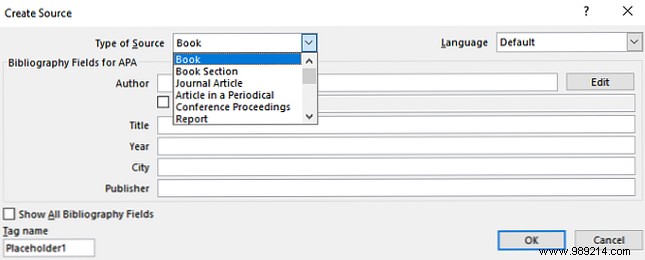
Enter as much detail as possible—author, title, year, publisher—for accurate results. Name the source for easy reuse later.
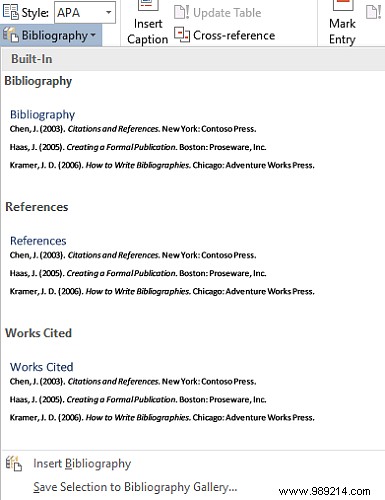
Once your document is complete, choose your citation style (APA, Chicago, Harvard, and more) from the Style dropdown.
Finally, click Bibliography > Insert Bibliography. Your sources appear perfectly formatted at the document's end.
For more Word mastery, explore these expert tips: 3 Microsoft Word Formatting Tricks You Should Know, 3 Useful Text Selection Tricks for Microsoft Word.
