As a seasoned Excel expert with years of optimizing workflows for professionals, I know how crucial efficiency is in spreadsheets. You've likely customized keyboard shortcuts to streamline tasks—simple tweaks like this one can shave hours off your routine.
By default, pressing Enter moves your selection down one cell. Prefer it to move right (or another direction)? It's a quick fix in Excel's settings that mimics data entry habits from other software.
Click File in the top-left corner, then select Options from the menu. In the Excel Options dialog, go to the Advanced tab on the left.
Scroll to the Editing options section. Check the box for After pressing Enter, move selection, then change the direction dropdown from Down to Right.
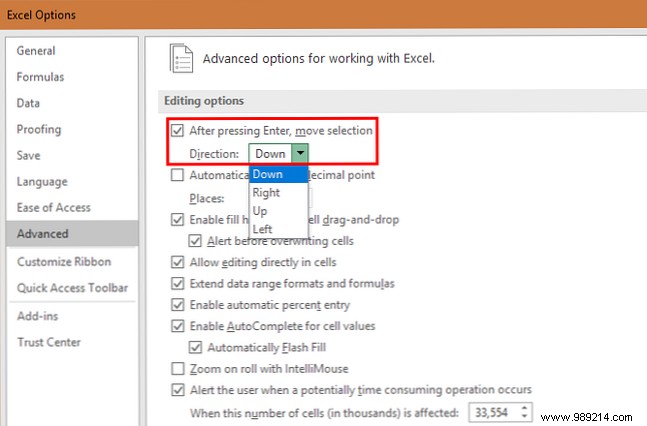
You can also set it to Up or Left for your preferred flow. Uncheck the box entirely to disable Enter's movement, keeping your cursor in place.
Click OK, and the change applies instantly—no restart needed. For more productivity boosters, explore our guides on 14 Tips to Save Time in Microsoft Excel or 10 Easy Excel Timesavers You Might Have Forgotten.
Which direction do you prefer for Enter? Share in the comments!
